Ostinato
Play your backing tracks with a stage screen made for live shows: your sets planned to the curfew, big keys you can hit in the dark, lyrics and chords that follow the song, a click in your ears, and a remote on your wrist.
For iPhone and iPad with iOS 17 or later, Mac with macOS 14 or later, and Apple Watch with watchOS 10 or later.
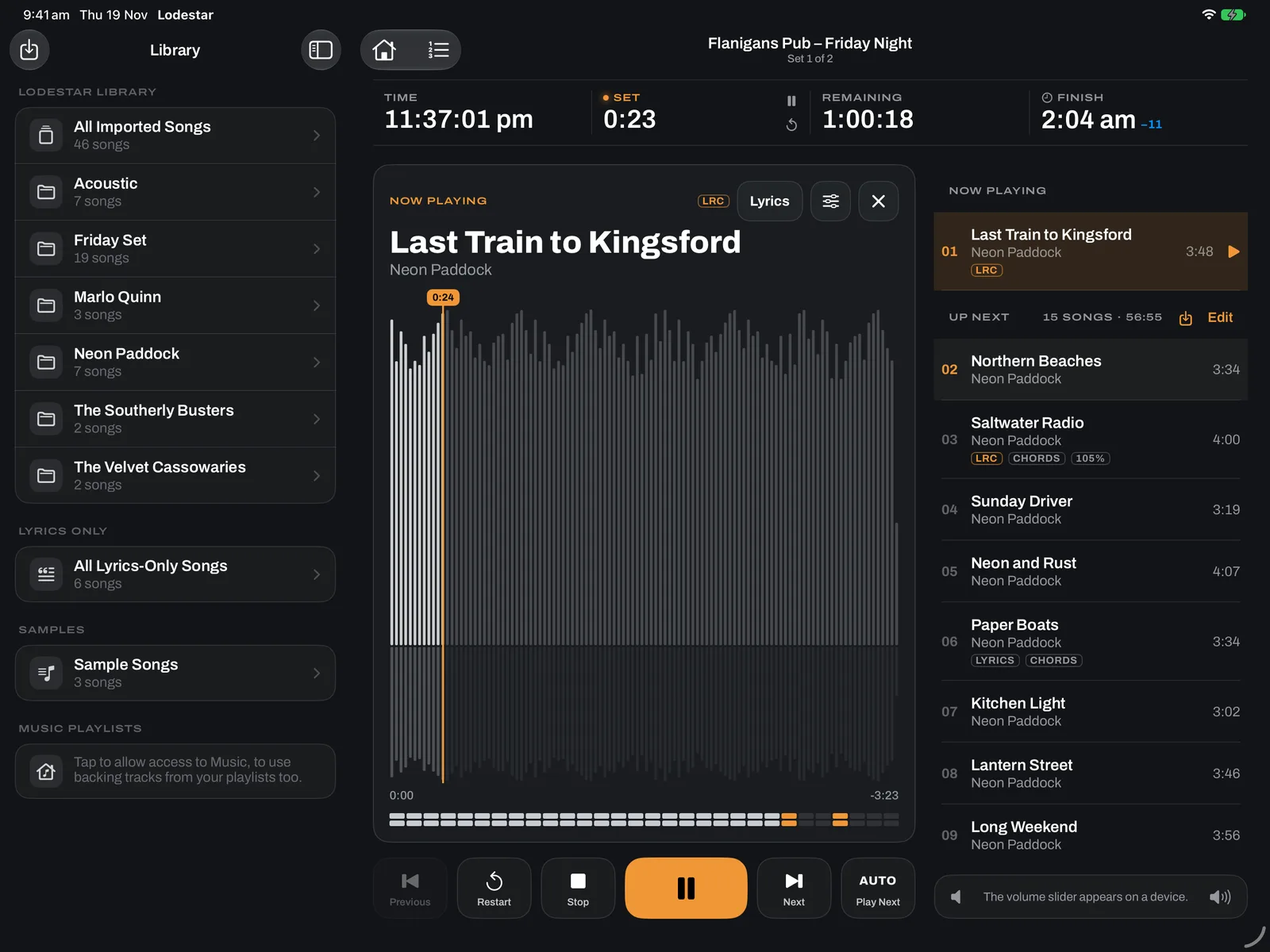
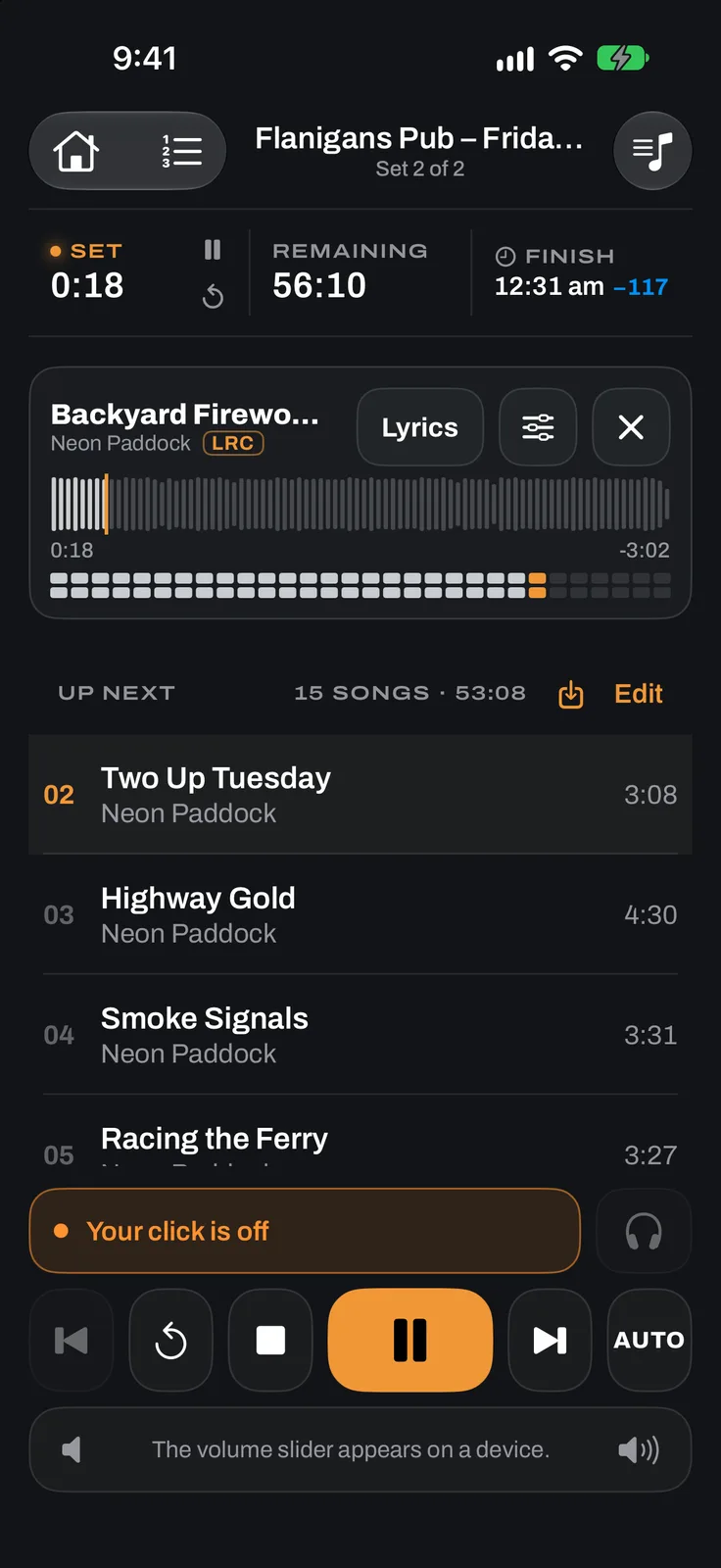
Everything on one screen, nothing you don't need
Ostinato turns your iPhone, iPad or Mac into a dedicated backing-track player. Pick a song, hit Play, and keep your eyes on the audience.
On the Fly, Quick Set or Play a Show
Keep one song up next and choose as you go, build a setlist as you play, or perform a set you planned.
Waveform scrubbing
The song's waveform is the position control. Drag or tap anywhere on it to jump to that point.
Set timer
The clock, how long you've been on, and how long the rest of the set will take, always in view.
Level meter
A stereo LED meter shows the track's level as it reaches the speakers, so you know it's playing.
Tap Twice to Confirm
Turn it on and every transport key needs a second tap, so a stray finger never ends a song mid-chorus.
iPhone, iPad and Mac
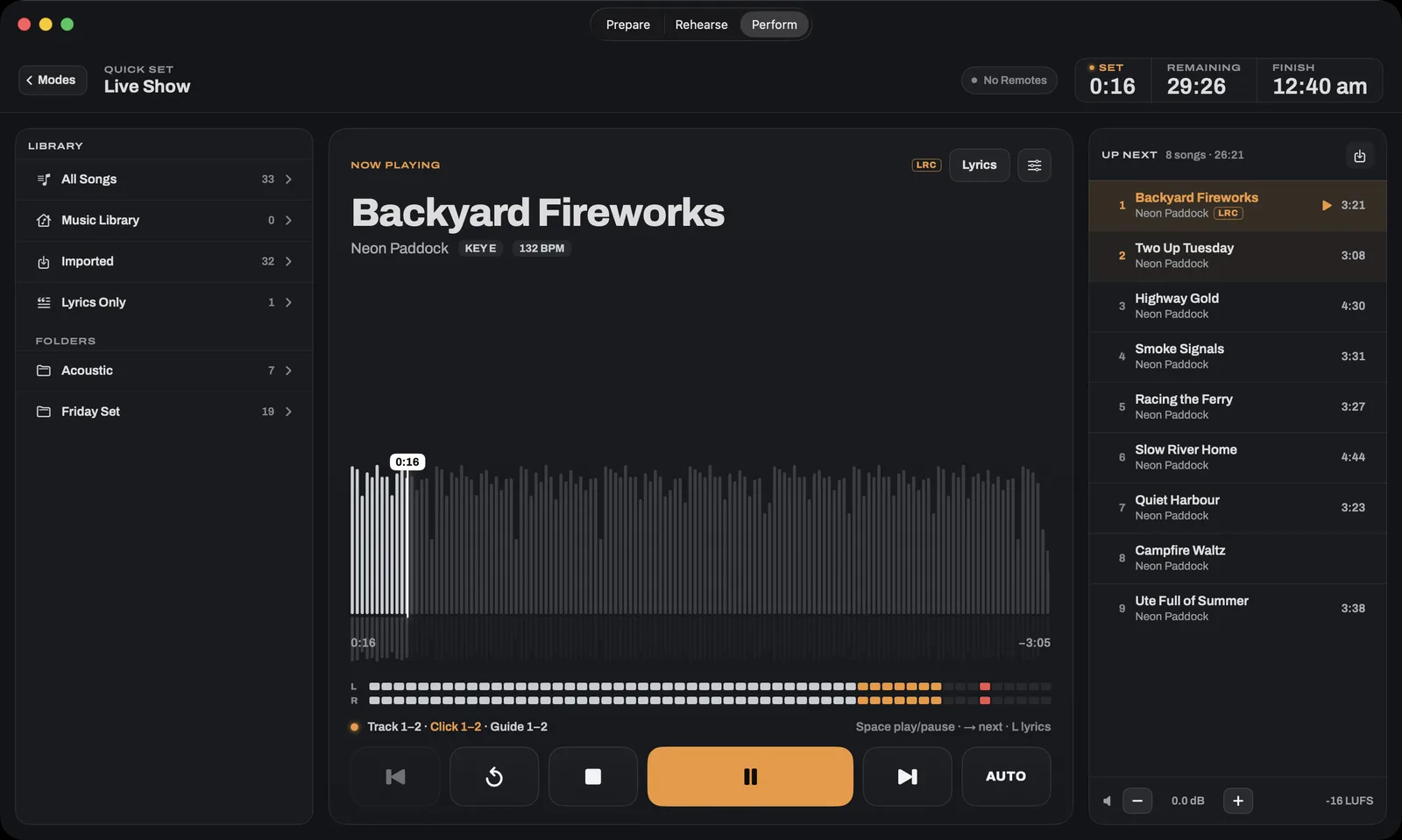
On iPad the library sits beside the stage. On iPhone it slides up when you need it. On the Mac, the library sits on the left of the stage and Up Next on the right.
Your files or Music
Import MP3, M4A, WAV and FLAC files, or whole folders, or play from your Music playlists. Use both in one show.
One library, every device
Songs, lyrics, charts and sets live in iCloud Drive, so the show you plan on the Mac is ready on your iPad.
Shows and sets
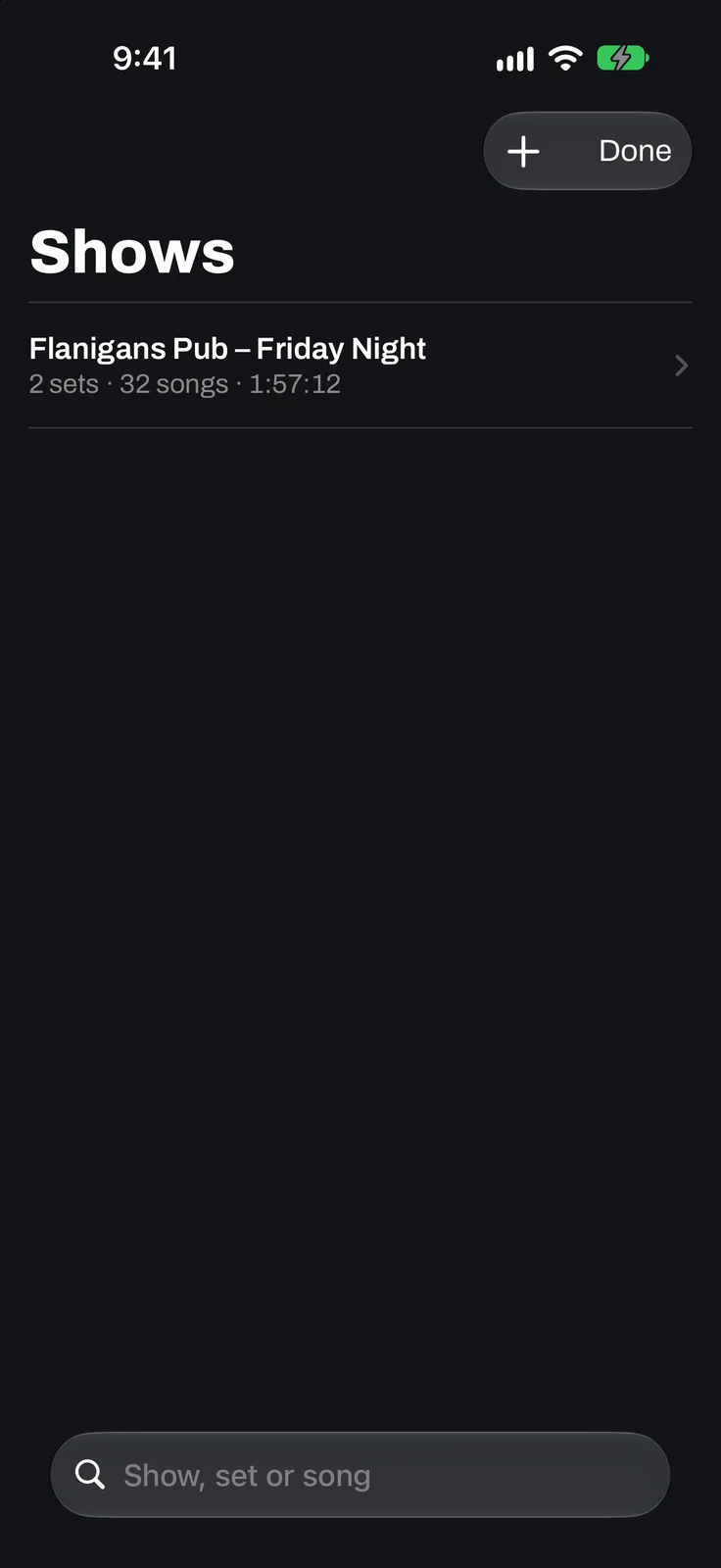
Plan each gig as a show with its sets, breaks and notes. Save tonight's changes, or any setlist, as a set.
Curfew planner
Set the start time and curfew. See when you'll finish, get warned if you're running late, and Make It Fit.
Gig report
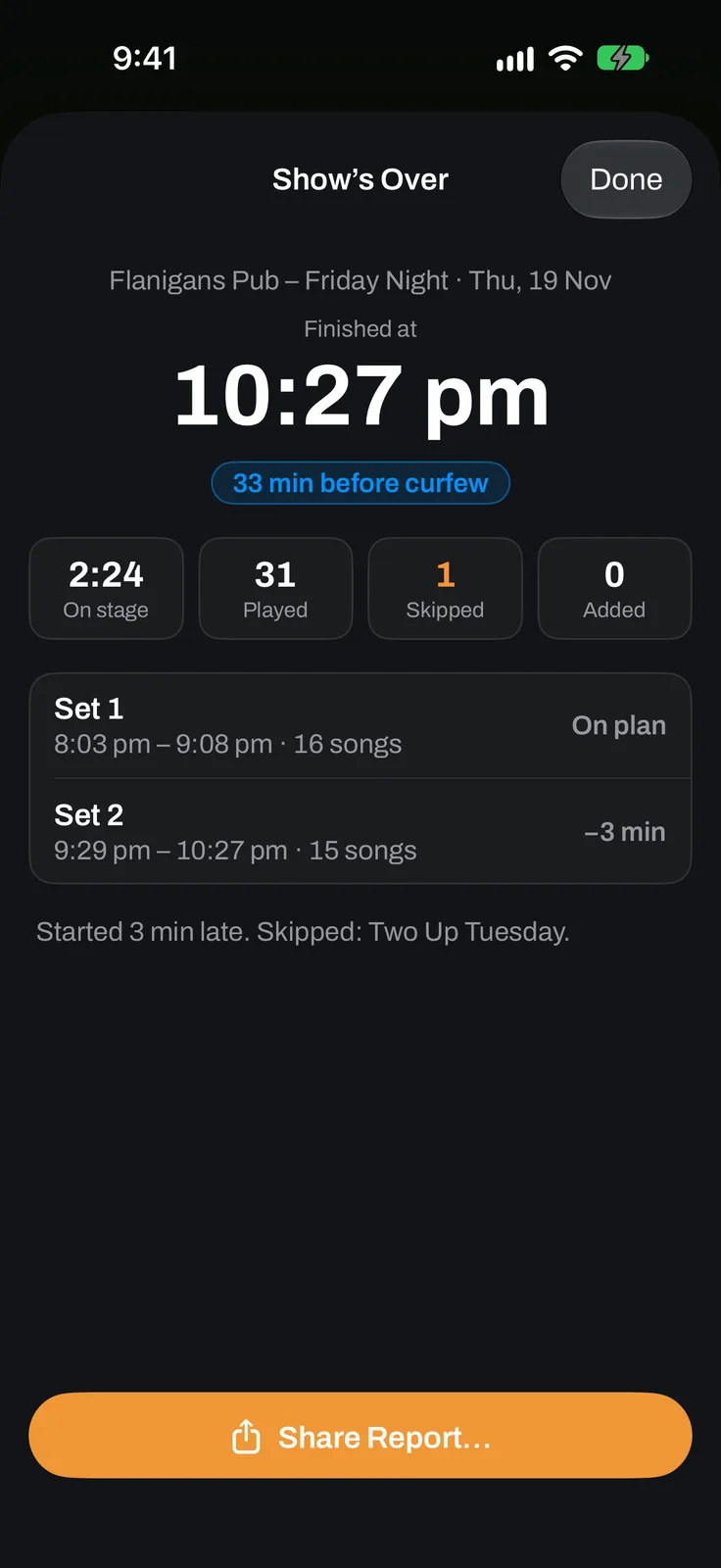
When the show's over, see what you played, skipped and added, then share it as a PDF or text.
Key, tempo and sound
Change a song's key or tempo without the other, and set its gain, fades and end point.
Click and guide
Pair a click and guide with any song and send them to your in-ears on their own interface outputs.
Pedals and keyboard
Run the show with a Bluetooth page-turner pedal. Tap or hold each pedal, with safeguards against stray presses.
Siri and Shortcuts
Start a show, skip a song or ask what's next by voice, from Control Center, or with the Action button.
Remote control
Any iPhone, iPad or Mac can host the show while your other devices run it from across the stage, paired once with a code.
Big keys, clear status, no surprises
- A wide Play/Pause key in the middle, with Back to Start, Stop, Next Song and Auto-Play Next around it.
- Buttons that wouldn't do anything right now are greyed out, so you can see at a glance what will happen.
- Auto-Play Next carries the show from one song to the next without a tap.
- A Finish readout shows when the show will end, and turns red if you're heading past the curfew.
- A routing strip shows where the track and click are playing, with a cue mute.
- Light and dark appearances, with an orange glow that brightens while music plays.
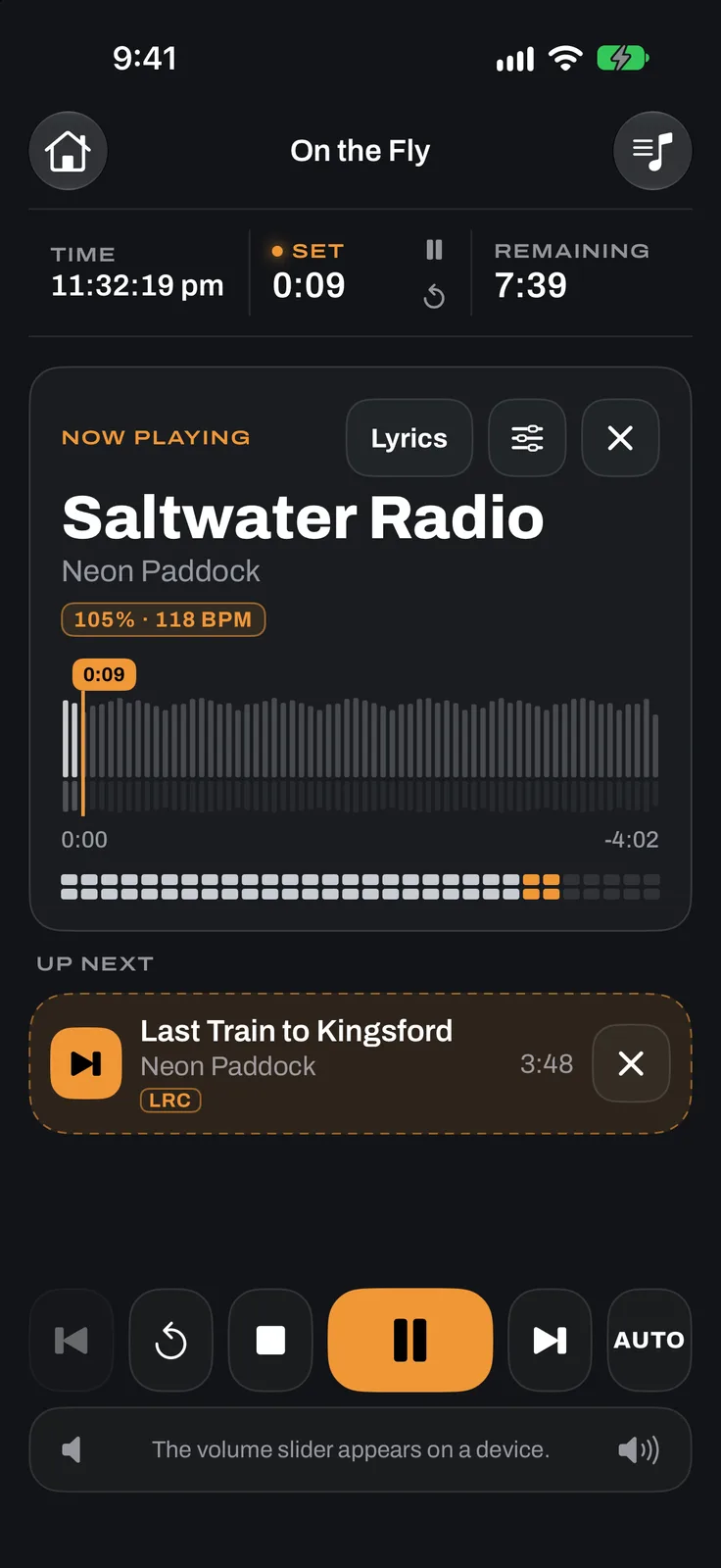
Lyrics and chords that follow the song LRC
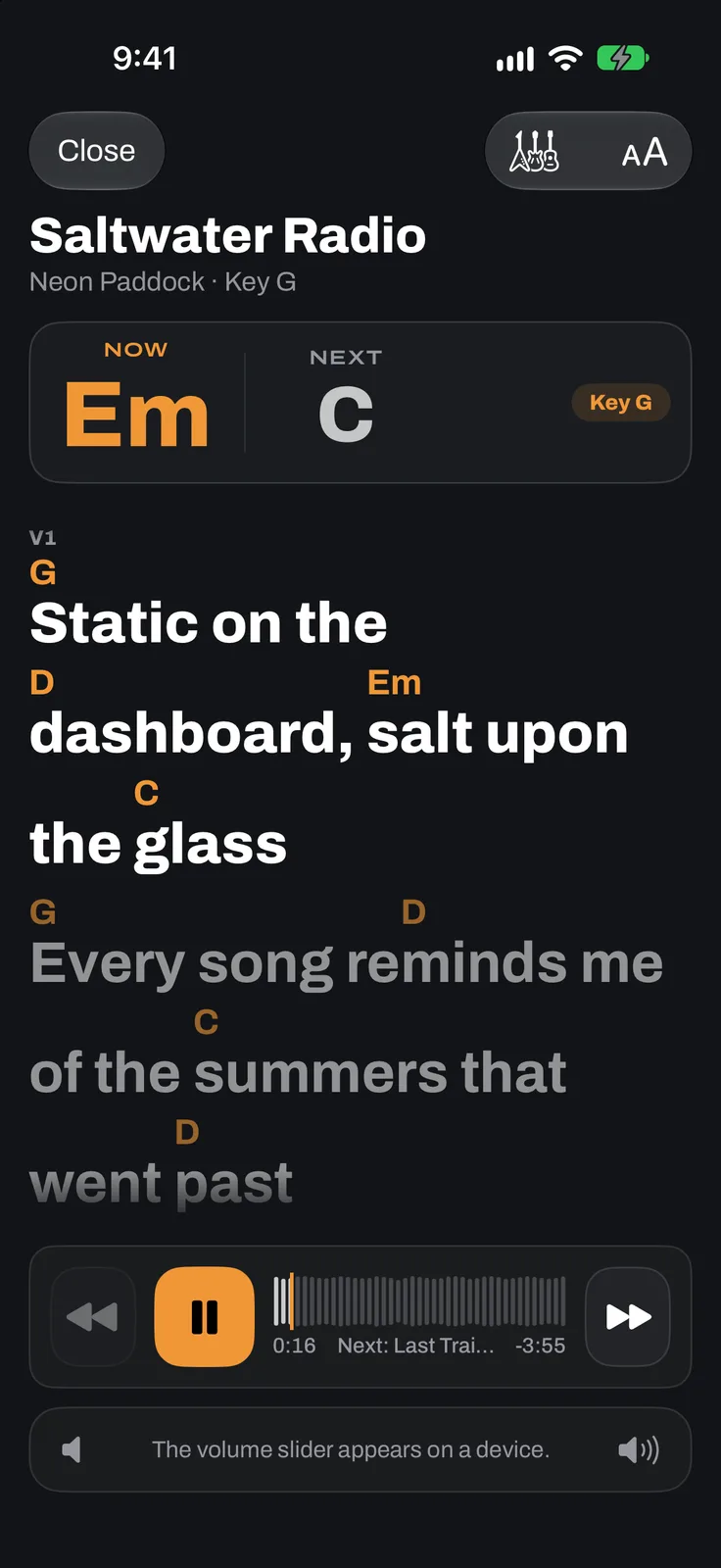
Synced lyrics highlight the line you're singing and scroll with the music. Add a chord chart and the chords sit over the words.
- Import .lrc files and ChordPro, chords-over-words or PDF charts, matched to your songs automatically, or share a page straight from Safari.
- No LRC file? Tap along with the song, or a pedal, to time each line yourself, at full or slowed-down speed.
- Chords transpose with the song's key, with capo shapes and your choice of sharps or flats.
- PDF charts turn their own pages, or turn where you've marked.
- Words on the singer's iPhone, chords on the guitarist's iPad: each device shows what you choose.
- Lyrics-only songs show the words for numbers with no backing track.
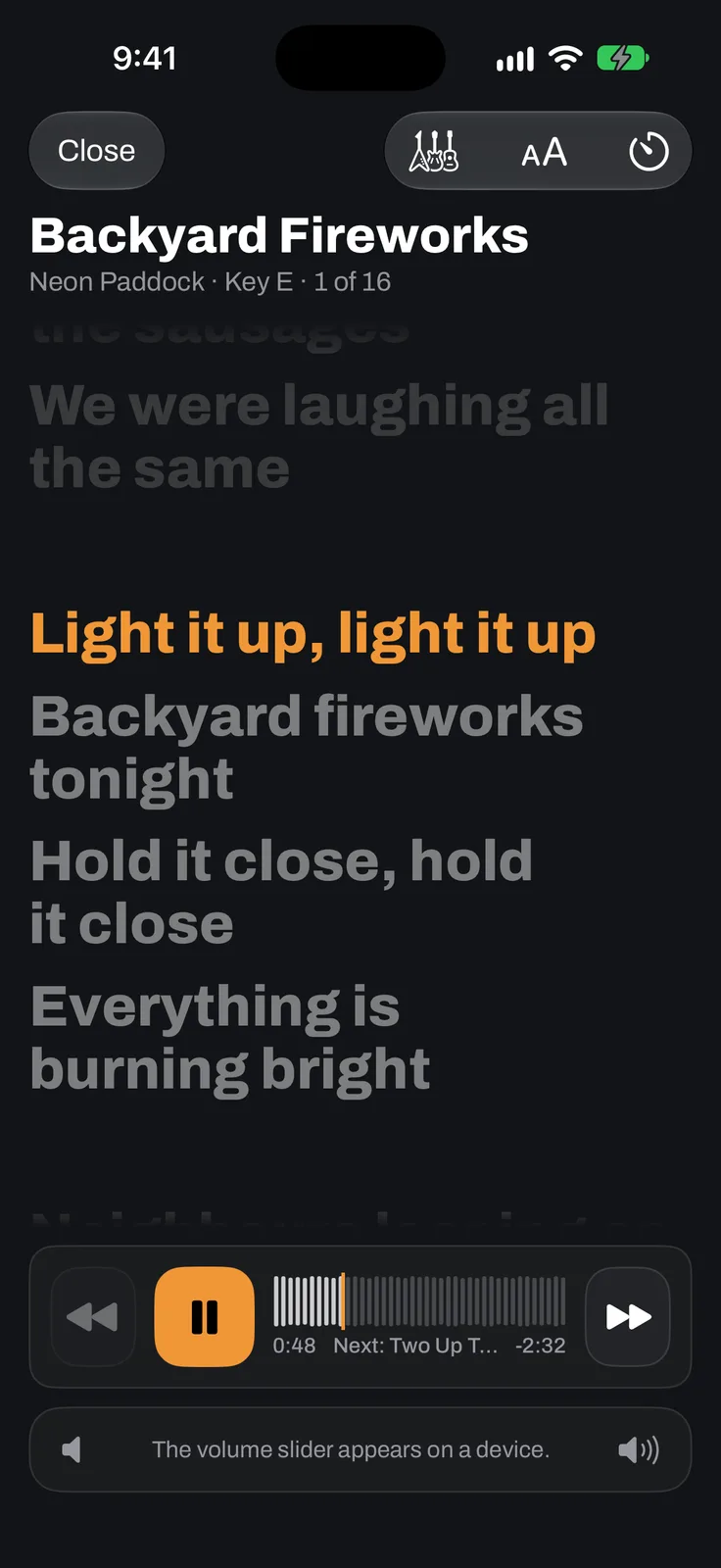
Plan the gig, then play it
A show is a night's work, such as Flanigans Pub – Friday Night, with its sets, breaks and notes. Plan it on any device and it's ready on all of them.
- Give the show a start time and curfew, and see when you'll finish. Make It Fit suggests what to drop, starting with the songs you marked Drop First and never touching the ones you Keep.
- On stage, the Finish readout follows the night as it happens. Heading past the curfew, a banner says by how much, Review picks the songs to skip, and your Watch shows it too.
- Swapped songs mid-set? Update the set, save it as a new one, or keep it as it was. Every setlist you play is kept, ready to play again.
- When the last song ends, the gig report shows what you played, skipped and added. Share it as a PDF or text.
Prepare on the big screen. Play from it too.
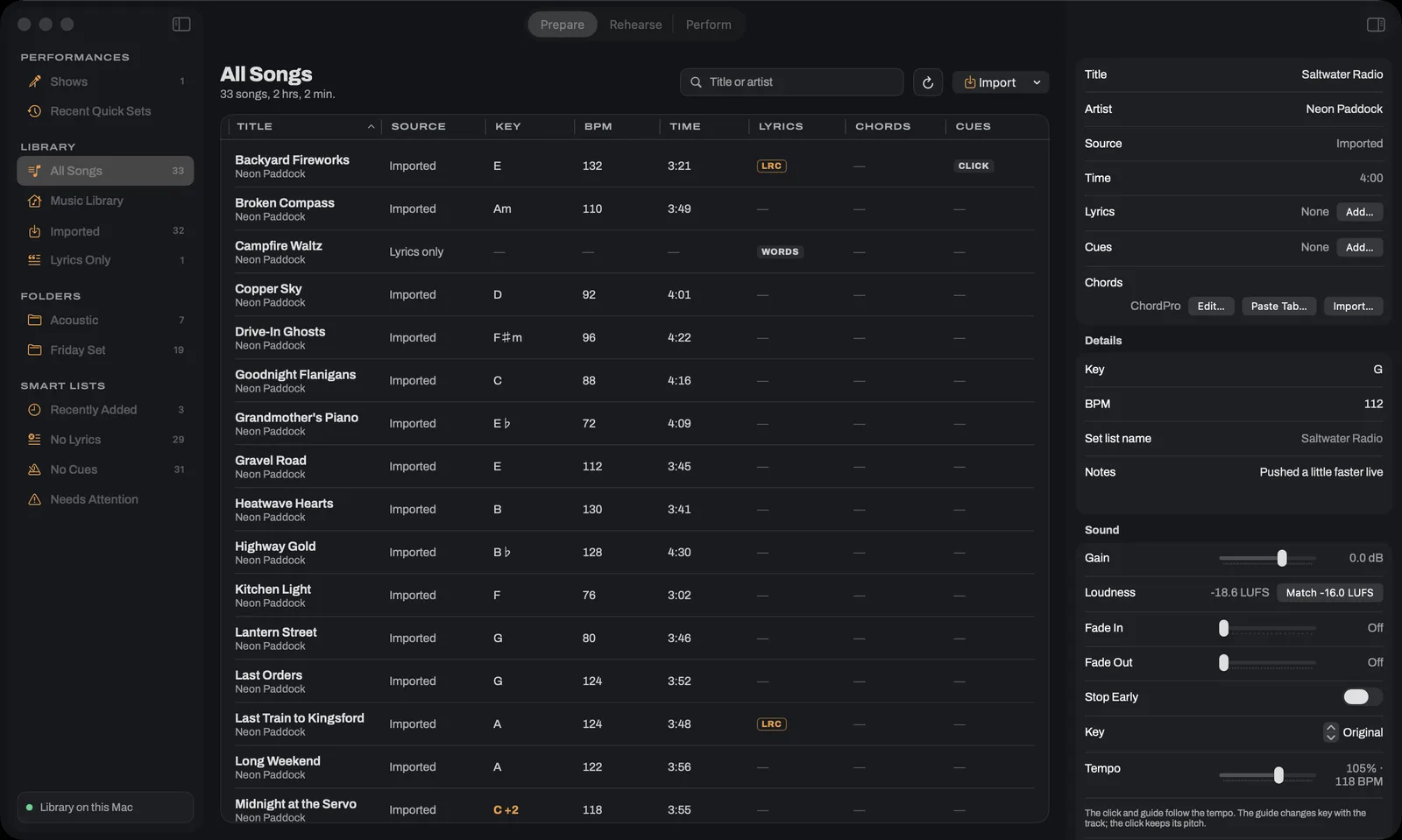
The Mac app shares your library with your iPhone and iPad, so everything you set up there is ready on stage, and it can run the show itself.
Prepare
A song table with every tag at a glance, smart lists for songs missing lyrics or cues, an inspector for lyrics, cues, charts and sound, and a chord calculator for writing charts. Drop a folder into Songs in the Finder and it's a list on every device.
Perform
On the Fly, Quick Set or Play a Show, with your library on the left, the stage in the middle and Up Next on the right. Songs only in iCloud download in running order, the one playing now first.
Matched loudness
Measure every song and match them to your own target, so no track jumps out of the mix.
Second display
AirPlay to a TV or plug in a monitor for synced lyrics or chords on stage, while the audio stays on your interface.
Ready for the show
Before doors open, see at a glance that your interface, remotes and second display are connected, and a gig check for every set finds missing audio, lyrics and cues.
iPhone and iPad remotes
Pair with a 6-digit code and run the Mac's show from across the stage: transport, songs, sets, lyrics and charts, on as many remotes as you like.
Backup in one file
Back up the whole library as one zip, on the Mac or iPhone, and restore it on either.
Run the show from your wrist
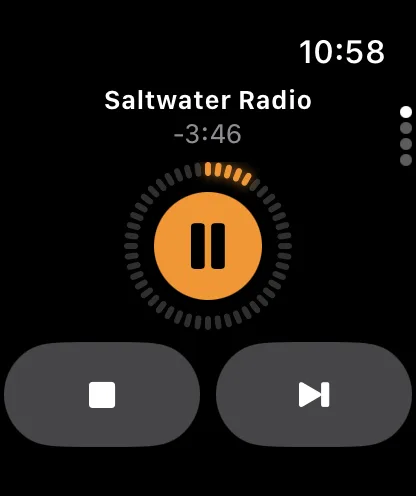
The Watch app is a remote for Ostinato on your iPhone, or for another device your iPhone controls. The phone or Mac keeps playing the audio.
- See the song, the time left and a progress ring around Play/Pause.
- Stop, skip to the next song, and switch Auto-Play Next on or off.
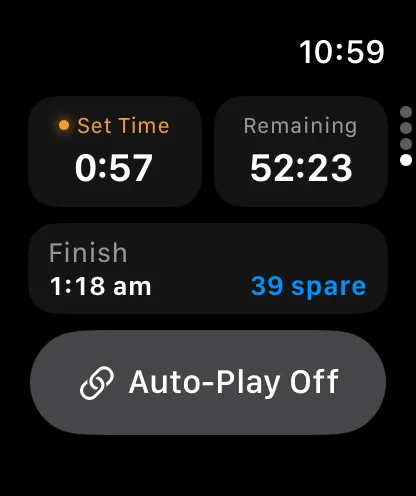
- Check what's up next, how long the set has left, and when you'll finish.
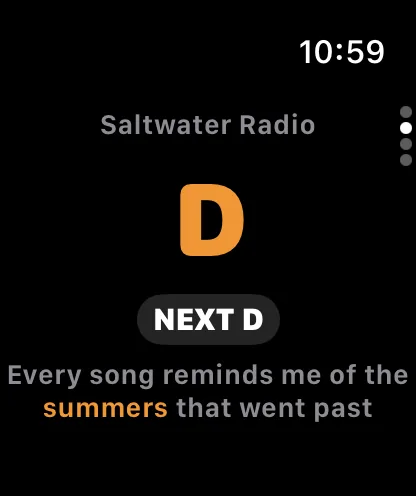
- A Chords screen shows the current chord big, the next one, and the line you're singing.
- On Apple Watch Series 9, Ultra 2 and later, double tap your fingers to play or pause.
Learn it before the soundcheck
The manual covers every screen and setting on iPhone, iPad, Mac and Apple Watch, from your first setlist to chord charts, in-ear clicks and the curfew planner.
Open the User Manual