Syncing lyrics yourself
No LRC file? Time the lyrics yourself. Play the song and tap as each line starts. It takes about as long as the song, and you can slow the song down for tricky parts.
Why use it: Plenty of songs, especially originals and covers in your own arrangement, have no LRC file anywhere. Syncing one yourself takes about as long as listening to it.
Touch and hold a song in the library or a set and choose Sync Lyrics… The editor has three steps, shown at the top: 1 Words, 2 Tap and 3 Preview. You can move between them at any time.
| Button | What it does |
|---|---|
| Cancel | Closes the editor. If you've timed lines, it asks before discarding them. |
| Next | Goes to the next step. |
| Share LRC | Shares the lyrics with their times as an .lrc file, at any point. |
The editor plays the song by itself. If the stage is playing, the app asks to pause the show first.
1 · Words
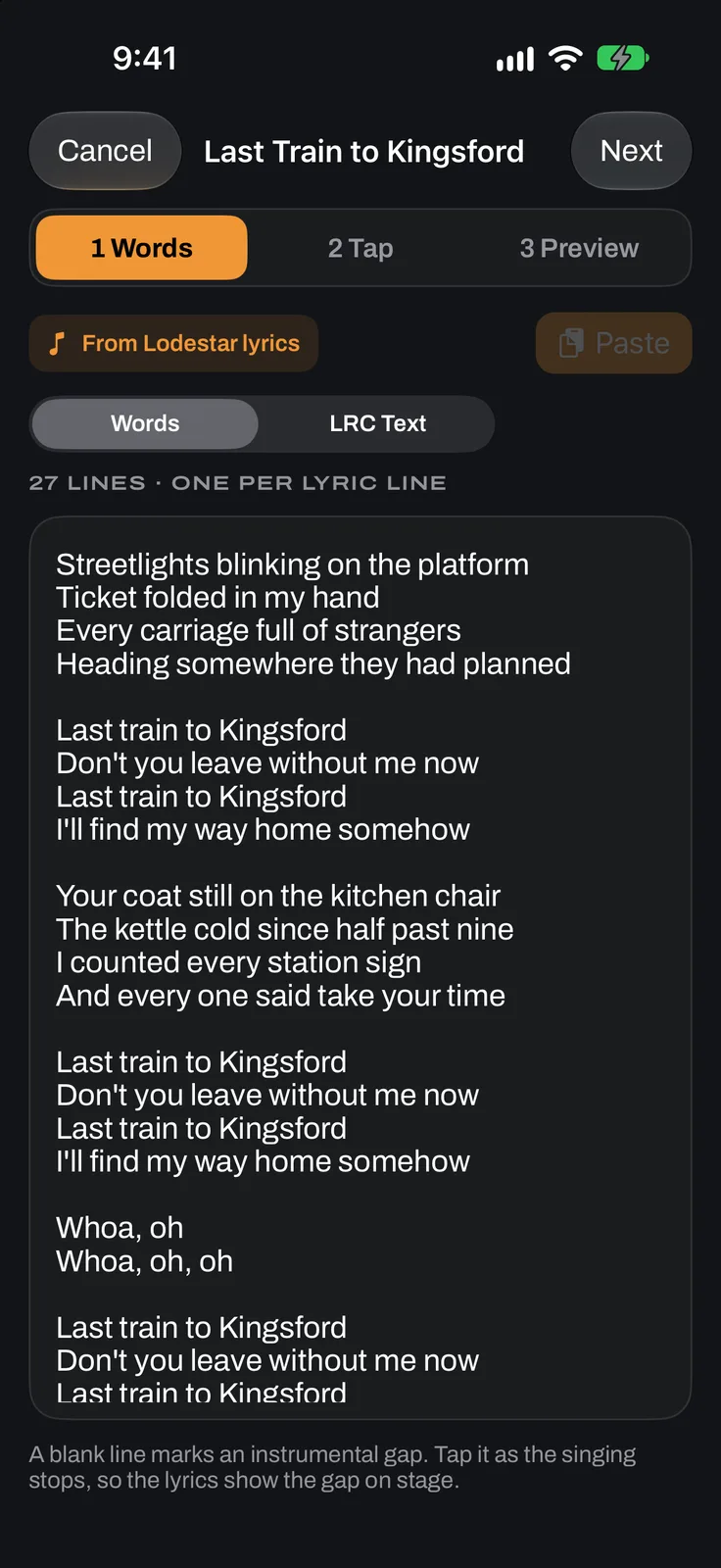
The editor starts with the song's lyrics from Music or Ostinato, or the words from a file you just imported. Edit them so there's one line of text for each line that's sung. Use Paste to bring in words copied from elsewhere.
Leave a blank line to mark an instrumental gap. When you tap it later, the lyrics on stage clear during the break, instead of leaving the last line showing.
To edit the times by hand, switch from Words to LRC Text at the top. Your edits carry into the Tap and Preview steps.
If the lyrics are already synced, the editor opens at the Tap step, ready for fixes.
2 · Tap
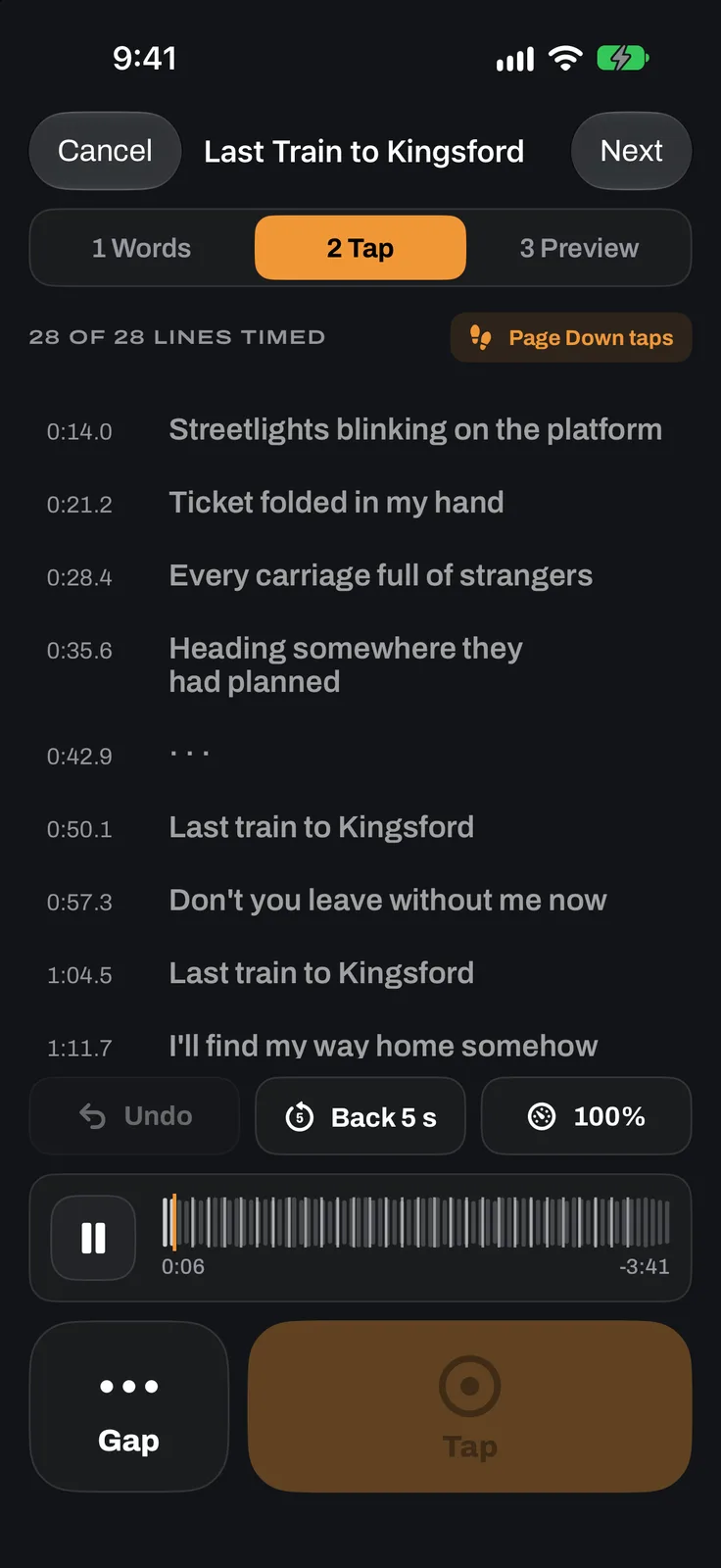
- Press Play to Start Tapping.
- Press Tap as each line starts. Press Gap as the singing stops before an instrumental break.
- Keep going to the end. The count at the top shows how many lines are timed.
| Control | What it does |
|---|---|
| Undo | Takes back the last tap and jumps back a few seconds, so you can tap the line again. |
| Back 5 s | Goes back five seconds and takes back the taps in those five seconds, so you can tap them again. |
| Speed | Plays at 100%, 75% or 50% without changing the pitch. Taps are still timed against the real song. |
| Waveform | Drag along it to move through the song. Marks on it show where each timed line starts. |
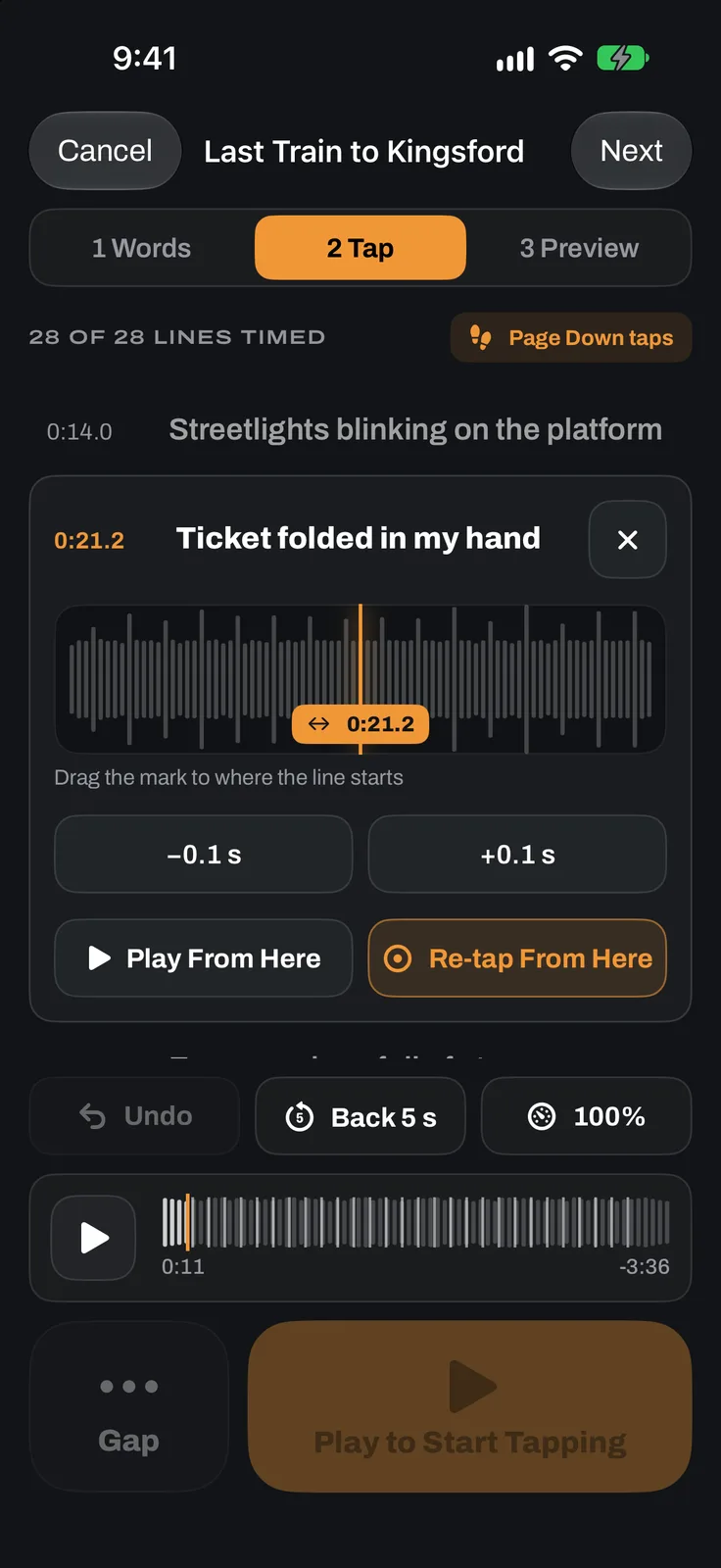
Tap any line in the list to fix it:
- −0.1 s and +0.1 s move it a tenth of a second earlier or later.
- On the zoomed waveform, drag the mark to where the line starts.
- Play From Here plays from just before the line, to check it.
- Re-tap From Here goes back to just before the line, so the next taps time it and the lines after it again.
A line can never be timed earlier than the line above it, so your lyrics always stay in order.
On iPad
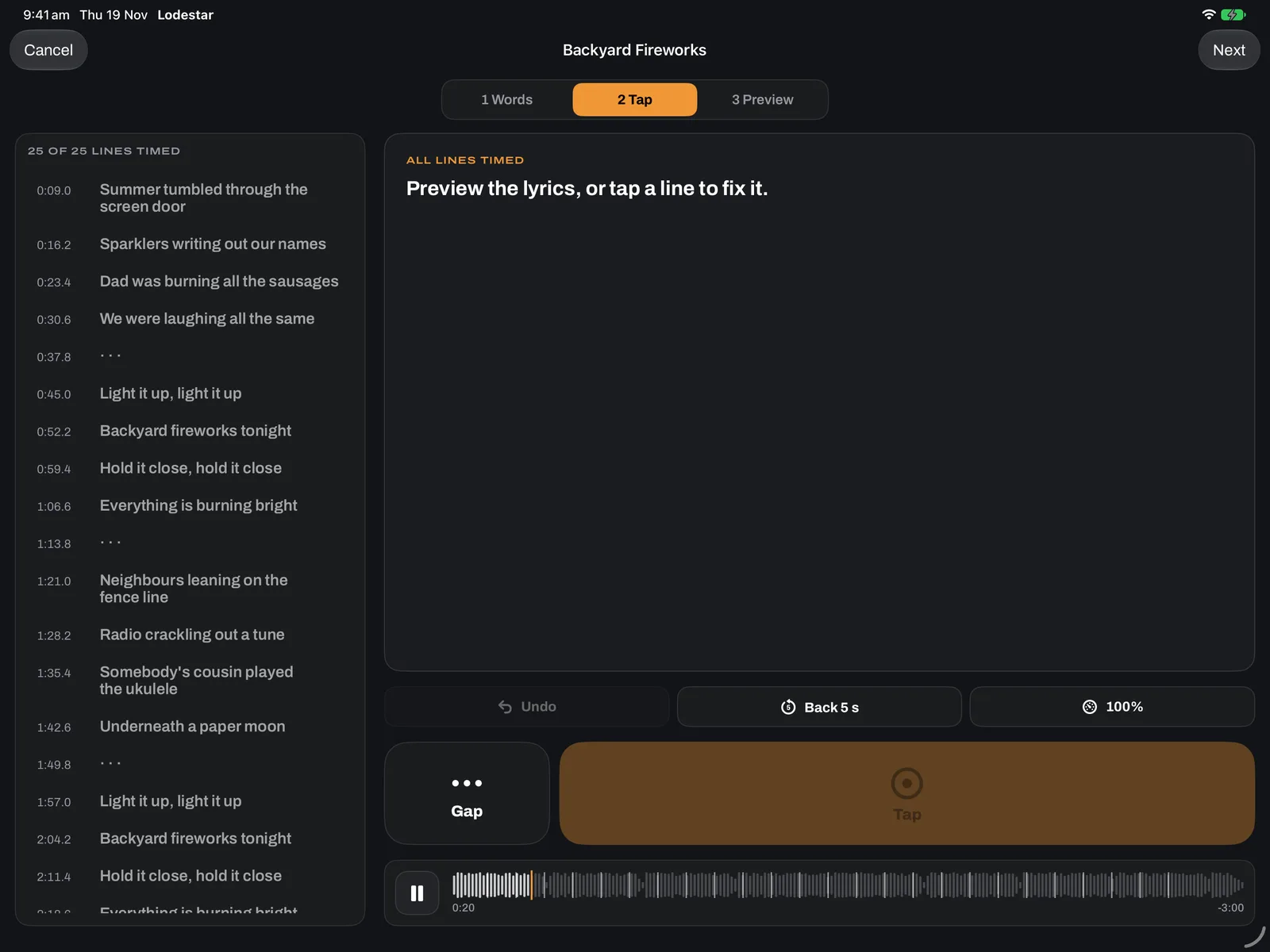
With a keyboard attached, a strip along the bottom lists the keys:
| Key | What it does |
|---|---|
| Space | Tap the next line. |
| Return | Mark a gap. |
| Left Arrow | Back 5 s and redo. |
| P | Play or pause. |
| Command-Z | Undo the last tap. |
Tapping with a pedal
A Bluetooth pedal works in the editor too, using your pedal layout: the pedal you use for Play/Pause taps the next line, Next Song marks a gap, and Back to Start goes back five seconds.
3 · Preview
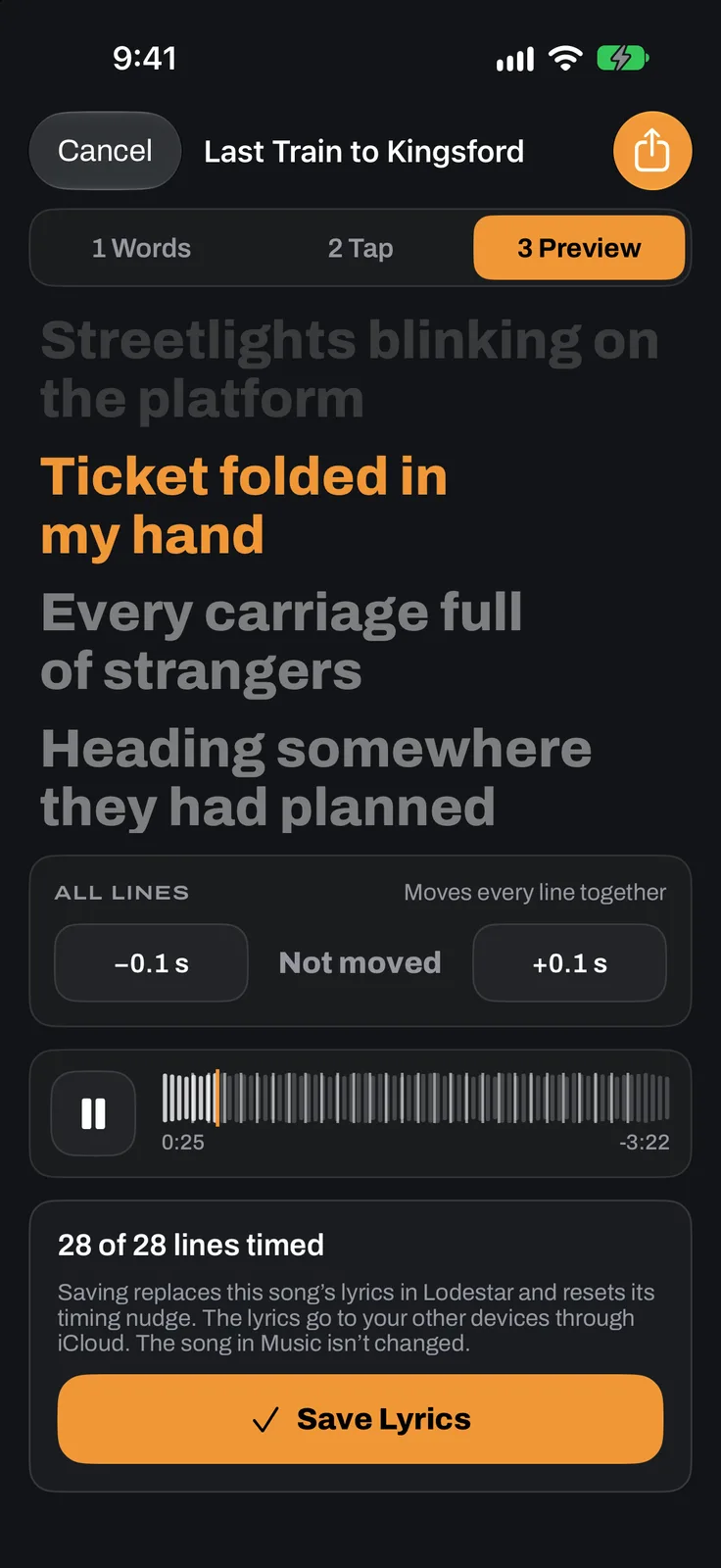
Play the song to see the lyrics follow it, just as they will on stage. Tap a line to fix it, just as in the Tap step. If every line is a little early or late, use All Lines to move them all together a tenth of a second at a time. When you're happy, tap Save Lyrics. More than half the lines need times before you can save.
Saving replaces the song's lyrics in Ostinato, resets the song's timing nudge, and shares the lyrics with your other devices through iCloud. Use Share LRC to send the result as an .lrc file.
Syncing on the Mac
On the Mac, open a song's lyrics from the inspector and click Tap to Sync. It works the same way, with Space to time a line and Return to mark a gap. See Mac: preparing songs.
Tips for accurate timing
- Tap on the first sung word, not the breath before it.
- Slow fast songs down to 75% or 50%.
- Taps are moved slightly earlier to allow for your reaction time. Measure your own with Measure Tap Delay…
- If you make a mistake, keep going and fix the line afterwards. It's quicker than starting again.