Curfew and gig report
Give a show a start time and the venue's curfew, and Ostinato tells you when you'll finish, before the gig and while you play. Afterwards, the gig report shows how the night went.
Why use it: Venues cut the power, or stop paying, at the curfew. Knowing an hour ahead that you're running eight minutes over lets you drop a song calmly, instead of being cut off mid-chorus.
Show timing
Open a show and tap Add (+) › Show Timing…
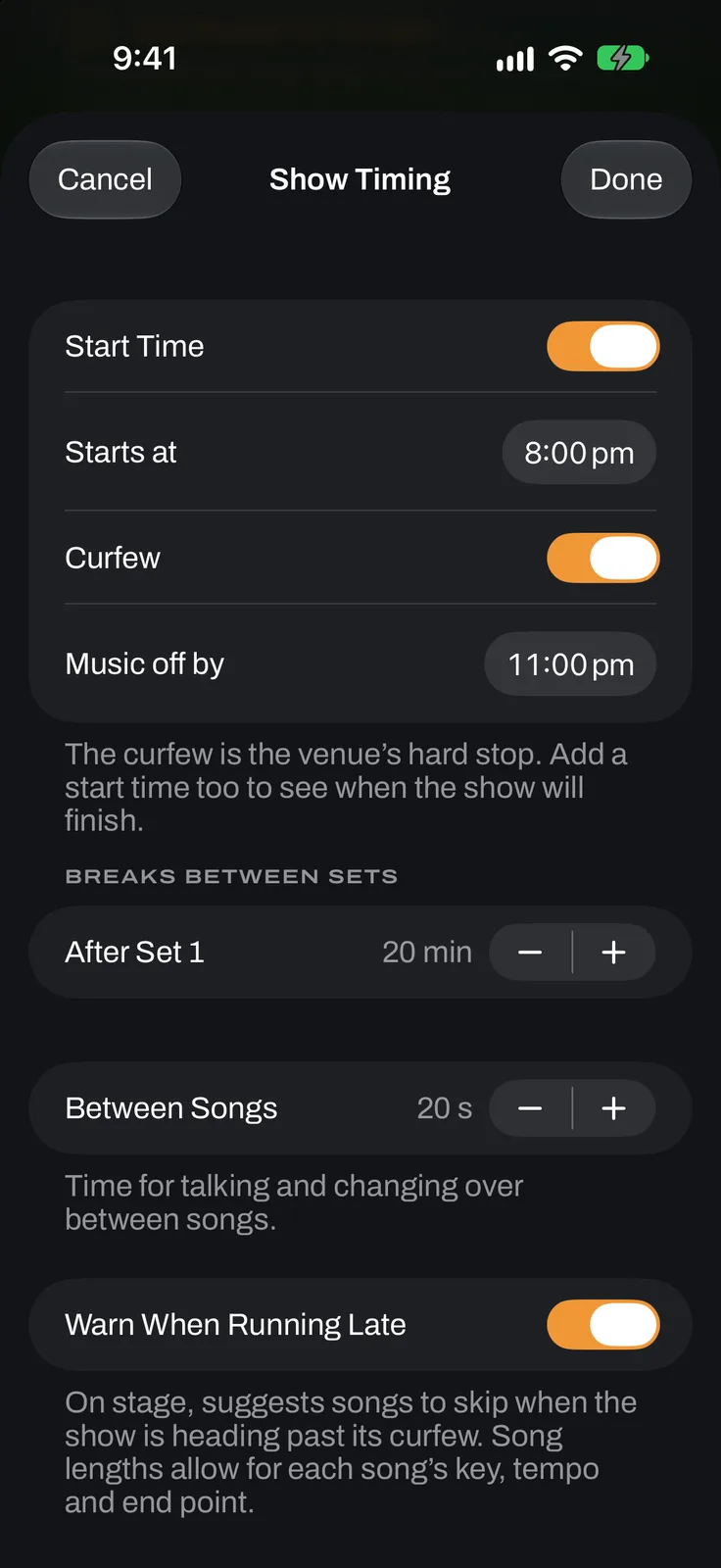
| Setting | What it's for |
|---|---|
| Start Time | Turn it on, then set Starts at to when the first set starts. Needed to work out the finish. |
| Curfew | Turn it on, then set Music off by to the venue's hard stop. |
| Breaks Between Sets | How long each break is, one row after each set except the last. |
| Between Songs | Seconds for talking and changing over between songs. It starts at 20 seconds. Raise it if you chat a lot, so the finish time stays honest. |
| Warn When Running Late | On stage, warns you and suggests songs to skip when the show is heading past its curfew. |
Tap Done to save, or Cancel. The show then shows:
| Readout | Meaning |
|---|---|
| Start, Curfew, Finishes | The planned finish turns red when it's past the curfew. A pill says 8 min over, 2 min spare or On time. |
| Length | The whole show, including the gaps between songs and the breaks. |
| Timeline | Each set and break as a bar, with the curfew marked. |
Song lengths allow for each song's key, tempo and end point, so a song played faster really does save time.
Make It Fit
Why use it: Picks the songs to drop for you, starting with the ones you've said you can live without, so you don't have to work it out under pressure.
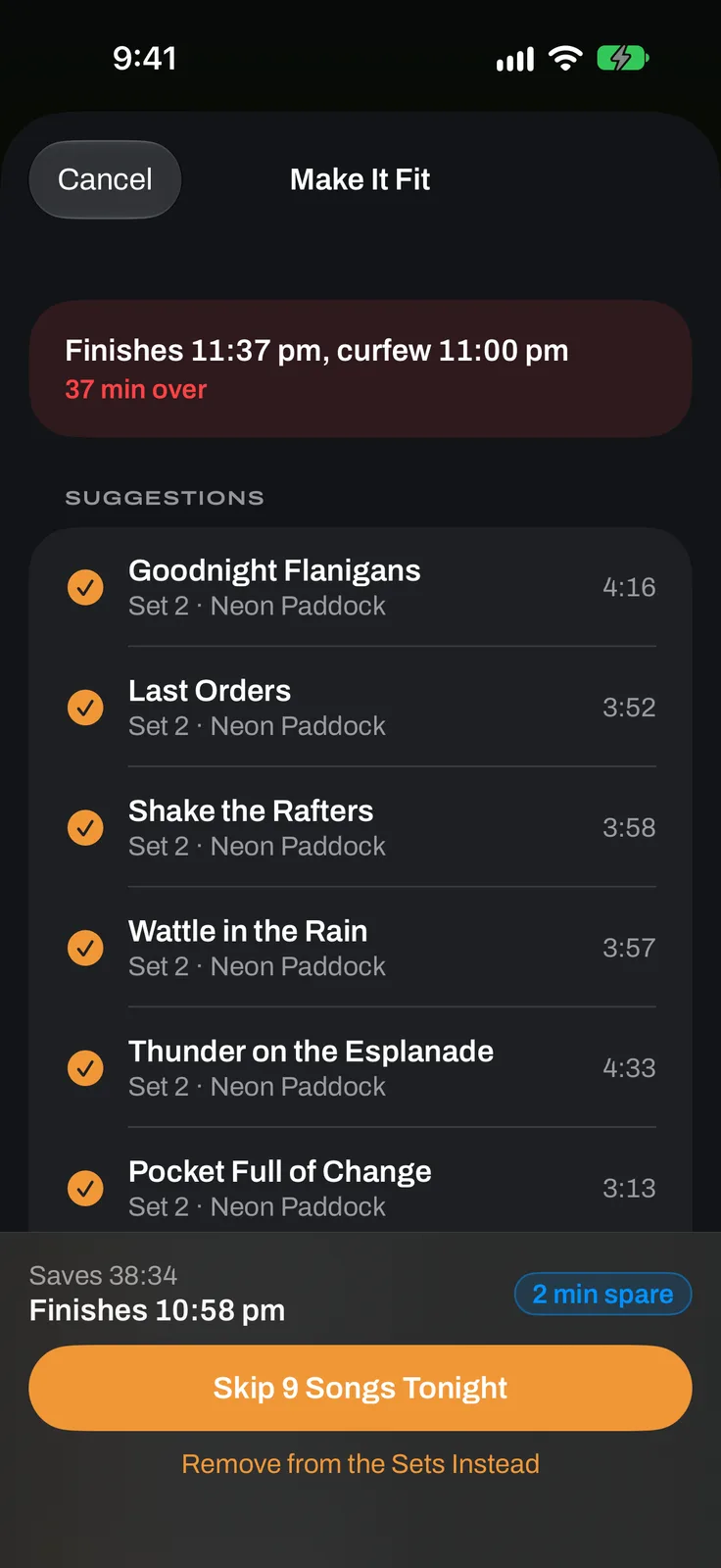
When a show runs past its curfew, tap Make It Fit on the show, or tap the Finish readout on stage. It says when you'll finish against the curfew, and lists songs to drop, each with the time it saves.
- Tick the songs to drop. The new finish time updates as you tick.
- Tap Skip Songs Tonight to leave them out of tonight's show only. They come back for the next show.
- Or tap Remove from the Sets Instead to take them out of the sets for good. They stay in your library.
Make It Fit suggests songs marked Drop First first, then works back from the end of the show. It never suggests a song marked Always Keep, or the last song of a set. Mark songs by touching and holding them in a set. See Shows and sets.
The show then says how many songs are skipped tonight, with Restore to bring them all back.
Running late on stage
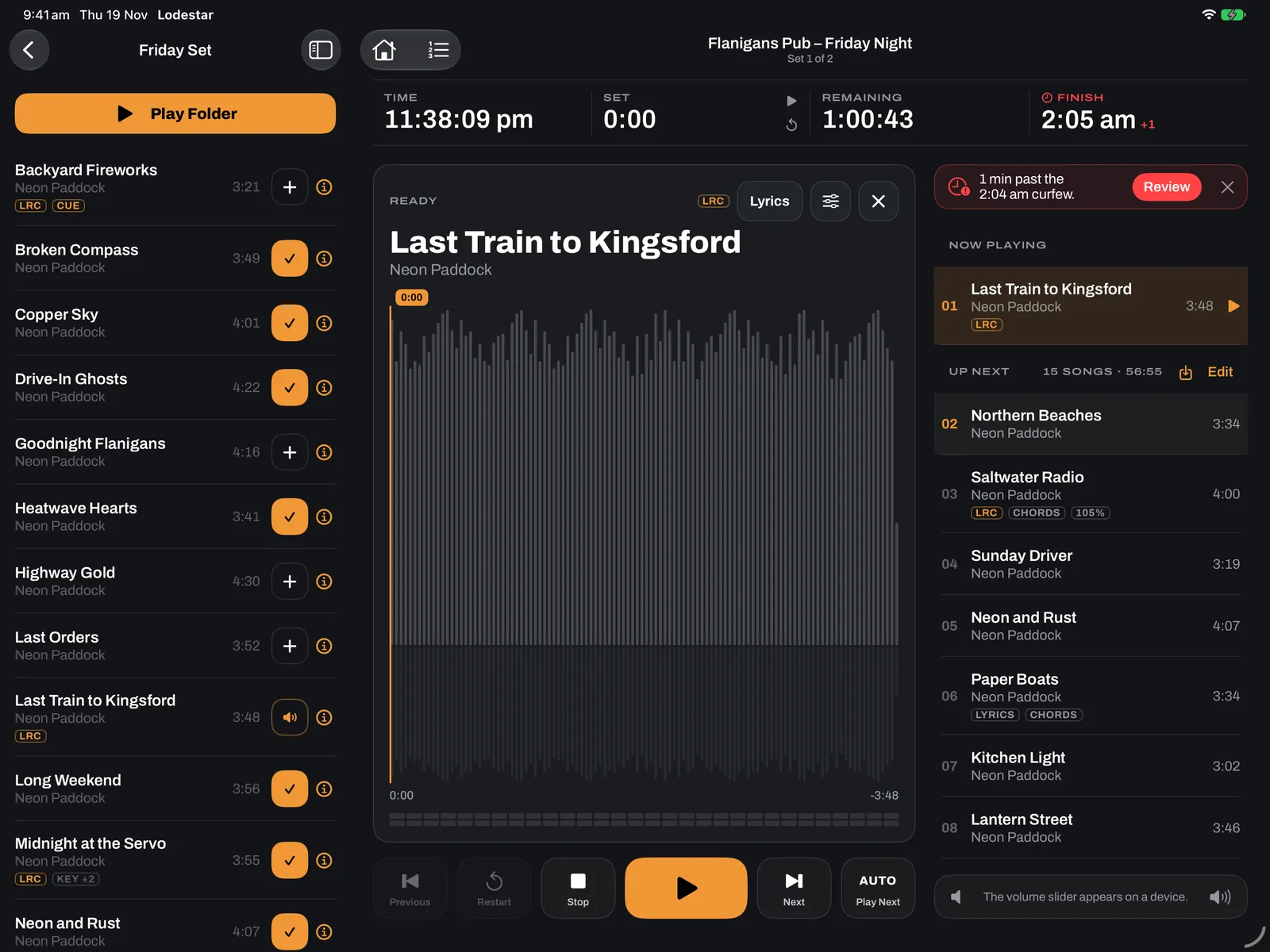
While you play a show with a start time, the stage's Finish readout shows when the show is now expected to end, updated as you go, so a long chat or an encore counts. A line in the setlist marks where the curfew falls.
If you're heading past the curfew, a banner says by how much, such as 6 min past the 23:00 curfew. Tap Review to choose songs to skip, or Close to dismiss it. The Apple Watch shows the late warning and finish time too.
Gig report
Why use it: A record of what you actually played, and when. Send it to the booker or the band, or use it to plan next time.
When the last song of the last set ends, the Show's Over sheet appears. To see it earlier, go Home and choose End Show and See Report. It shows what you've played so far.
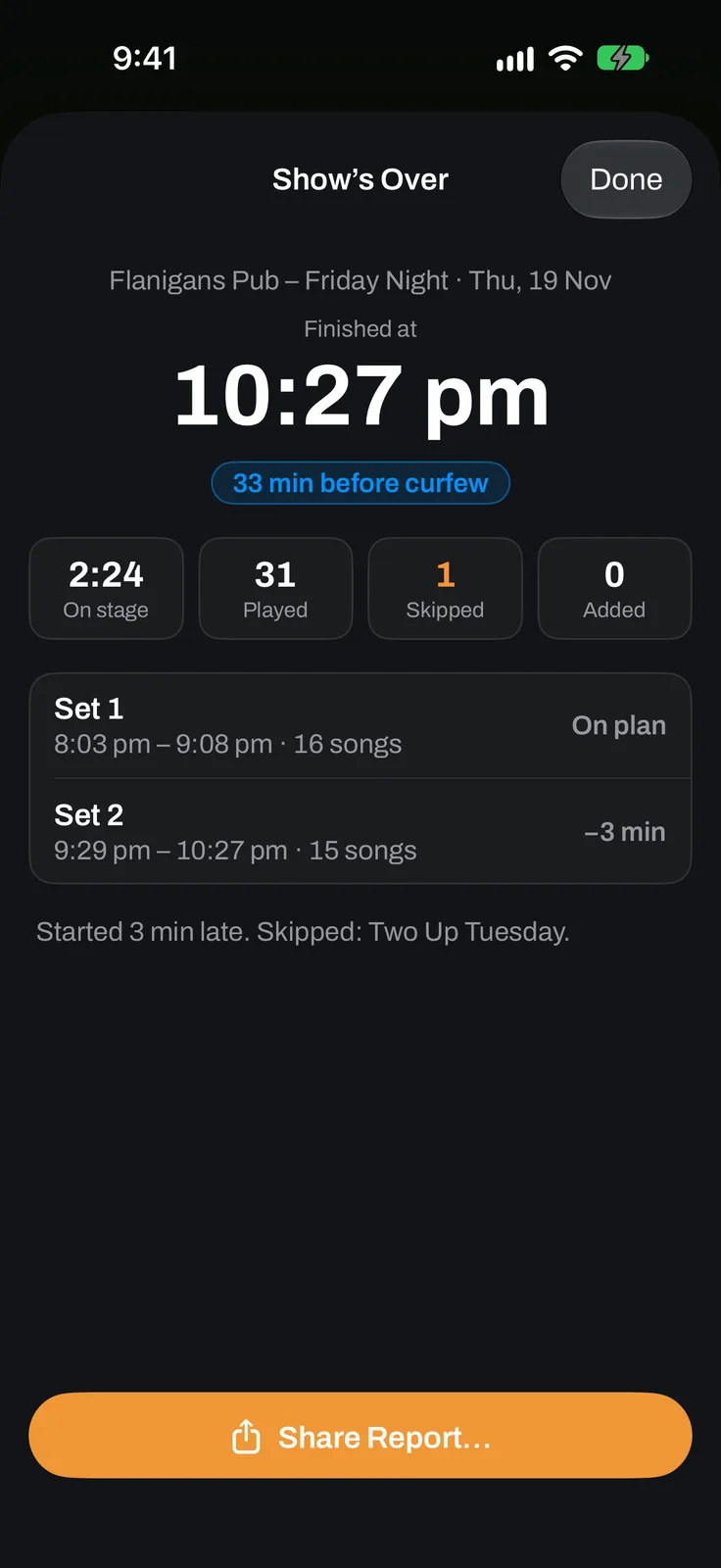
| Part | What it shows |
|---|---|
| Finished at | When the last song ended, against the curfew. |
| On stage | How long you played. |
| Played, Skipped, Added | How many songs you played, skipped, and added that weren't in the sets. |
| Each set | Its start and end times and songs, and whether it ran longer or shorter than planned. |
Sharing the report
Tap Share Report… and choose what to send:
| Option | What it is |
|---|---|
| Gig Report (PDF) | Times, sets and every song. For you, the band or the booker. |
| Plain Text | A short list to paste into a message or email. |
| Start and Finish Times | Include the times. Turn off for a plain list of songs. |
| Skipped Songs | Include the songs you skipped. |
Then tap Share… to send it with the share sheet.
The report isn't kept after you close it, so share it before you pack up.