Mac: shows and sets
On the Mac, shows and sets work just as on iPhone and iPad, with more room: a table of every show, a timing card for each one, and a gig check that tells you what to fix before you leave. Everything syncs both ways.
Why use it: Plan a month of gigs at your desk, print the set lists, and turn up knowing every song has its audio, lyrics and click on the device that plays it.
The shows table
Click Shows in the sidebar.
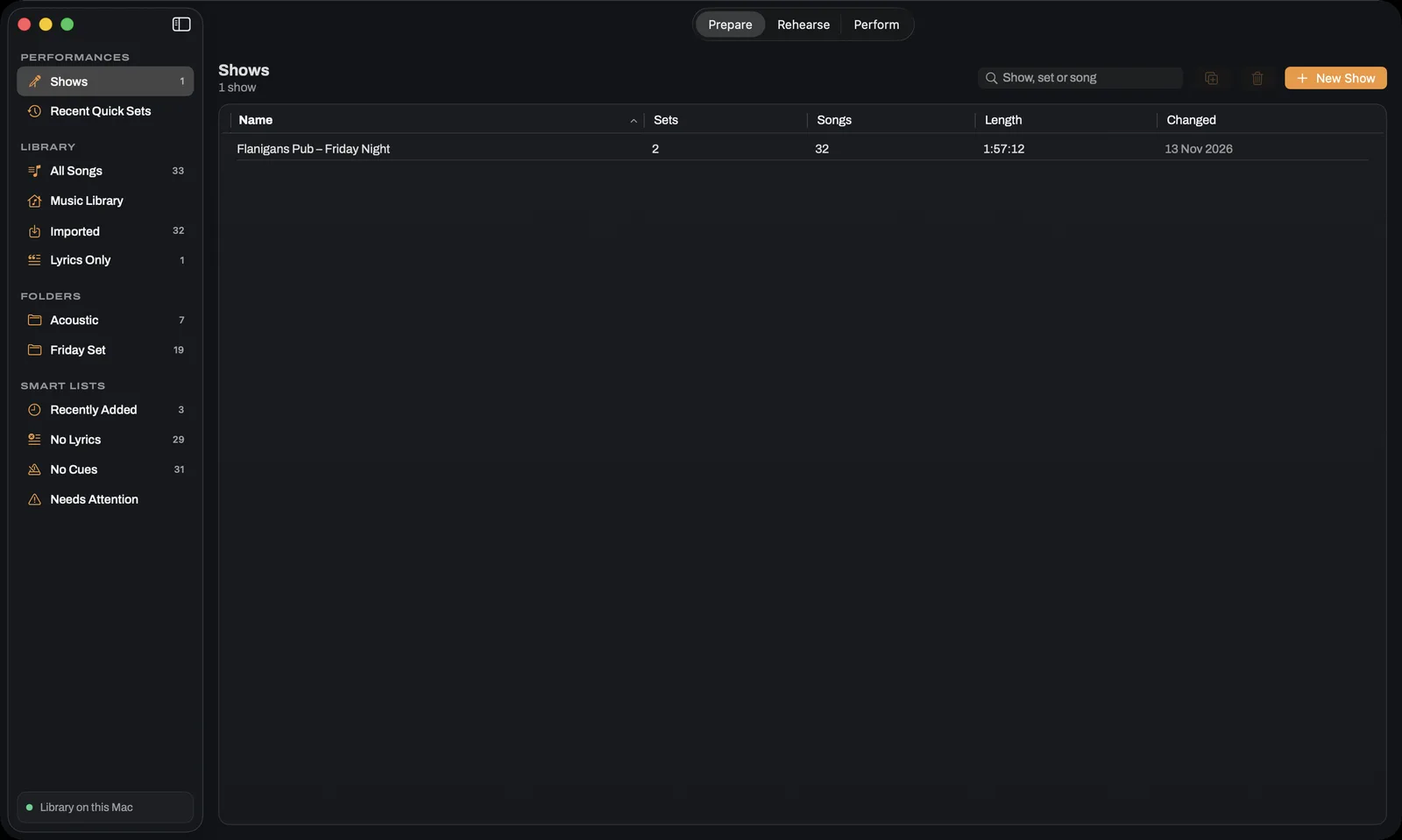
| Control | What it does |
|---|---|
| Columns | Name, Sets, Songs, Length and Changed. Click a heading to sort. |
| Search (⌘F) | Finds a show by its name, or a set or song in it. |
| New Show (⌘N) | Makes a show with its first set. |
| New Show from This | Copies the selected show with all its sets and songs, for a venue you play often. |
| Delete | Deletes the selected show and its sets. The songs stay in your library. |
| Double-click, or right-click › Open | Opens the show. |
| Right-click › Pin as Tonight, or Tonight in a show's toolbar | Pins the show as tonight's: it sits at the top of the list with a pin, on all your devices, until the next day. |
A show
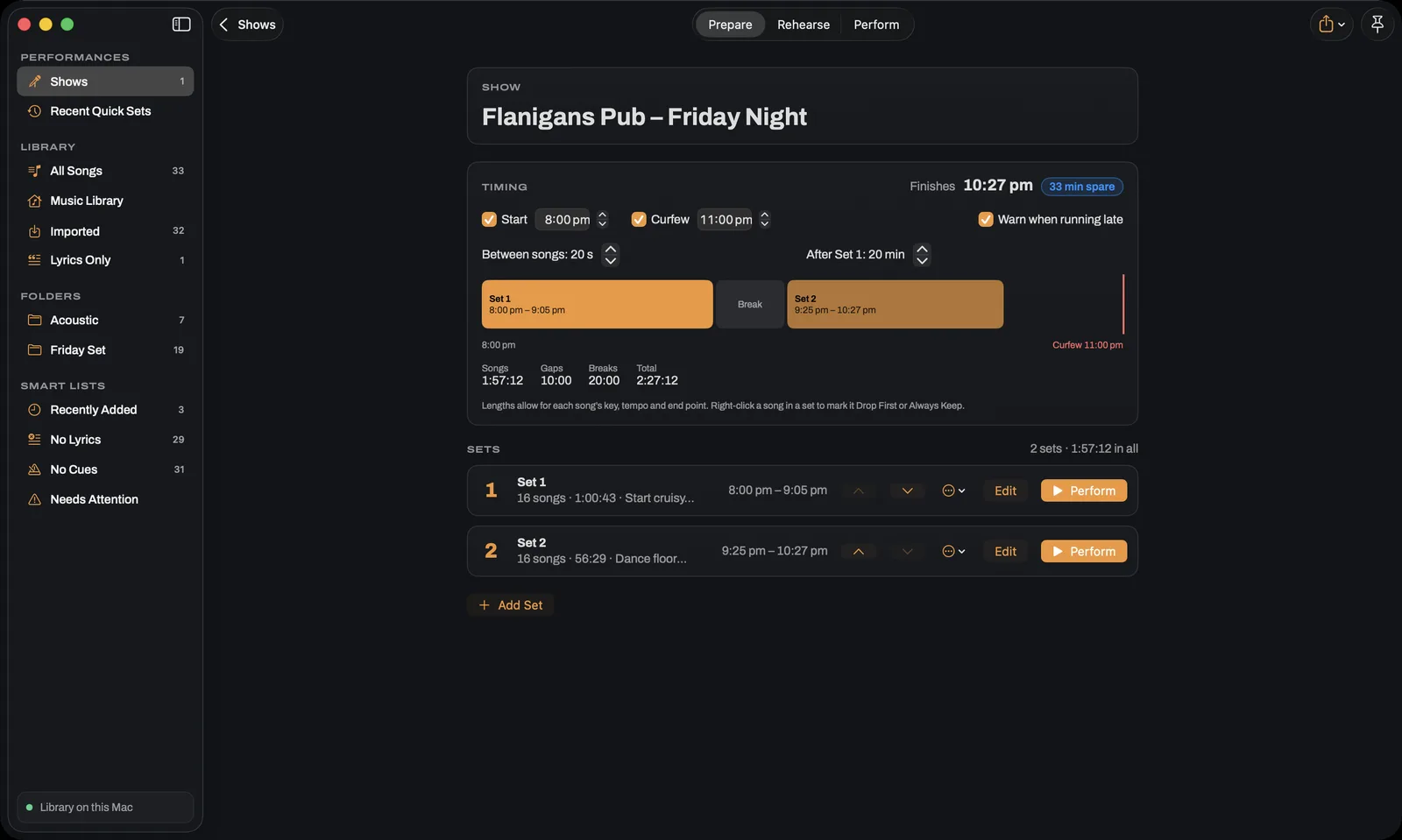
The show's name is at the top; click it to rename. Shows (⌘[) goes back to the table, and Add Set adds a set at the end. Each set is a card with its songs, length and target, and:
| Control | What it does |
|---|---|
| Move Up, Move Down | Changes the order of the sets. |
| Edit | Opens the set editor. |
| Perform | Loads the set onto the stage and switches to Perform. |
| More › Duplicate Set, Delete Set… | Copies or removes the set. |
The timing card
The same curfew planning as on iPhone, on one card:
| Setting | What it does |
|---|---|
| Start | Turn on and set when the first set starts. |
| Curfew | Turn on and set the venue's hard stop. |
| Warn when running late | On stage, warns and suggests songs to skip when the show is heading past its curfew. |
| Between songs | Seconds for talking and changing over, in 5-second steps. |
| After each set | The break after that set, in 5-minute steps. |
| Finishes | The planned finish, with a pill such as 8 min over or 2 min spare, and the totals for Songs, Gaps, Breaks and Total. |
| Make It Fit… | Chooses songs to skip tonight so the show finishes by its curfew. See Make It Fit. |
| Restore | Brings back the songs skipped tonight. |
A timeline under the card shows each set and break against the clock, with the curfew marked. Right-click a song in a set to mark it Drop First if Running Late or Always Keep.
In the Mac's Make It Fit sheet, tick the songs, then Skip Songs Tonight to leave them out of this show only, or Remove from Sets… to take them out for good.
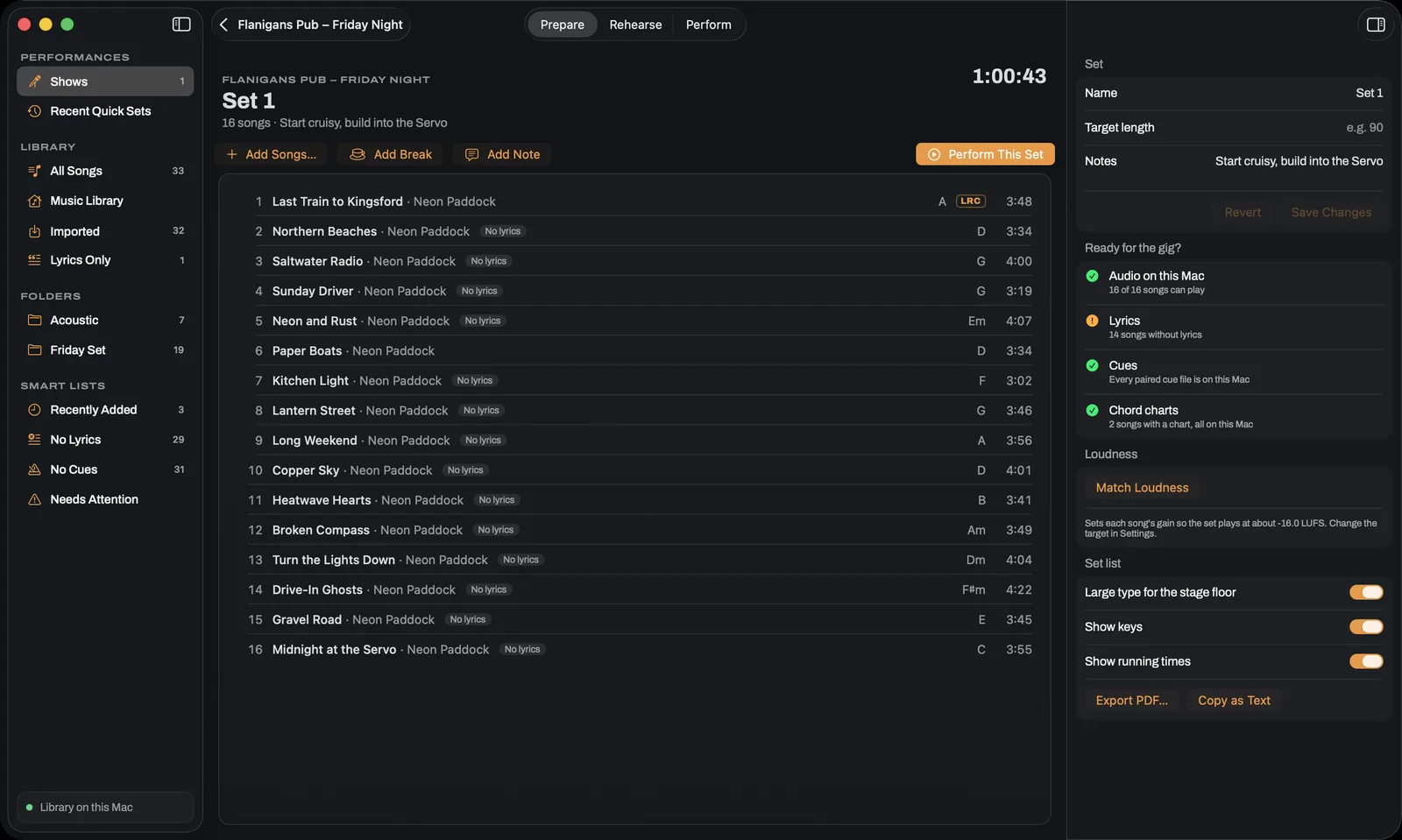
The set editor
| Control | What it does |
|---|---|
| Add Songs… (⌘L) | Choose songs from any list in the library, then Add Songs. |
| Add Break | Adds a 20-minute break after the selected item. Double-click it to change the minutes and add a note. |
| Add Note | Adds a note after the selected item, such as "Thank the bar staff". |
| Perform This Set | Loads the set onto the stage. |
| Drag rows | Changes the order. You can also drag songs from the song table onto a set in the sidebar. |
| Right-click | Edit…, Remove from Set, and Drop First if Running Late or Always Keep. |
| Details (⌥⌘I) | Shows or hides the set's details on the right. |
The bottom bar shows the set's songs, breaks and length, against its target. Each song shows its key, an LRC tag when its lyrics are synced, and tags for anything missing.
Set details
| Section | What's in it |
|---|---|
| Set | Name, Target length in minutes, and Notes. Click Save Changes or Revert. |
| Gig check | See below. |
| Loudness | Match Loudness sets each song's gain so the set plays at about your target, −16 LUFS to start with. Change the target in Settings › Playback. |
| Set list | Export PDF… or Copy as Text, with Large type for the stage floor, Show keys and Show running times. |
Why use it: Print a large-type set list for the floor monitor, with each song's key, so the band can read it from a step away.
The gig check
Why use it: It catches the song that never downloaded, or the click you forgot to pair, at home rather than at soundcheck.
Ready for the gig? checks every song in the set:
| Check | What it looks for |
|---|---|
| Audio on this Mac | How many songs can play. Songs not downloaded, missing, or copy protected are tagged. |
| Lyrics | Songs without lyrics. |
| Cues | Paired cue files that aren't on this Mac. |
| Chord charts | Which songs have a chart, and PDFs still in iCloud. |
Click Download from iCloud to bring the set's audio and cue files down to this Mac, so they play without a network. When everything's in place, it says Ready to go.
Recent Quick Sets
Click Recent Quick Sets in the sidebar. Songs you play in a Quick Set outside a show's set are kept here, until you remove them, so you can save them as a set or play them again.
| Control | What it does |
|---|---|
| Running Order | The songs played and still up next, for the selected quick set. |
| Play Again | Lines the songs up on stage, in the same order. |
| Save as Set… | Saves the songs as a set in a show. |
| Remove… (Delete) | Removes the selected quick sets on all your devices. Sets you saved from them stay. |
Saving tonight's changes
As on iPhone, if you change a set while playing it, Ostinato asks whether to Update the set, Save as New Set…, or keep it as it was. See Saving sets.