Mac settings
Choose Ostinato › Settings (⌘,). Each tab covers one part of the app. These settings stay on this Mac; your library and its song settings are shared with your other devices.
Library
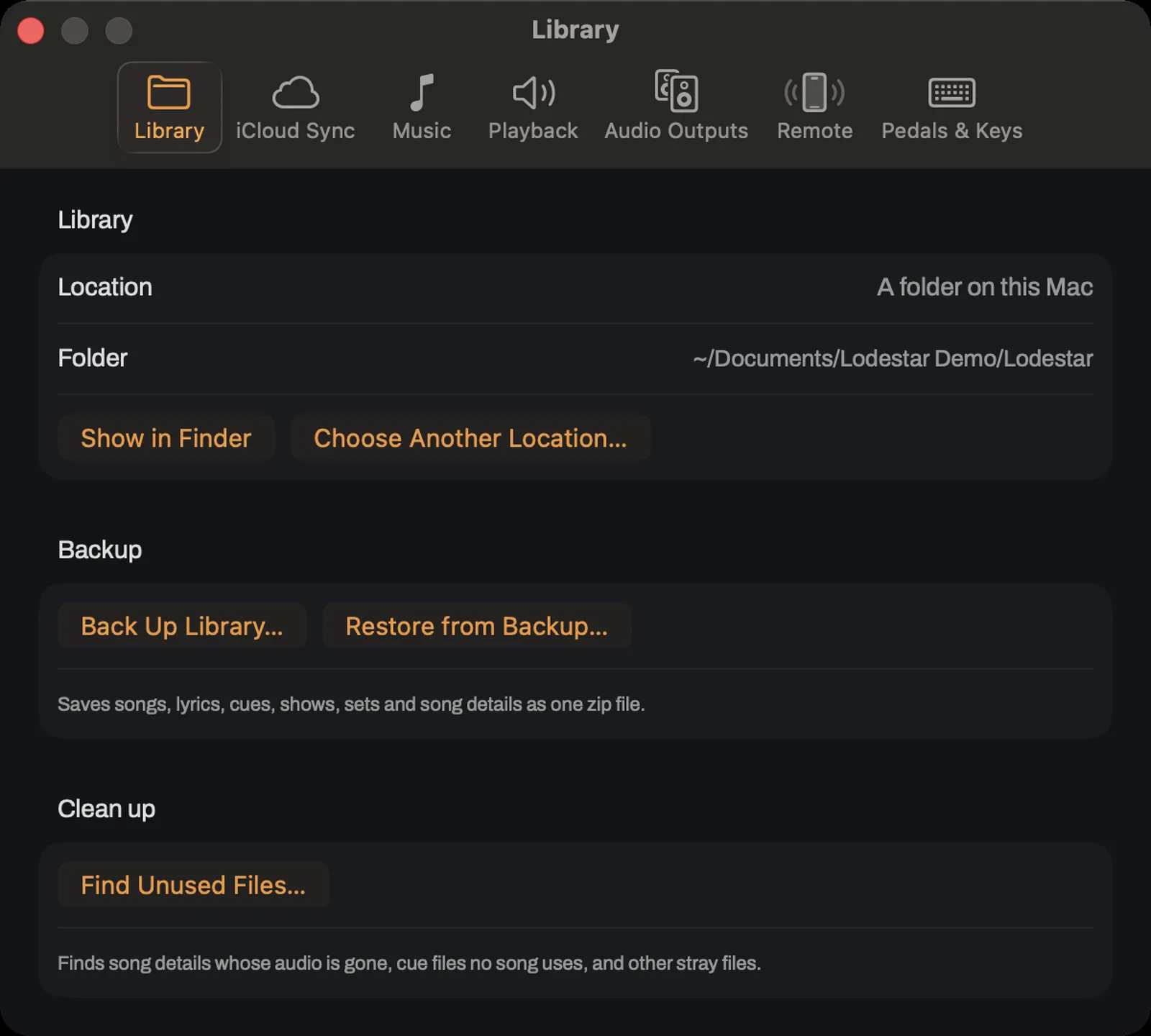
Location
| Item | What it does |
|---|---|
| Location | iCloud Drive, or A folder on this Mac, with the folder's path. |
| iCloud | Signed in, Signed out (changes stay on this Mac until you sign in), or Can't be reached right now. |
| Show in Finder | Opens the library folder. |
| Choose Another Location… | Moves the app to a different library: iCloud Drive or a folder. |
Why use it: A separate folder is handy for a Mac that only plays shows and should never change, or to keep a practice library apart from your gig one.
Backup
Back Up Library… saves songs, lyrics, cues, shows, sets and song details as one zip file. Restore from Backup… replaces the library with a backup, after you confirm Replace Library. Replaced files go to the Trash. Backups made on iPhone or iPad restore here too. See Backup.
Clean up
Find Unused Files… finds song details whose audio is gone, cue files no song uses, and other stray files. Tick the ones to remove and click Move to Trash. With iCloud Drive, they're removed from your other devices too. If there's nothing to remove, it says Nothing to Clean Up.
Why use it: After moving or renaming lots of files in the Finder, this tidies away what's left behind.
iCloud Sync
Shows how much of the library is in iCloud, such as 32 of 32 in iCloud, for Songs, Lyrics, Cues, Chord charts, Shows, Sets and Song details.
| Item | Meaning |
|---|---|
| Status | Everything is in iCloud, files still uploading, or files that can't upload. |
| Only in iCloud | Files not downloaded to this Mac. They download when needed. |
| Show Files Waiting… | Lists each file waiting to upload, uploading, or that can't upload, and why. |
Why use it: Before you leave for a gig with the iPad, check here that what you just changed on the Mac has actually reached iCloud.
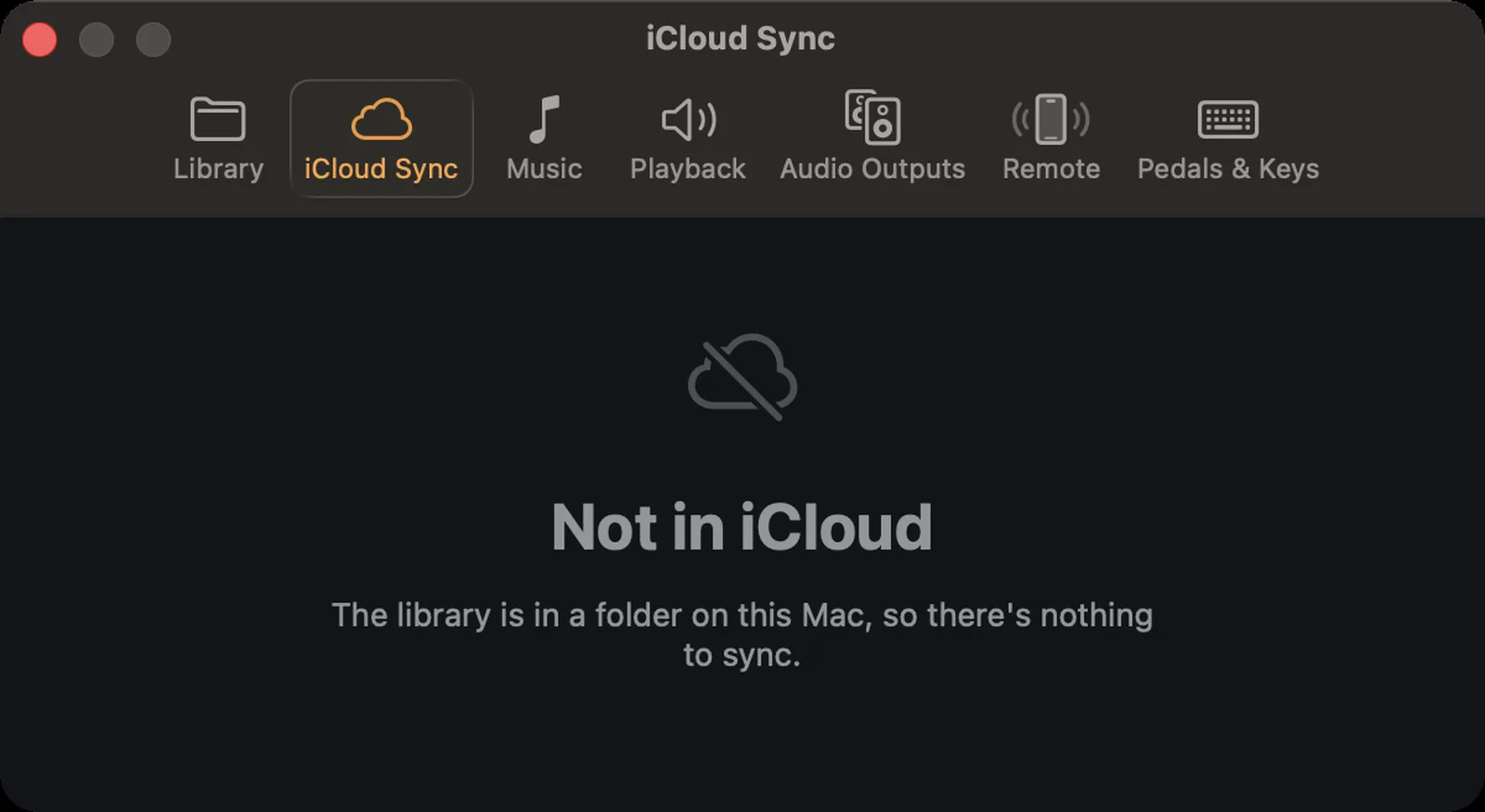
With a library in a folder on this Mac, the tab says Not in iCloud.
Music
| Item | What it does |
|---|---|
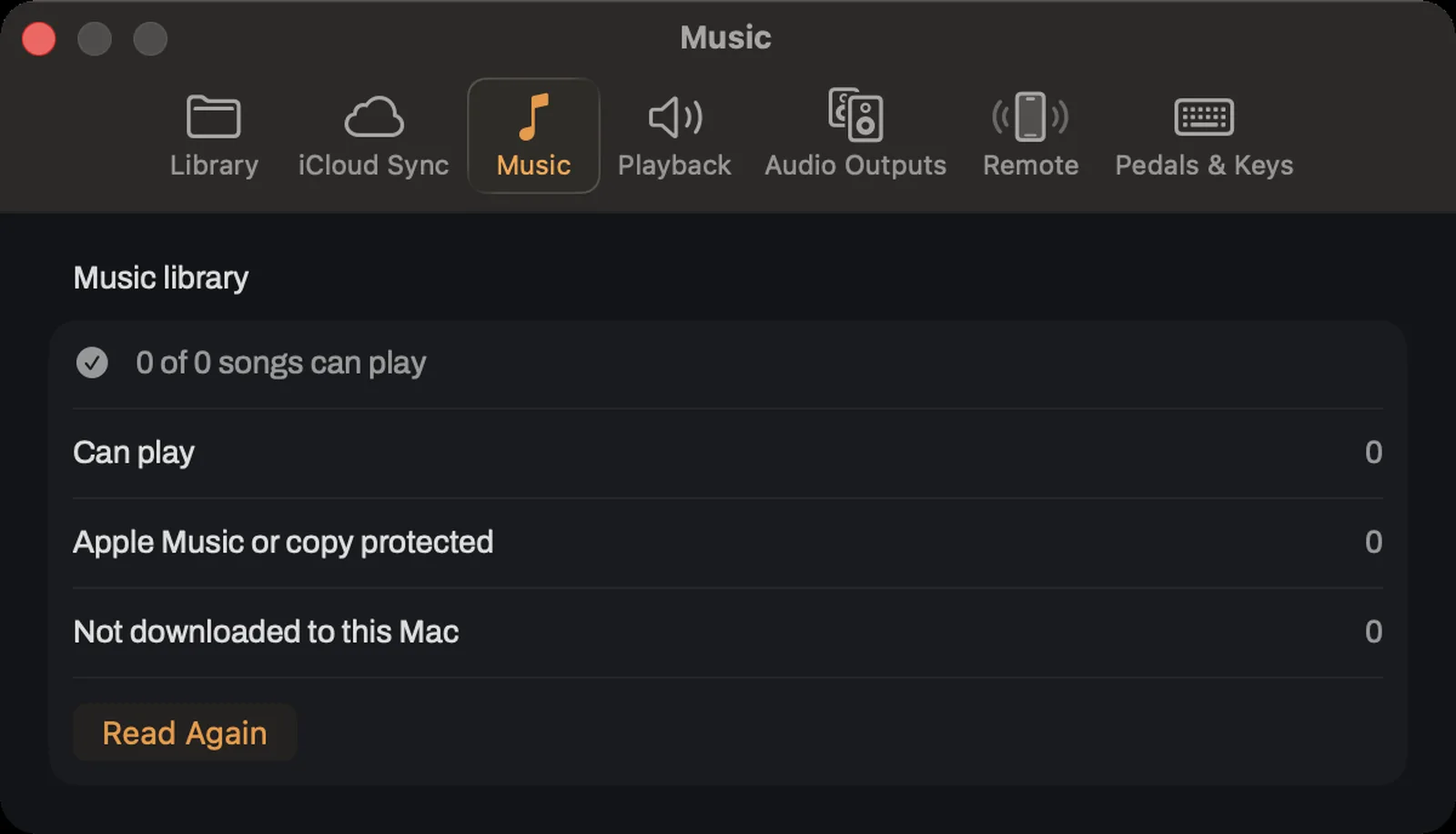
| Music library | Whether Ostinato can use your Music library, and how many songs can play. |
| Allow Access | Asks for access. If you said no before, turn it on in System Settings › Privacy & Security › Media & Apple Music. |
| Read Again | Reads the Music library again, after adding or downloading songs. |
| Can play, Apple Music or copy protected, Not downloaded to this Mac | How many songs are in each group. Only songs downloaded without copy protection can play. |
Playback
| Setting | What it does | Why use it |
|---|---|---|
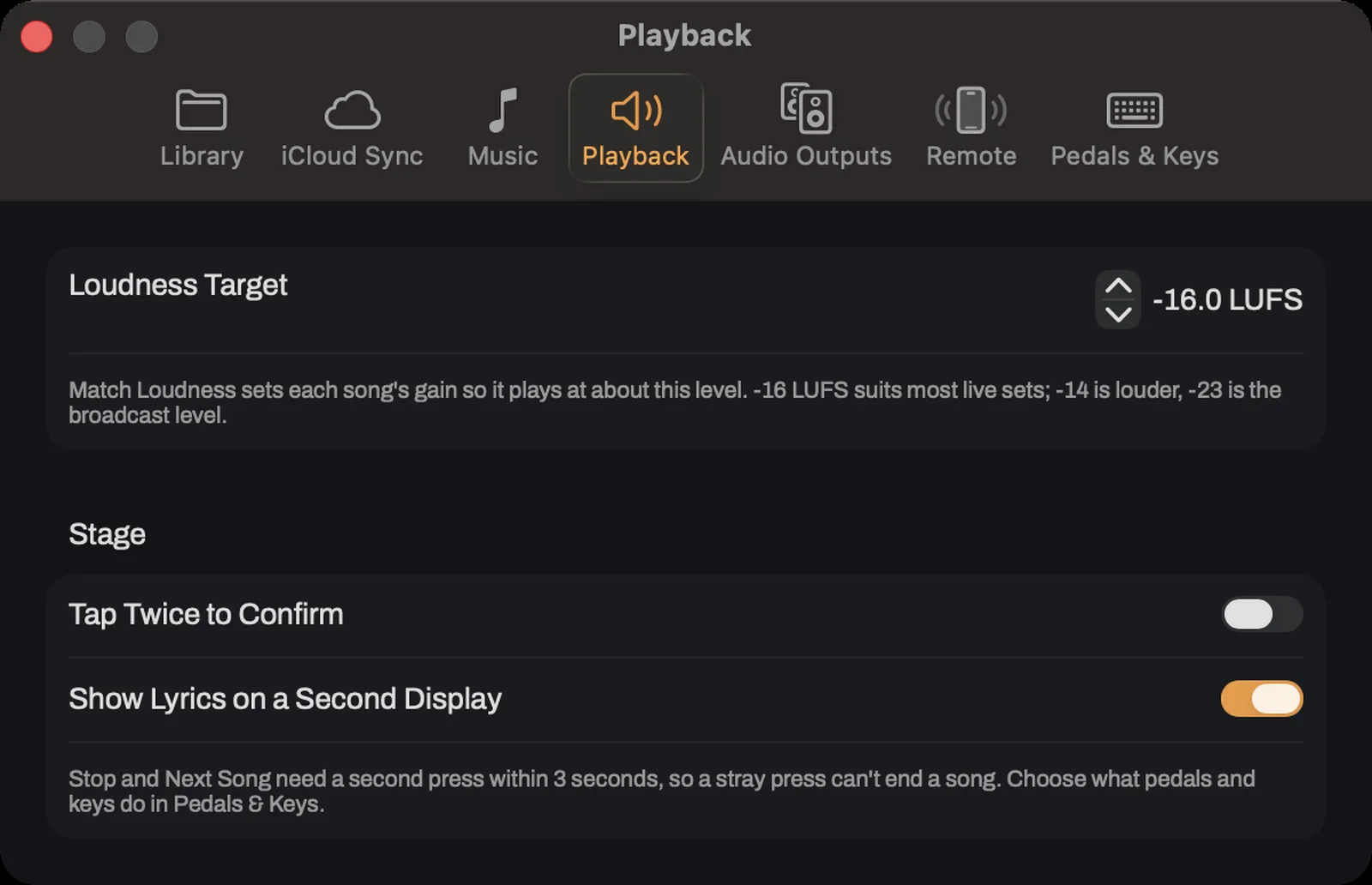
| Loudness Target | The level Match Loudness sets songs to. −16 LUFS suits most live sets; −14 is louder; −23 is the broadcast level. | Every song comes out of the PA at the same level. |
| Tap Twice to Confirm | Stop and Next Song need a second press within 3 seconds. | A stray press can't end a song. |
| Show Lyrics on a Second Display | A projector or second monitor shows the lyrics full screen while performing, and the app's icon the rest of the time. | Lyrics for the band. See Second display. |
Audio Outputs
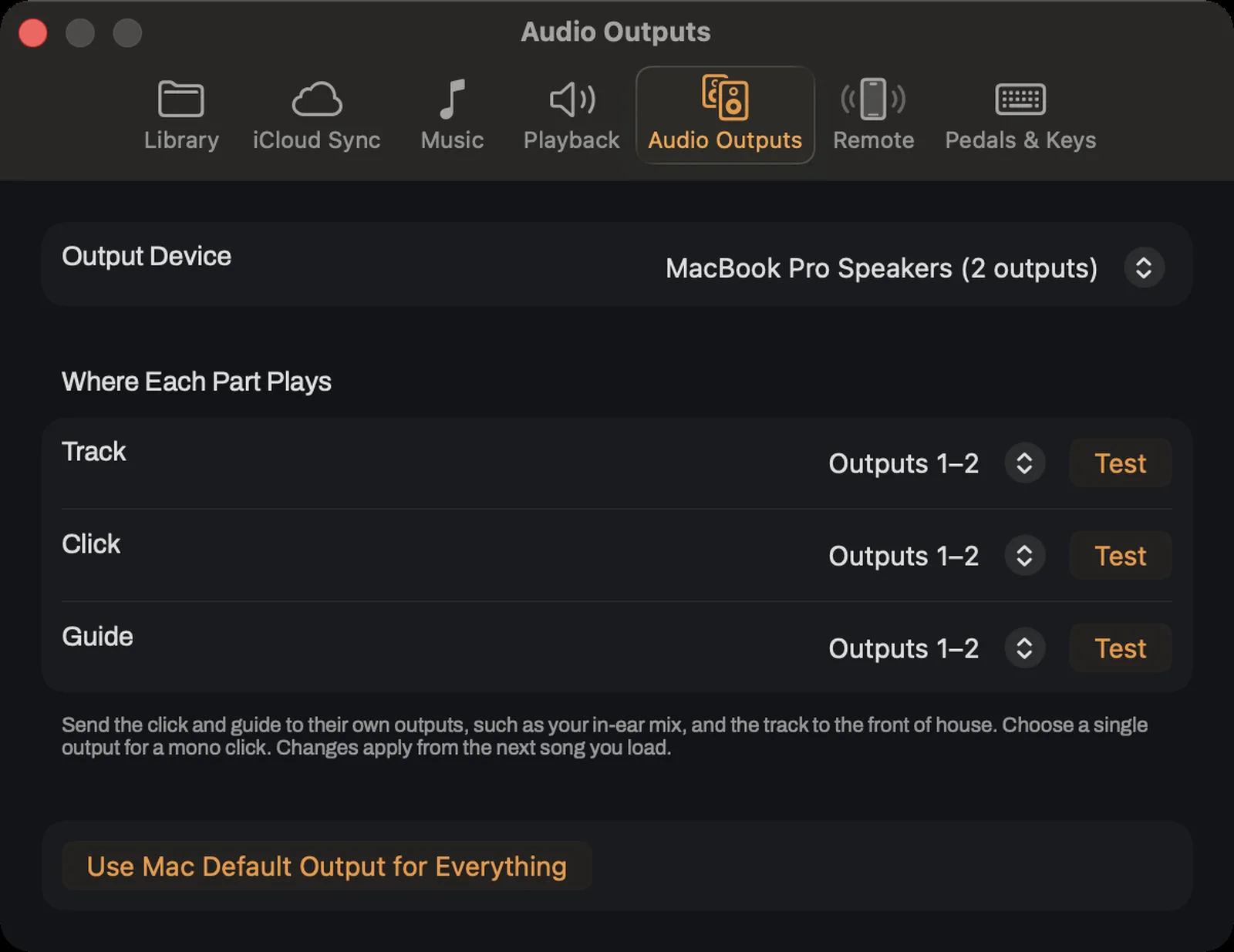
| Setting | What it does |
|---|---|
| Output Device | Mac Default Output, or an interface, with how many outputs it has. If it's not connected, songs play through the Mac's default output for now. |
| Where Each Part Plays | Outputs for the Track, Click and Guide. Choose a single output for a mono click. |
| Test | Plays a short tone on those outputs. |
| Use Mac Default Output for Everything | Puts everything back on the Mac's own output. |
Send the click and guide to their own outputs, such as your in-ear mix, and the track to front of house. Changes apply from the next song you load.
Remote
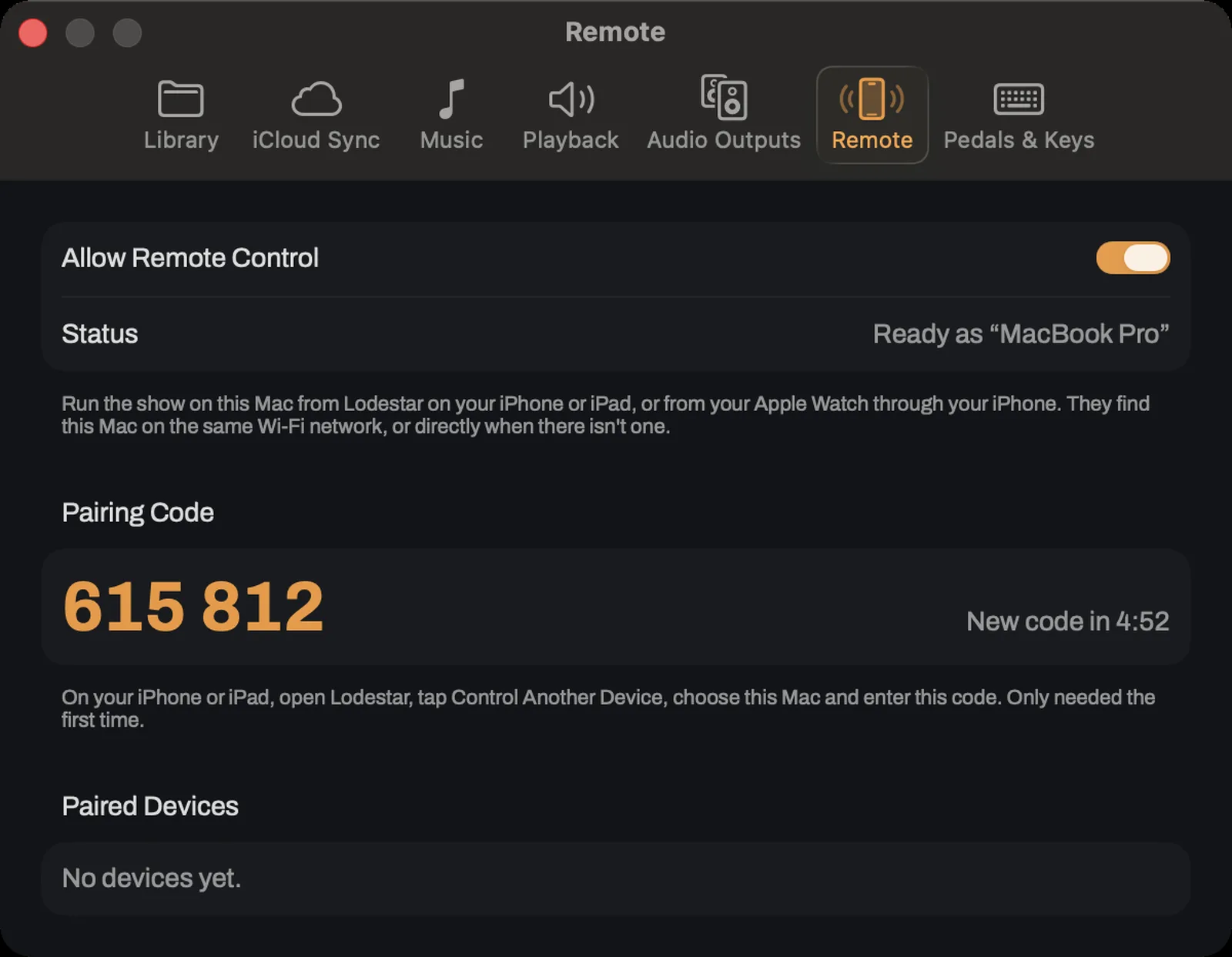
| Item | What it does |
|---|---|
| Allow Remote Control | Lets Ostinato on your iPhone or iPad, or your Apple Watch through your iPhone, run the show on this Mac. They find it on the same Wi-Fi network, or directly when there isn't one. |
| Status | Ready as the Mac's name, Starting…, or why it isn't available. |
| Pairing Code | On the iPhone or iPad, tap Control Another Device, choose this Mac and enter this code. Only needed the first time. A new code comes every few minutes. |
| Paired Devices | Each device, whether it's connected, and when it last was. Forget stops it controlling the Mac. |
See Remote control.
Pedals & Keys
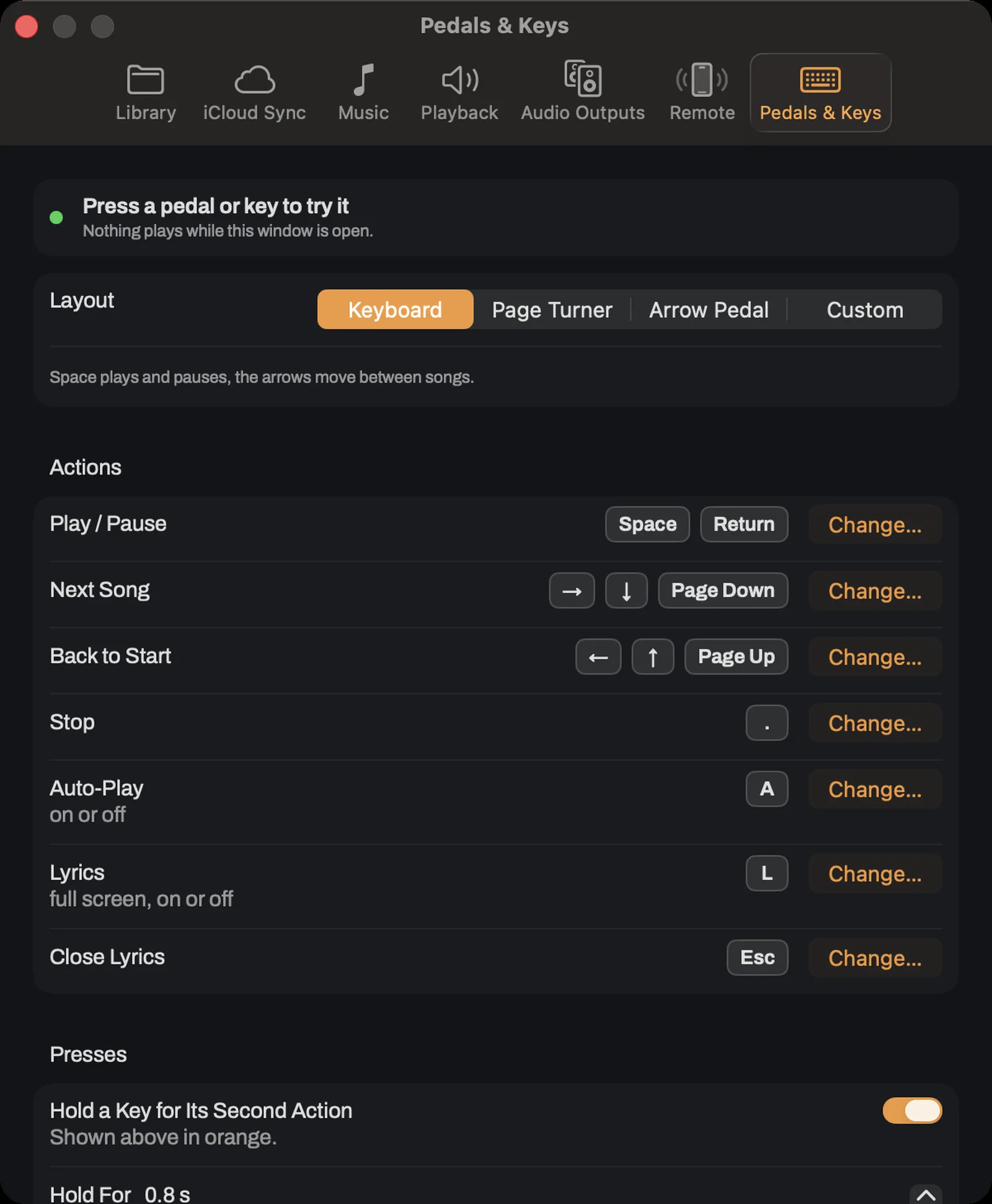
The same layouts, actions, holds and safety options as on iPhone. Pedals and keys work in Perform, and nothing plays while this tab is open. See Pedals and keyboard.