Chord charts
Give a song a chord chart and the chords sit over the words on stage, following the song. They transpose when you change the song's key, and can show capo shapes. PDF charts turn their own pages.
Why use it: Every player sees the right chord at the right moment, in the key you're actually playing tonight, with no paper charts to turn or lose.
Kinds of chart
| Kind | What you get |
|---|---|
| ChordPro (.cho, .chordpro) | The standard text format for chord charts, with chords in square brackets,
such as [G]Look at the [D]stars. Chords follow the lyrics and can be transposed. |
| Chords over words (.txt) | A line of chords above each line of words, as on most chord sites. It's converted to ChordPro when you import it. |
| A printed chart or lead sheet, shown as it is. PDFs can't be transposed. |
Charts are kept in the Charts folder of your library and appear on all your devices. Songs with a chart have a CHORDS tag. A song can have a ChordPro chart and a PDF.
Importing charts
- In the library, tap Import › Import Chord Charts…
- Select the files and tap Open.
- On the review screen, check the song each chart is matched to. Tap a chart and choose Change to pick another song, or skip it. Then tap Import.
Charts are matched to songs the same way as lyrics files: by the title and artist
inside the file, then by a file name such as Neon Paddock - Saltwater Radio.cho. Each row says what it is,
such as ChordPro · key G, Converted from chords over words or PDF · can't be
transposed. If a chart is written in another key from the song, it offers to move it, such as Move from
C to D.
Pasting a tab into a song
Why use it: One paste fills in a song's chords and its words, straight from a chord site you're signed in to.
- On the chord site, select the chart, chords and words together, and copy it.
- On iPhone or iPad, touch and hold the song and choose Paste Tab… On the Mac, right-click the song, or use the button next to Chords in its details.
- Tap Paste, then Save.
The chords become the song's chord chart and the words become its lyrics, replacing what it had. Headers such as [Verse 1] become sections. Synced lyrics are kept, so their line timings aren't lost.
You can also share a chord page or a PDF from Safari. See Sharing a page from Safari.
Chords on stage
When a song has a chart, the stage shows the Now and Next chords. Tap Lyrics for the whole chart full screen.
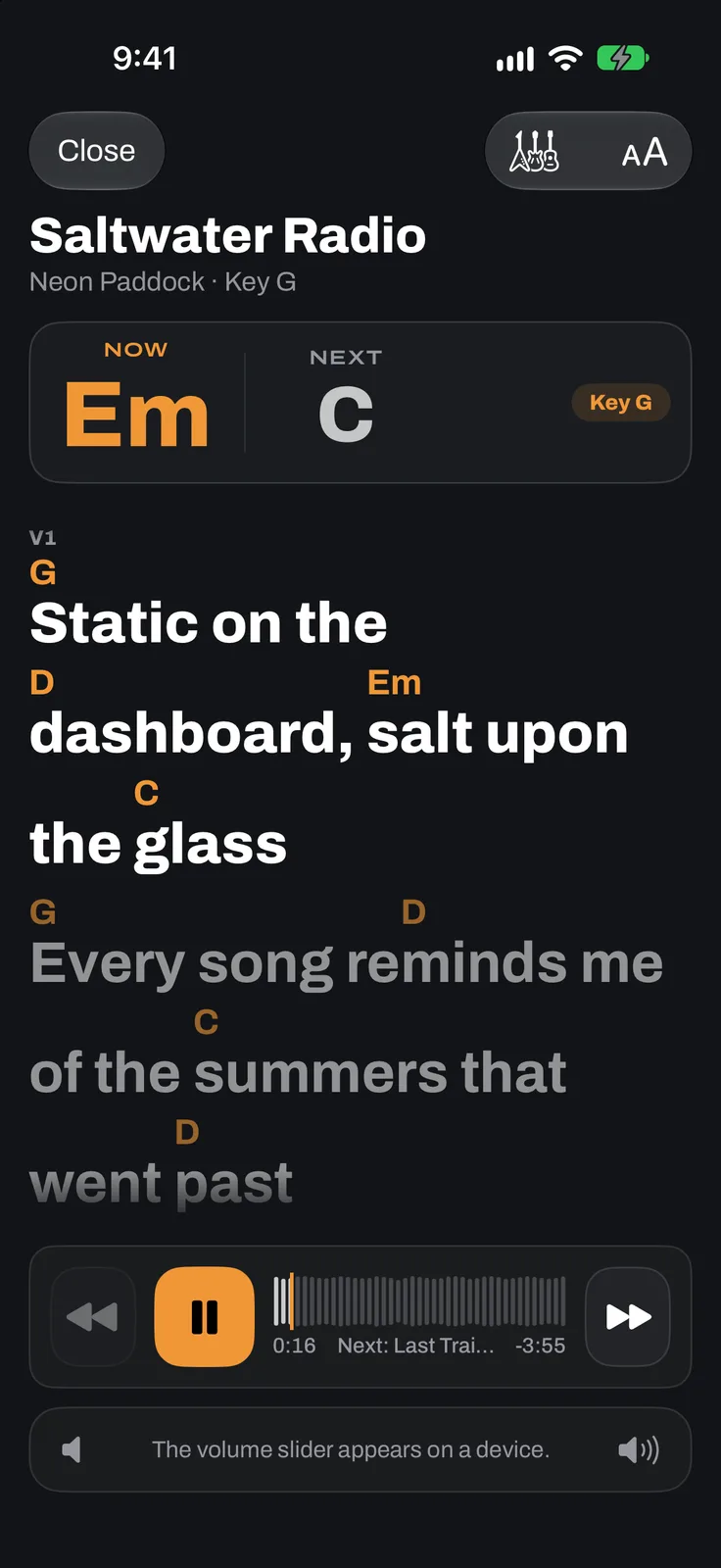
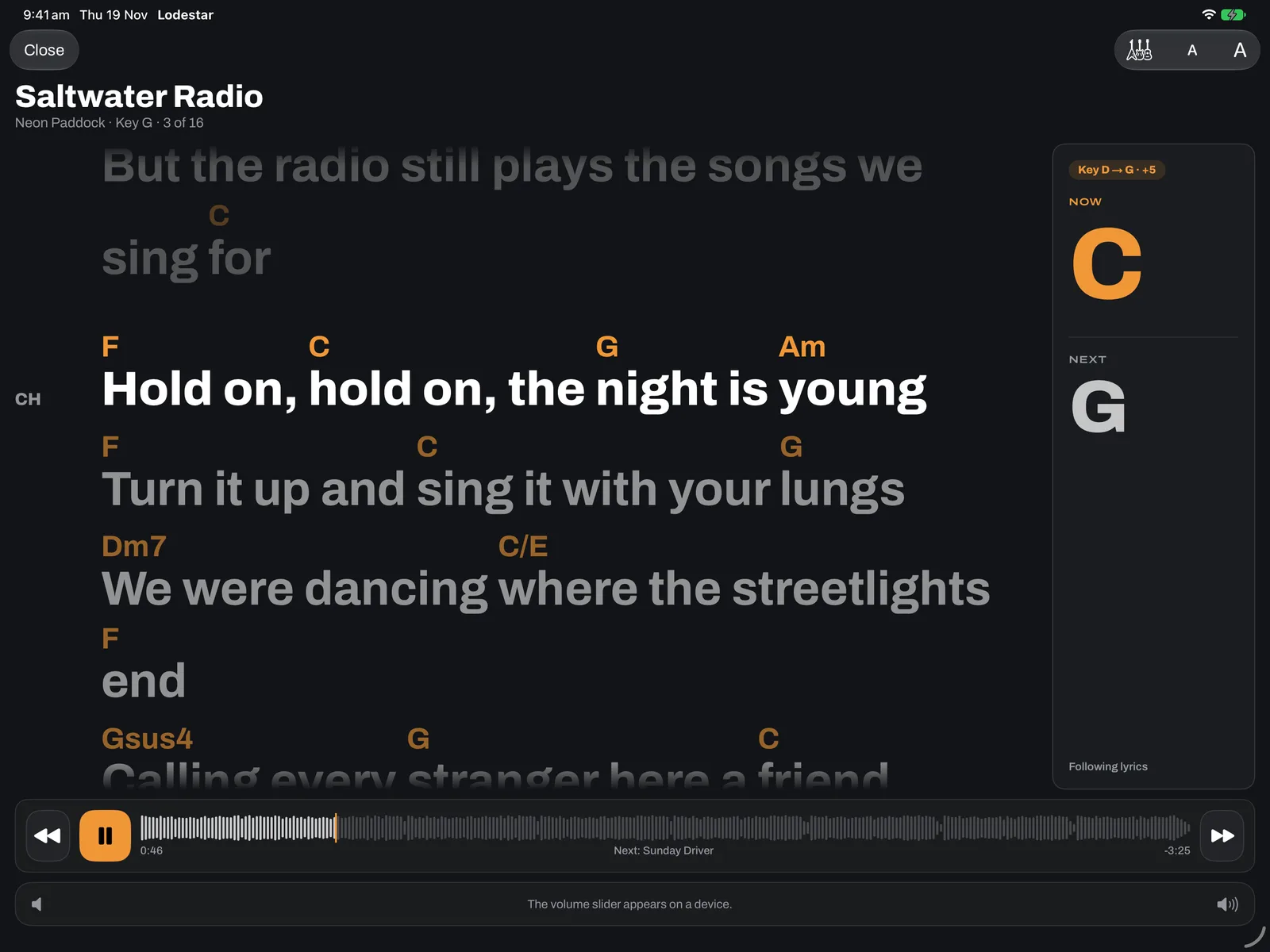
With synced lyrics, the current line is lit and the chart follows the song (Following lyrics). Without them, it scrolls steadily through the song's length (Steady scroll). The key and capo are shown at the top.
Chart settings
On the lyrics screen, tap Chart:
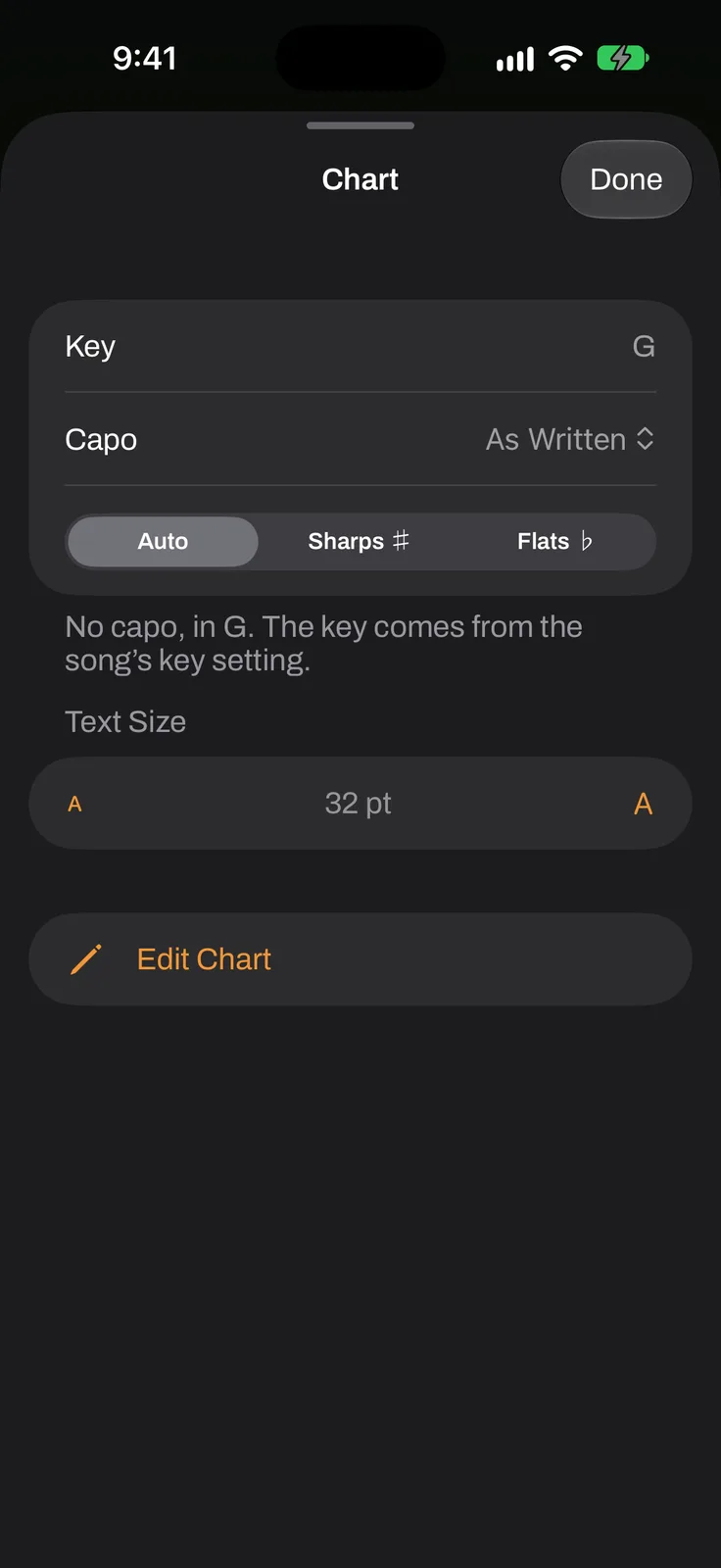
| Setting | What it does | Why use it |
|---|---|---|
| Show on This iPhone (or iPad) | Words, Chords or PDF. | Each device keeps its own choice, so the singer's iPhone can show words while the guitarist's iPad shows chords. |
| Text Size | Smaller and Larger, in points. | Read it from further away. |
| Key | The key the song plays in. It comes from the song's key setting, and follows any key change. | A reminder before you count in. |
| Capo | As Written, No Capo or a fret, such as Fret 2. It shows, for example, Capo 2: shapes in C, sounds in D. Saved for the song. | Play easy shapes with a capo while the band plays in the real key. |
| Spelling | Auto, Sharps ♯ or Flats ♭. Saved for the song. | Read B♭ rather than A♯, the way your players expect. |
| Edit Chart | Opens the chart editor. | Fix a chord before the show. |
| Done | Closes the sheet. |
PDF charts
A PDF chart turns its pages by itself, evenly through the song, each a little before it's needed. The bottom bar shows Page 1 of 3 and when the next turn comes.
| Control | What it does |
|---|---|
| Previous Page, Next Page | Turn by hand. You can also tap the sides of the page. |
| Turn Here | While the song plays, marks this moment as where the next page comes up. Your turns replace the even ones and sync to your other devices. |
| Reset Turns | Back to even turns. |
| Fit Page | Shows while you're zoomed in. Zooms back out so the whole page fits. |
Pinch the page to zoom in, then drag to move around it. On a Mac, pinch on the trackpad, or double-tap with two fingers. The zoom stays as the pages turn, so you can read a small chart larger all the way through.
The bar says Even turns, Your turns or Some turns marked, so you know which you're getting.
Writing and editing charts on iPhone and iPad
Why use it: No chart online for your arrangement? Start from the song's lyrics and tap the chords in, with the chords of the song's key one tap away.
Touch and hold a song and choose New Chord Chart or Edit Chord Chart…, or tap Chart › Edit Chart on the lyrics screen. A new chart starts from the song's lyrics.
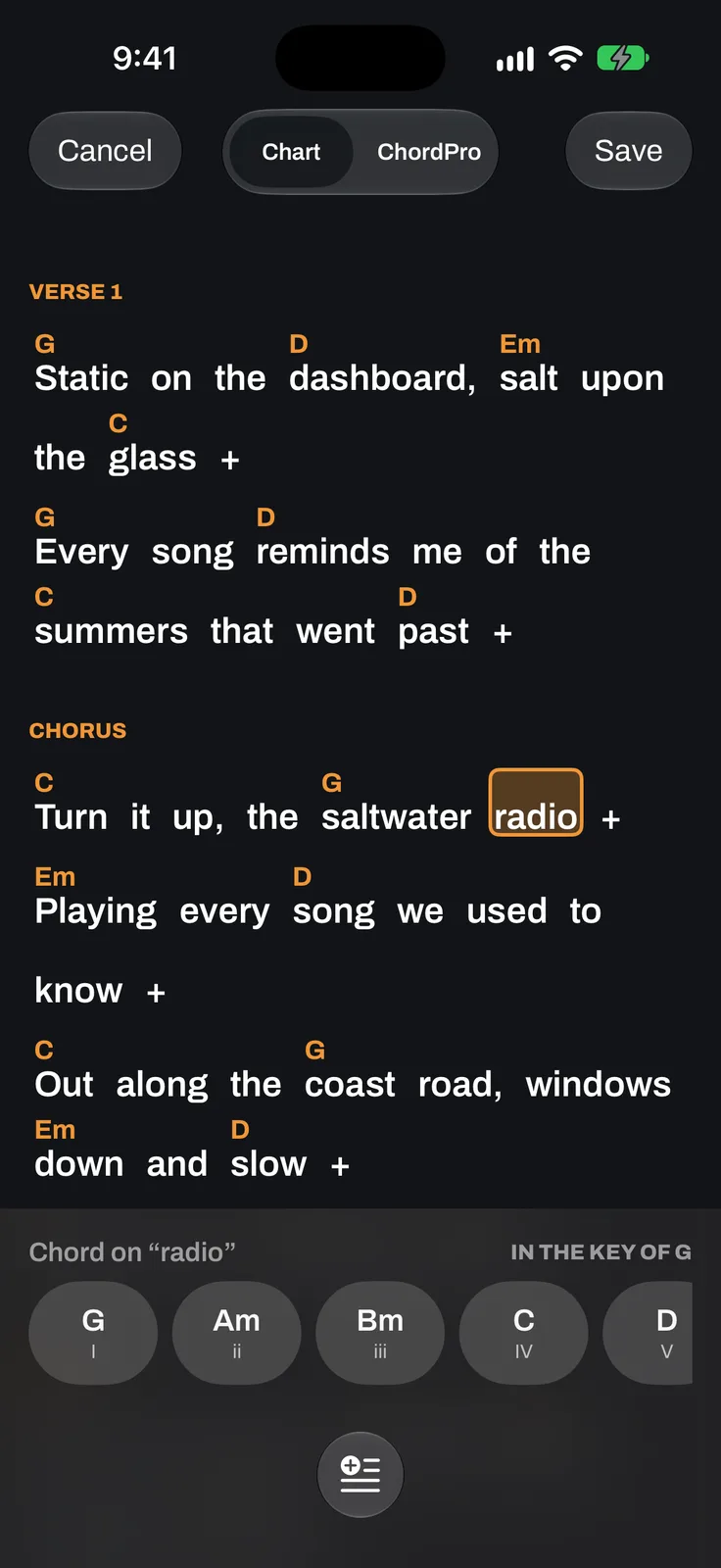
| Control | What it does |
|---|---|
| Tap a word | Picks where the chord goes: Chord on "stars". Tap between words for Chord here. |
| Chord bar | The chords In the key of the song. Tap one to place it. |
| Key | Changes which key's chords the bar offers. |
| Other… | Type any chord, such as F#m7 or D/F#, then Add. |
| Remove | Takes the chord off the selected word. |
| Add Section | Labels a part of the song: Intro, Verse, Pre-Chorus, Chorus, Post-Chorus, Bridge, Solo, Instrumental, Interlude, Break, Outro, Ending, Coda or Tag. Sections show as labels on stage. |
| View: Chart / ChordPro | Switch to ChordPro to edit the text directly. |
| Save, Cancel | Keep or forget your changes. |
Editing charts on the Mac
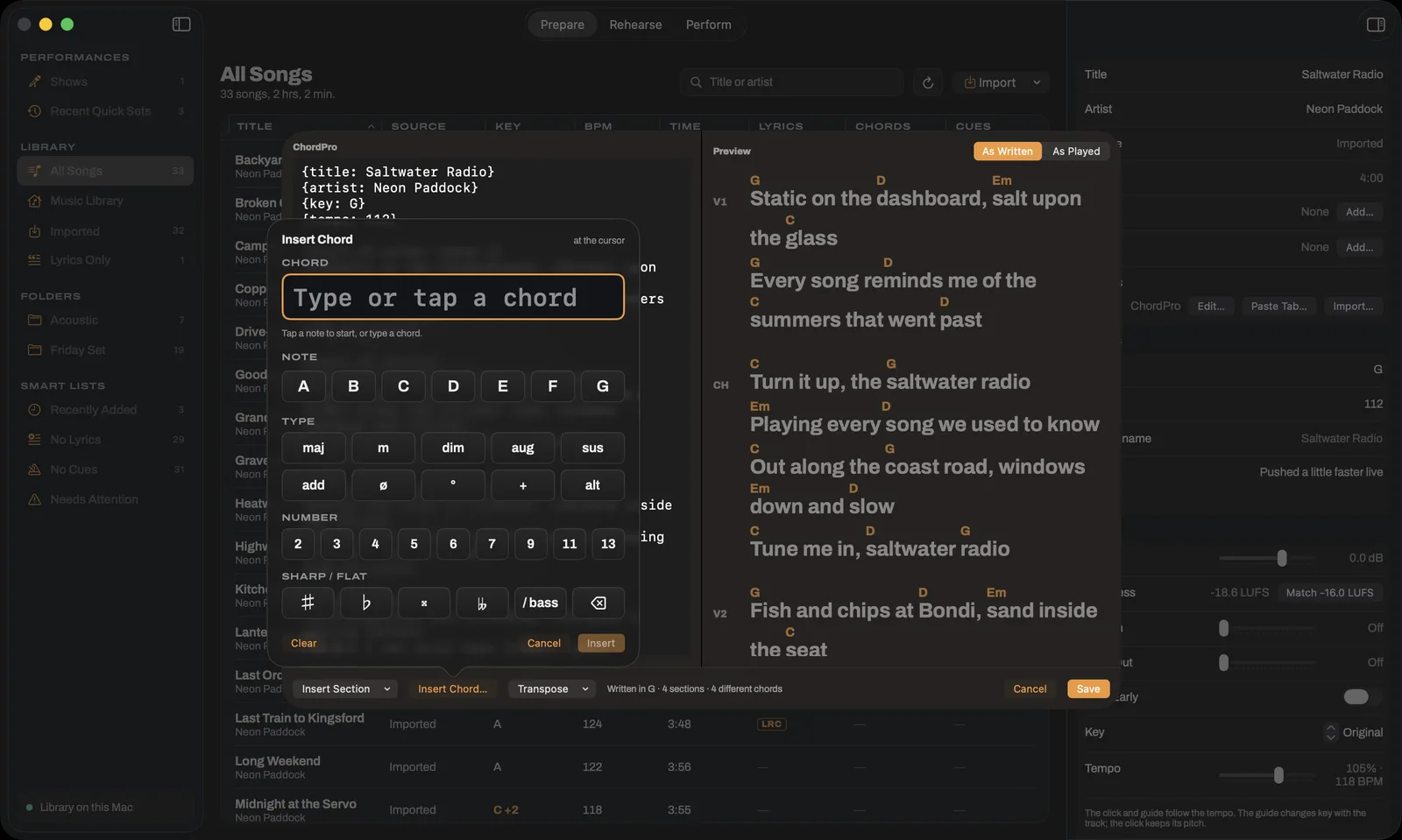
Select a song and click New… or Edit… beside Chords in the inspector. ChordPro text is on the left, and a live preview on the right.
| Control | What it does |
|---|---|
| Preview: As Written / As Played | Show the chart in the key it's written in, or as played in the song's key. |
| Mark as Section | Select some lines, then choose a section to wrap them in, such as Chorus. |
| Insert Section | Adds an empty section at the end, from the same 14 kinds as on iPhone. |
| Insert Chord… (⇧⌘K) | Opens the chord calculator. See below. |
| Transpose | Up a Semitone, Down a Semitone, or Into the Song's Key when the chart and song keys differ. |
| Save, Cancel | Keep or forget your changes. |
The bar along the bottom counts the chart's sections and chords, and shows its key.
The chord calculator
Why use it: Builds a correctly spelled chord, such as C♯m7♭5 or D/F♯, from buttons, so you don't have to remember how ChordPro writes it.
- Click in the chart where the chord goes, then press ⇧⌘K.
- Build the chord from the rows: Note (A to G), Type (maj, m, dim, aug, sus, add, ø, °, + and alt), Number (2 to 13) and Sharp / Flat (♯, ♭, 𝄪, 𝄫). / bass adds a bass note, as in D/F♯. You can also type in the Chord box.
- Check the line under the box: Shows on stage as the chord, or a warning if it isn't a chord Ostinato can transpose.
- Press Return, or click Insert [chord], to put it in as
[chord]at the cursor.
The backspace key, or ⌘⌫, removes the last piece. Clear empties the box, and Cancel closes the calculator.
Chords everywhere
- Mac: the Perform screen shows chords, and so can a TV or second display. See Mac: performing.
- Remote control: a device running another one's show can open the chart full screen, including PDF charts. See Remote control.
- Apple Watch: a Chords screen shows the current chord big, the next one, and the lyric line. See Apple Watch.