Click, guide and outputs
Pair a click and a guide with any song, and Ostinato plays them in sync with the backing track. With an audio interface, the click goes to your in-ears while the audience hears only the track.
Why use it: A click keeps the band locked to the track, and spoken cues such as "Chorus" or "Two bars" stop anyone getting lost. The audience never hears either.
Pairing a click and guide
Export the click, and any guide, from your DAW at the same length as the backing track, starting from the same point. Then touch and hold the song and choose Click & Guide…
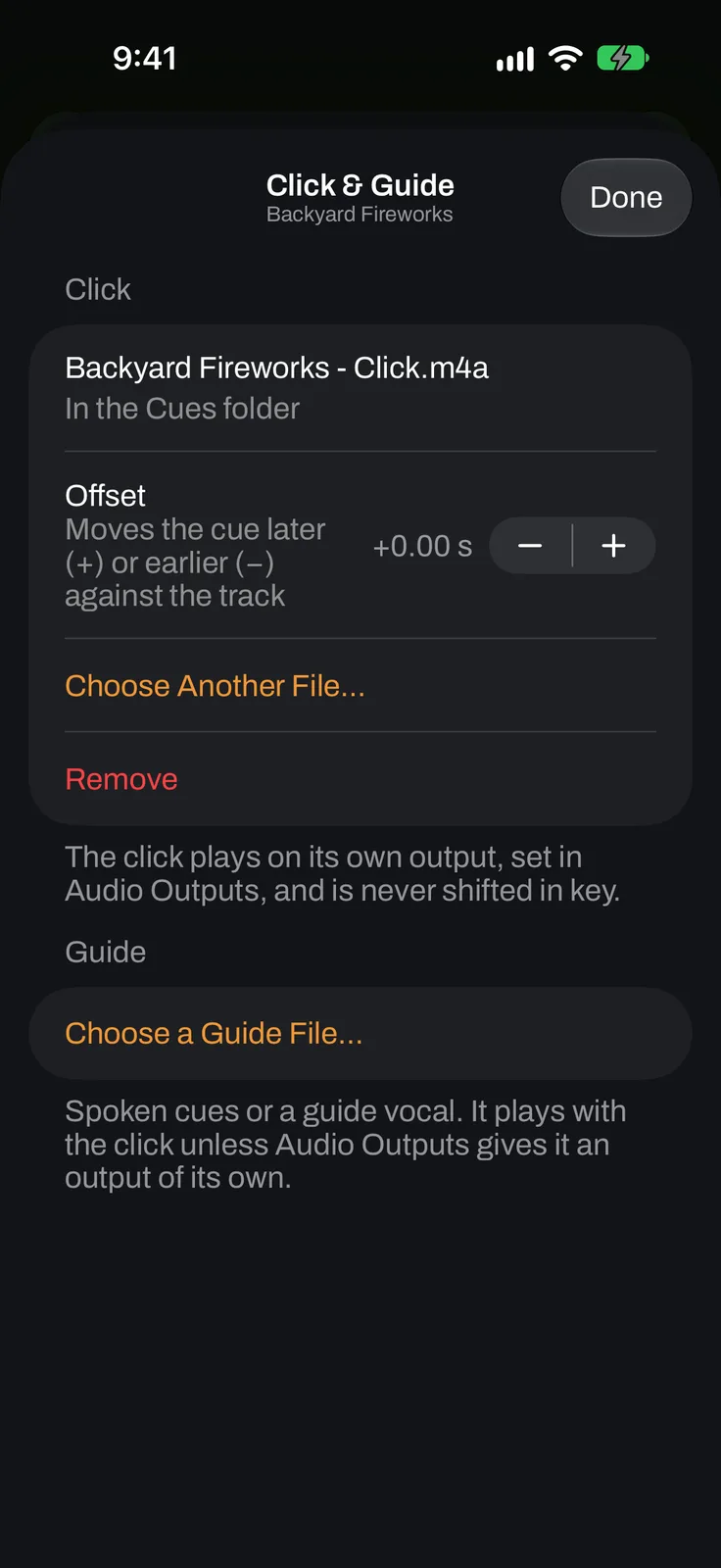
| Control | What it does |
|---|---|
| Choose a Click File… | Picks the click track. It plays on its own output, set in Audio Outputs, and is never shifted in key. |
| Choose a Guide File… | Picks spoken cues or a guide vocal. It plays with the click unless Audio Outputs gives it an output of its own. |
| Choose Another File… | Replaces a paired file. |
| Remove | Unpairs the file from the song. |
| Offset | Moves the cue later (+) or earlier (−) against the track, for a file that doesn't quite line up. |
| Done | Closes the sheet. Changes are saved as you make them. |
The files are copied into the Cues folder of your library, so the pairing works on all your devices, and the song gets a CUE tag. A file shows In the Cues folder when it's there. If a cue was paired on another device but its file hasn't arrived yet, the sheet says so, and the song shows CUE MISSING.
Clicks and guides always come from your files. Ostinato doesn't make up a click or count-in.
Audio Outputs
On the Home screen, tap Audio Outputs. The row's summary tells you the current setup, such as Scarlett 4i4 · Track 1–2 · Click 3, or Rehearsal · cue through the speaker.
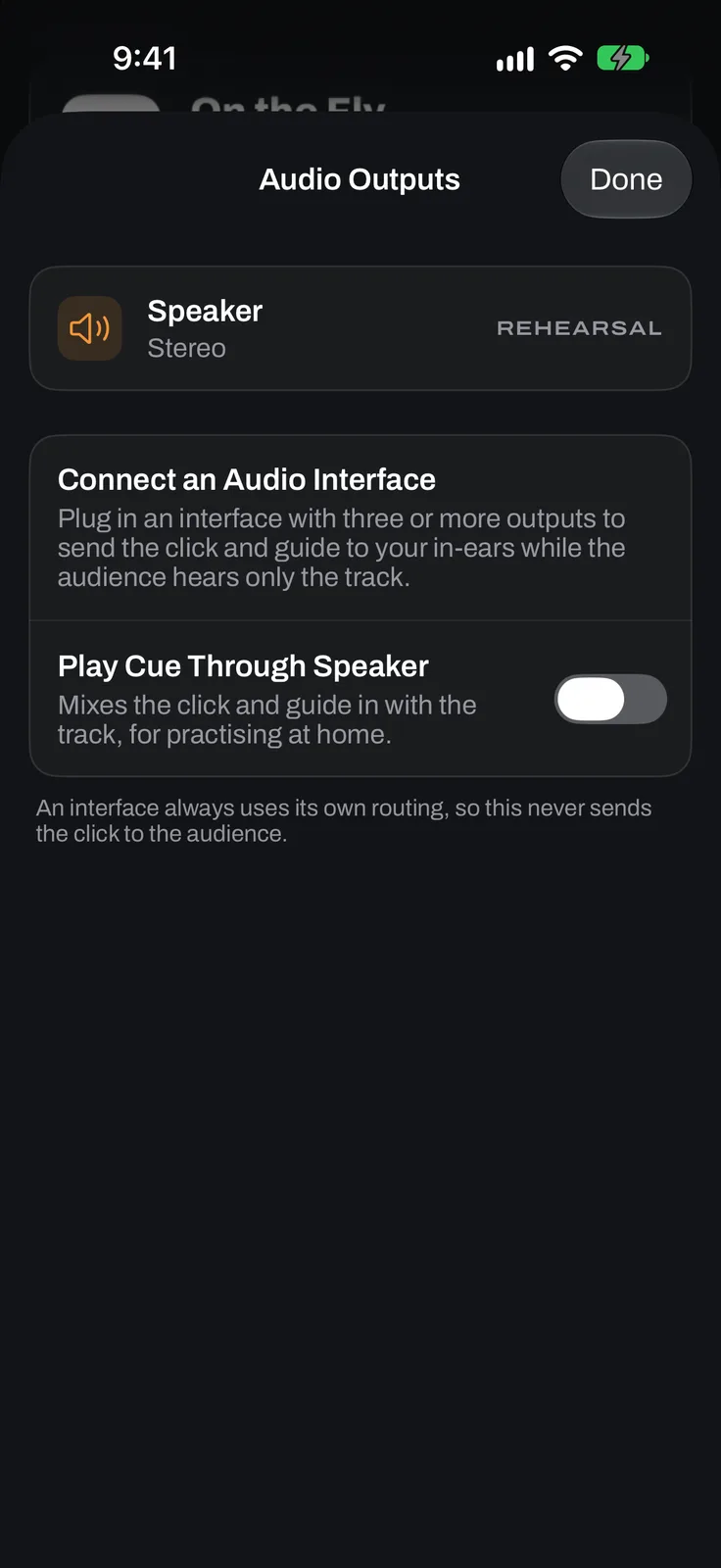
With an audio interface
Plug in an interface with three or more outputs. Under Routing:
| Setting | What it's for |
|---|---|
| Backing Track | To front of house: the pair of outputs the audience hears, such as 1–2. |
| Click | To your in-ear mix: the output for the click, such as 3. |
| Separate Guide Output | Off by default, so the guide plays with the click. Turn it on to give the Guide an output of its own, and its own fader on your monitor mixer. |
| Cue Level | How loud the click and guide are, in dB, against the track. |
| Test Outputs | Tap an output to play a few clicks on it. Use it at soundcheck to find which cable is which. |
| Saved Interfaces | Every interface you've set up. Each one's routing comes back when you plug it in. Forget removes one. |
The routing is saved for that interface only. Each new interface starts with the cue off, so the click never reaches the audience by surprise. On iPad, a grid, What Each Output Plays, shows the track, click and guide on each output, with a Test button for each.
With Play Alongside Other Apps on, iOS gives shared audio only two outputs, so the sheet says Outputs 3 and up are blocked. Tap Turn Off Play Alongside Other Apps to send the click to its own output. Your saved routing comes back as soon as every output is available.
With two outputs
On a device's own headphone output, or a two-output interface, choose a Layout:
| Layout | What you hear | Use it for |
|---|---|---|
| Stereo, No Cue | The track in stereo. The click and guide stay silent. | Shows without a click. |
| Split: Track Left, Cue Right | The track in mono on the left, the cue on the right. | Running the left output to front of house and the right to your in-ear pack, with a simple Y cable. |
The split is your choice; it's never switched on for you.
Practising at home
With no interface, turn on Play Cue Through Speaker to mix the click and guide in with the track through the device's speaker or headphones. Use it to rehearse with the click. An interface always uses its own routing, so this never sends the click to the audience.
On stage
When a song has a cue, the routing strip above the transport shows where each part is playing. Mute Cue silences the click and guide while the track carries on. If the interface is unplugged mid-show, playback pauses; plug it back in and press Play to carry on with the same routing.
When you change a song's key or tempo, the click and guide follow the tempo, the guide changes key with the track, and the click keeps its pitch.
On the Mac, cues are paired from the song inspector, and Match Cues… pairs a whole folder of cue files by name. See Mac: preparing songs.