Your song library
The library holds every song you can put on stage: audio files you've imported, songs from your Music playlists, and lyrics-only songs with no backing track at all.
Opening the library
On the Home screen, tap Songs under Prepare. It fills the screen, as on the Mac: the library's lists down the left, the songs in the chosen list in the middle, and the chosen song's details on the right. On iPhone the three stack, so a list opens its songs and a song opens its details. The details show the song's lyrics, chord chart, sound, and click and guide, each with buttons to change them, and Add to Show. Done takes you back to Home. During a performance, on iPhone tap Add Songs at the top of the stage, and on iPad use the sidebar on the left of the stage. You also see it when you add songs to a set. Its sections are:
| Section | What's in it |
|---|---|
| Ostinato Library | All your imported songs, then one list for each folder inside Songs or Lyrics. The number under each name is how many songs it holds. |
| Lyrics Only | Songs with words but no backing track. |
| Samples | A few songs that come with the app, to try the stage before you've imported anything. |
| Music Playlists | Your playlists from the Music app, once you've allowed access to Music. Pull down to refresh after changing them. |
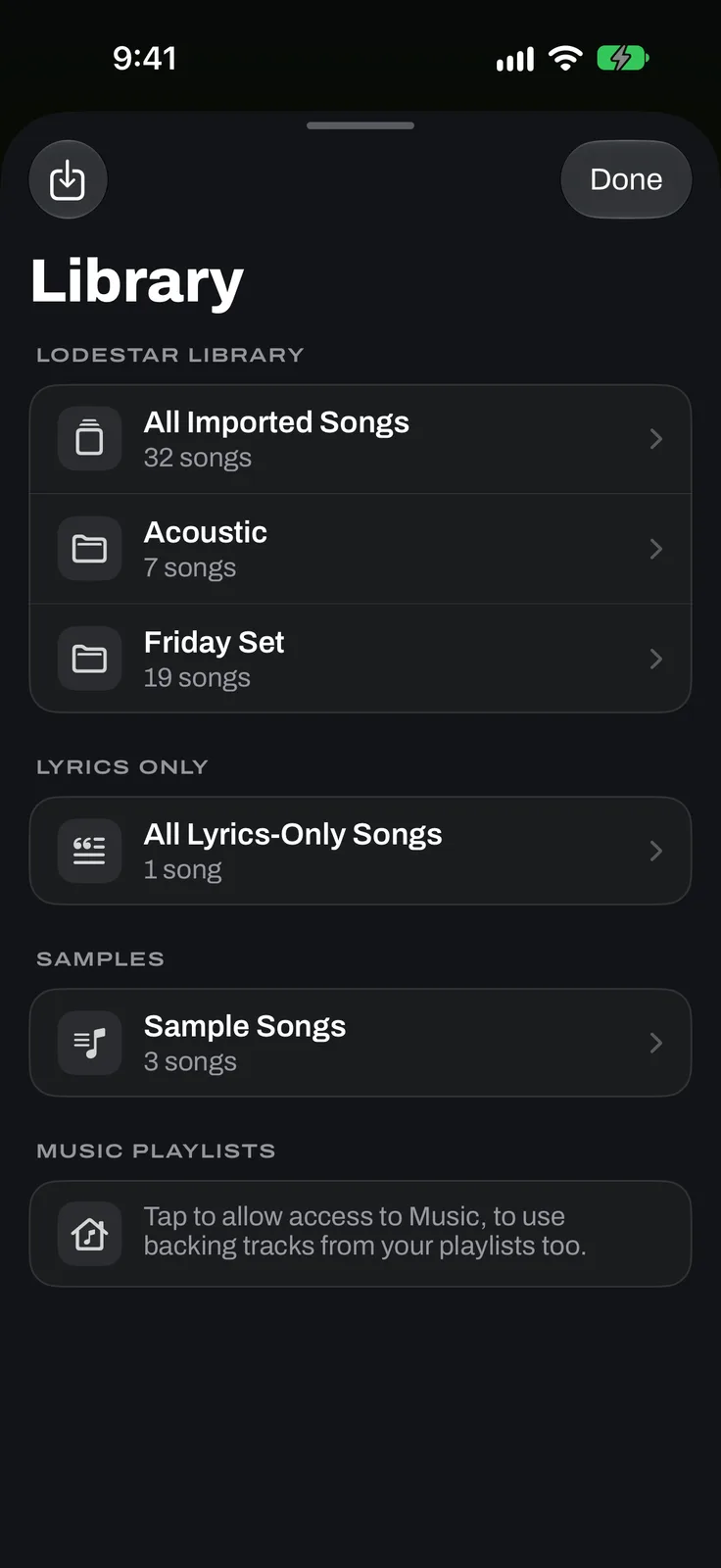
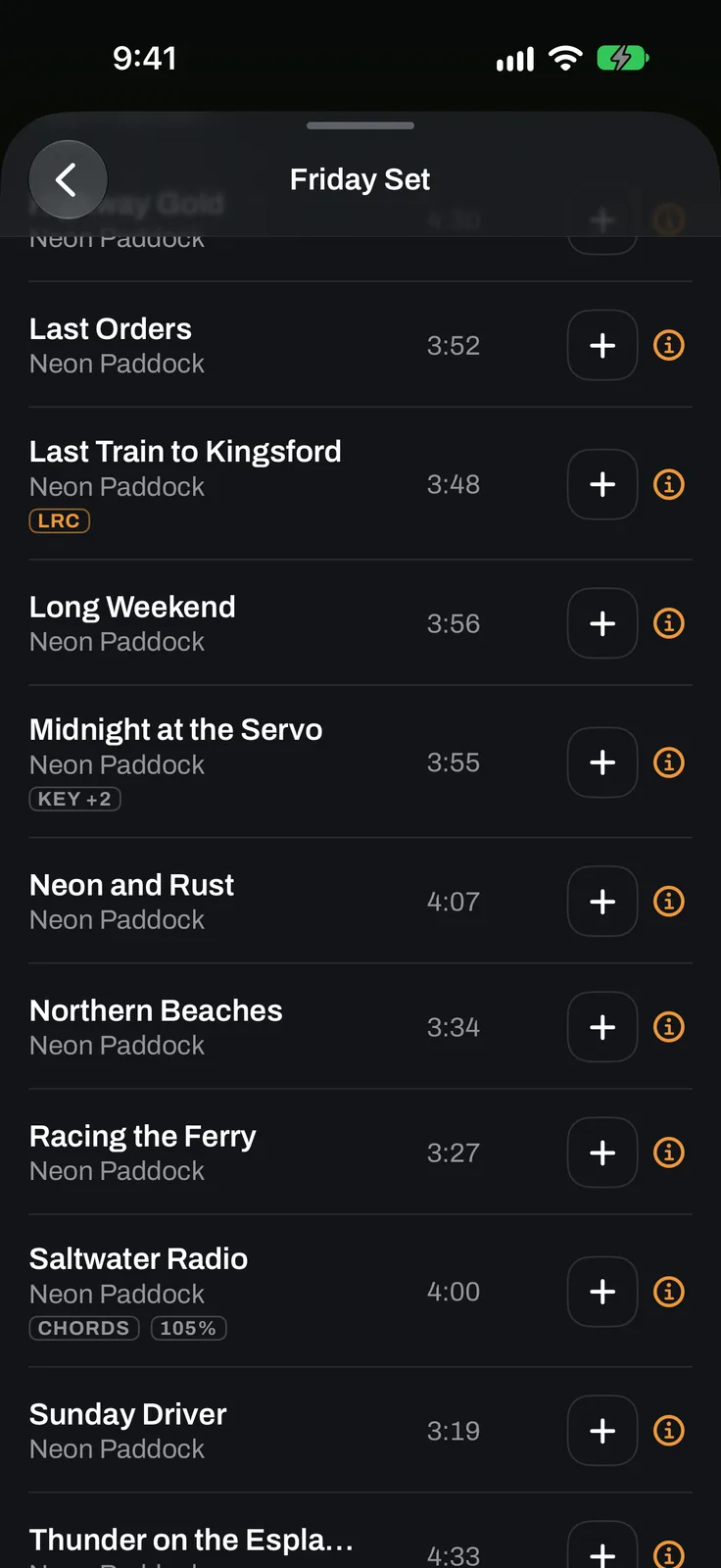
Tap a list to see its songs, and use the search field to find one. Tap a song to add it to the show. Songs already in the show are marked Playing or Added, so you don't add one twice by mistake.
Importing songs
Why use it: Imported files live in your Ostinato folder in iCloud Drive, so the same song, with its lyrics, chart, click and sound settings, is on every iPhone, iPad and Mac you own. Nothing depends on the Music app.
In the library, tap Import in the top corner:
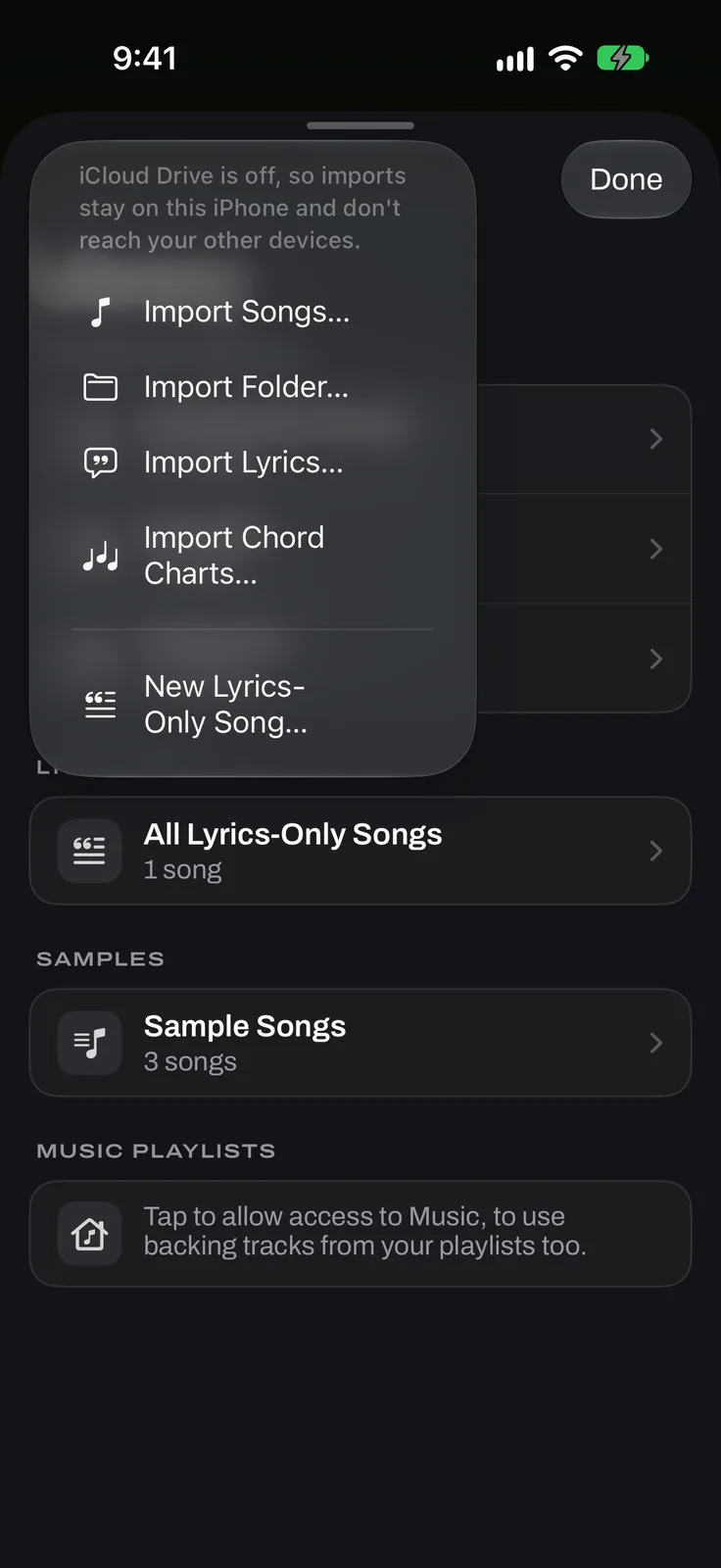
| Item | What it does | Use it to |
|---|---|---|
| Import Songs… | Picks one or more MP3, M4A, WAV or FLAC files from Files, iCloud Drive or another cloud service. | Add a few new tracks. |
| Import Folder… | Imports every audio file in a folder. The folder keeps its name and becomes a list in the library. | Bring in a whole album or a band's set of tracks in one go, already grouped. |
| Import Lyrics… | Imports many lyrics files at once and matches them to songs. | See Importing lyrics. |
| Import Chord Charts… | Imports ChordPro, chord text and PDF charts. | See Chord charts. |
| New Lyrics-Only Song… | Makes a song with words but no backing track. | See Lyrics-only songs. |
Files are copied into the library, so you can move or delete the originals afterwards. A lyrics file with the same
name as a song, such as Yellow.mp3 and Yellow.lrc, is paired with it automatically. If some
files can't be read, Couldn't Import Everything lists them.
Adding folders on a Mac
You can also copy a folder of audio files straight into iCloud Drive › Ostinato › Songs in the Finder. It becomes a list on every device: in the stage library, when adding songs to a set, and on a remote.
Where your library lives
Everything is kept as ordinary files in a folder called Ostinato:
| Folder | What's in it |
|---|---|
| Songs | Your backing tracks. Folders inside it become lists in the library. |
| Lyrics | One .lrc or .txt file for each song with lyrics saved in Ostinato. |
| Charts | Chord charts, as ChordPro or PDF files. |
| Cues | Click and guide files. |
| Shows and Sets | Your planned gigs. |
With iCloud Drive on, the folder is in iCloud Drive and shared by every device on your Apple Account. With it off, Ostinato keeps it in On This Device › Ostinato, and it isn't shared. The Import menu says so at the top, so you know before you import.
The Songs folder is the source of truth. Delete a file there and the song leaves the library on every device. Move a file into another folder and the song moves too, keeping its lyrics, chart and settings.
Lyrics-only songs
Why use it: For songs the band plays live with no backing track. They still sit in your sets and show their words on stage, so the singer never needs a separate lyric sheet.
- Tap Import › New Lyrics-Only Song…
- Type the Title and Artist.
- Paste or type the words, or tap From a File… to read them from a .txt or .lrc file.
- Tap Save.
- With line timings (LRC), the words follow along on stage when you press Play, against a silent clock.
- Without timings, you scroll the words yourself on stage.
Lyrics files you import that match no song can become lyrics-only songs too.
To file lyrics-only songs in a folder, put their files in a folder inside the library's Lyrics folder, in Finder or
the Files app. For example, Lyrics/A Night of REM/Drive.txt puts Drive in an "A Night of REM" list. If a
folder with the same name is inside Songs, its backing tracks and the lyrics-only songs share one list.
Song tags
Under each song's artist, small tags show what the song has, so you can spot what's missing before the gig. The same tags appear on iPhone, iPad and Mac.
| Tag | Meaning |
|---|---|
| LRC | Synced lyrics that follow the song. |
| LYRICS | Plain lyrics, without timings. |
| CHORDS | A chord chart. |
| CUE | A click or guide is paired with the song. |
| CUE MISSING | A cue was paired on another device, but its file isn't on this one yet. |
| Key, such as C → D | The song plays in a different key from the one it was written in. |
| Tempo, such as 105% | The song plays faster or slower than the original. |
The song menu
Tap a song in Home › Songs, or the ⓘ button beside a song in the stage's library, for its details page, with everything you can change about it. Touch and hold any song, in the library or in a set, for the same choices as a menu:
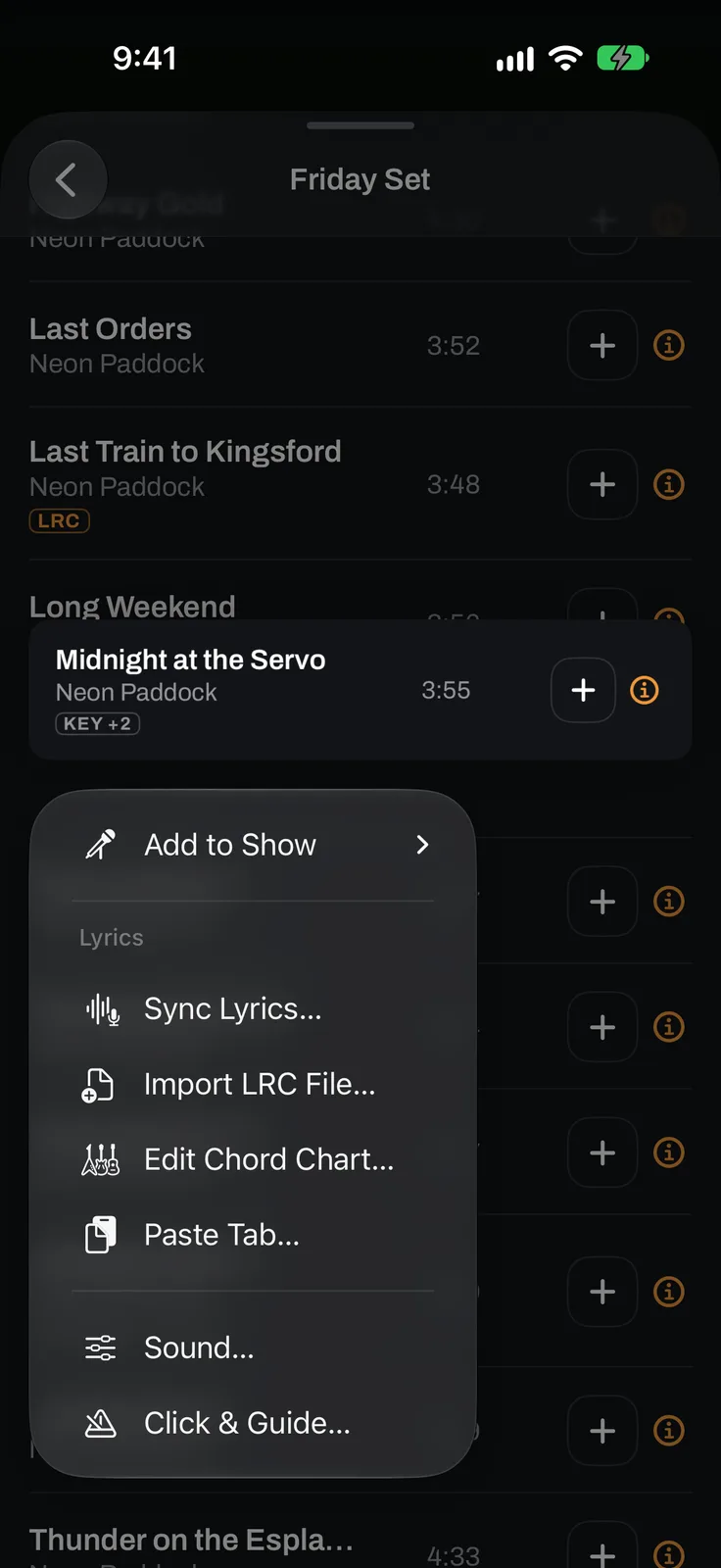
| Item | What it does | More |
|---|---|---|
| Lyrics | Sync Lyrics…, Import LRC File…, Share LRC and Use Music Lyrics. | Importing lyrics |
| Sound… | The song's key, tempo, gain, fades and end point. | Key, tempo and sound |
| Click & Guide… | Pairs a click and guide file with the song. | Click, guide and outputs |
| New Chord Chart / Edit Chord Chart… | Writes or edits the song's chart. | Chord charts |
| Add to Show | Adds the song to one of your recent shows, or New Show with This Song. | Shows and sets |
Sample songs can't be changed, so their menu is shorter.
Songs in iCloud
A song whose file is only in iCloud, and not yet on this device, shows a cloud icon. It's still listed, and it downloads when it goes on stage. If you press Play before it arrives, the stage shows Downloading song from iCloud… with a Cancel button, and the song plays as soon as it's here. Upcoming songs download one at a time in running order, the one playing now first.
While any imported songs are still downloading, Home shows how many at the top, with Check Again. A show in the Shows list, and the show itself, say how many of its songs are still downloading, and each one is marked Downloading from iCloud in its set. Before a gig, open Home › Library & Backup. It says Every imported song is on this device and ready for the show, or how many are still downloading. Keep the app open on Wi-Fi until they arrive, then tap Check Again.
Songs from the Music app play only when they're downloaded to the device. A Music playlist says how many of its songs are hidden because they aren't downloaded.