Importing lyrics
Bring in lyrics from .lrc files, the standard format for synced lyrics, or from plain .txt files. Imported lyrics are saved in the Lyrics folder of your library. Your audio files and songs in Music aren't changed.
The Lyrics menu
Why use it: Most synced lyrics already exist as .lrc files. Importing one takes seconds, and saves tapping a whole song in by hand.
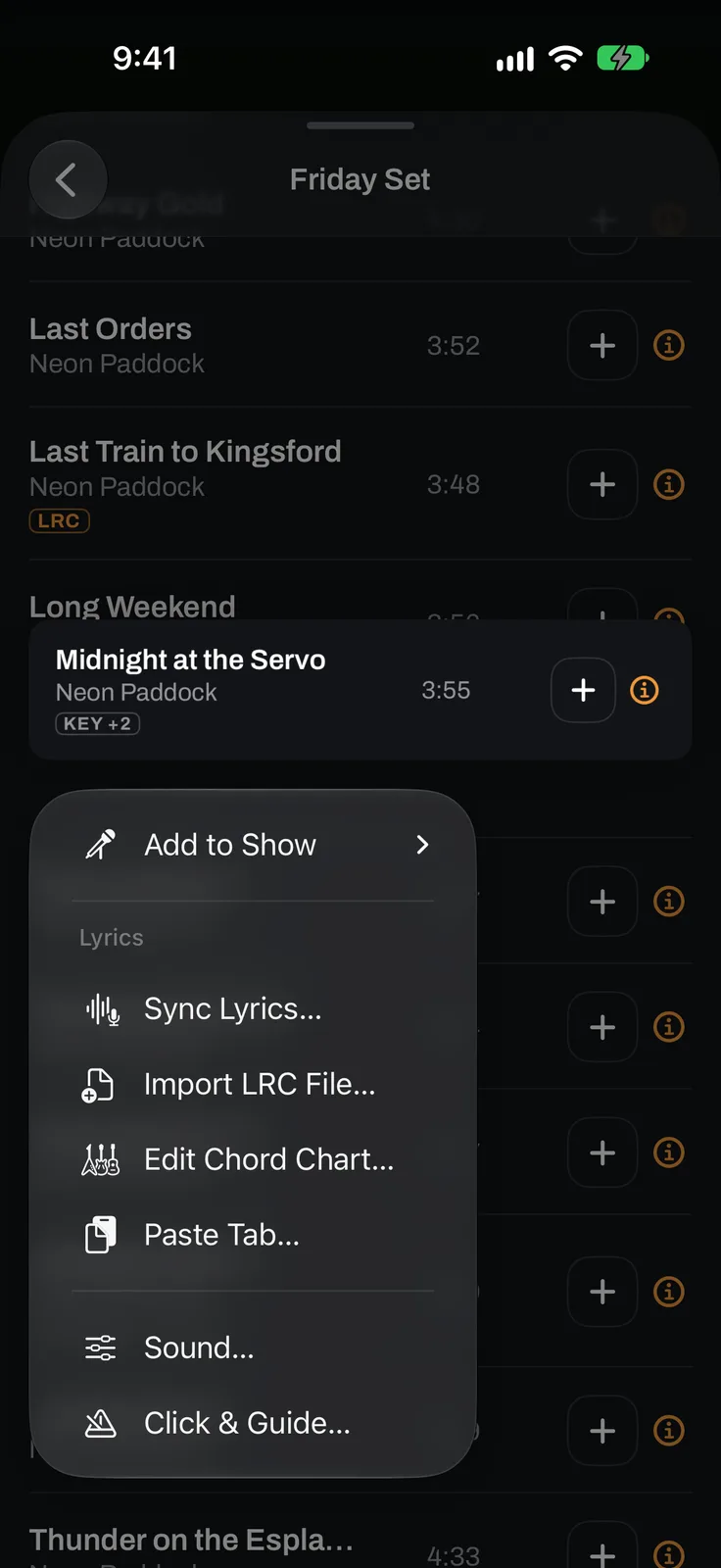
Open the song's details (tap it in Home › Songs, or tap ⓘ beside it in the stage's library), or touch and hold any song in the library or a set, for its Lyrics choices:
| Item | What it does |
|---|---|
| Sync Lyrics… | Opens the sync editor to time the lyrics by tapping along. |
| Import LRC File… | Picks one lyrics file for this song. |
| Share LRC | Shares the song's synced lyrics as an .lrc file, for a backup or another app. Shown when the song has synced lyrics. |
| Use Music Lyrics | Removes the lyrics saved in Ostinato, so the song goes back to its lyrics from Music. Shown when Ostinato has lyrics saved for the song. |
Importing a file for one song
- Touch and hold the song and choose Import LRC File…
- Pick the file in Files. It can be on your device, in iCloud Drive or another cloud service.
What happens next depends on the file:
- A synced .lrc file is saved straight away, and the song gets its LRC tag.
- A file without timings, such as a .txt file, asks whether to Sync Now in the sync editor or Keep as Plain Lyrics.
- A file whose last line starts after the song ends may be for a different version of the song, so the app checks with you before importing it.
Importing many files at once
Why use it: Setting up a whole repertoire? Drop in a folder of .lrc files and Ostinato matches each one to its song.
- In the library, tap Import and choose Import Lyrics…
- Select all the files you want, then tap Open.
- Check the matches on the review screen, then tap Import.
Each file is matched to a song using, in order:
- The title and artist tags inside the file, such as
[ti:Yellow]and[ar:Coldplay]. - A file name like
Coldplay - Yellow.lrc, either way round. - A file name that's just the title, like
Yellow.lrc, as long as only one song has that title.
Matching ignores capitals, accents and punctuation. On the review screen, each file has a status:
| Status | Meaning |
|---|---|
| Matched | Ready to save to the song shown. |
| Replace | The song already has lyrics saved in Ostinato, which this file will replace. |
| Check | The last line starts after the song ends. The file may be for another version. |
| New Song | No song matched, so the file becomes a lyrics-only song of its own. |
| Skip | You chose to skip it, so it isn't imported. |
Tap a file to choose its song yourself: search your songs, pick Lyrics Only to make it a lyrics-only song, or skip it. Then tap Import, which shows how many files it will save. Cancel imports nothing. If some files couldn't be read as text, the review screen says how many. When a song title belongs to both an imported song and a Music song, the lyrics go to the imported one.
When you import audio files, a lyrics file with the same name as a song, such as Yellow.lrc beside
Yellow.mp3, is paired with it automatically.
Sharing a page from Safari
Why use it: The words are on a lyrics or chord site, but not in a file. Sharing the page saves copying and cleaning them up by hand.
Found the words on a web page? In Safari, tap Share and choose Ostinato. The share sheet reads the page, fills in the song's title and artist, and strips out the site's own lines. Under Save As, choose Lyrics or Chord Chart, check that only the song is left, and tap Save. Next time you open Ostinato, it asks which song the words go with. You can share PDF chord charts the same way. The Mac has the same share option in Safari.
Ostinato never fetches lyrics from websites by itself. It only uses words you copy, share or import.
The share sheet
| Control | What it does |
|---|---|
| Save As | Lyrics or Chord Chart. A shared PDF is always a chart. |
| Title, Artist | Filled in from the page. Correct them so the words find the right song. |
| Words or Chart | The text from the page. Delete anything else the site added. |
| Save | Saves it for Ostinato. It says Saved. Open Ostinato to choose the song it goes with. |
| Cancel | Closes without saving. |
Your lyrics on all your devices
Lyrics saved in Ostinato are shared with your other iPhones, iPads and Mac through iCloud, when you're signed in with the same Apple Account. Songs are matched by title and artist, so the lyrics find the same song on each device. You can also drop .lrc and .txt files into iCloud Drive › Ostinato › Lyrics yourself. You can see and manage everything you've saved in Saved Lyrics.
Importing on the Mac
On the Mac, drag .lrc and .txt files onto the song list, or use the song inspector. A review sheet lists each file, whether it's Synced or Plain, and the song it Goes with. See Mac: preparing songs.
About LRC files
An LRC file is a text file with a time before each line:
[ti:Yellow]
[ar:Coldplay]
[00:12.40]Look at the stars
[00:16.10]Look how they shine for you
Ostinato reads times written as minutes and seconds, with or without hundredths, lines with several times
(for a repeated chorus), and the [offset:] tag. Files can be saved as UTF-8, UTF-16 or older Windows text.