The stage screen
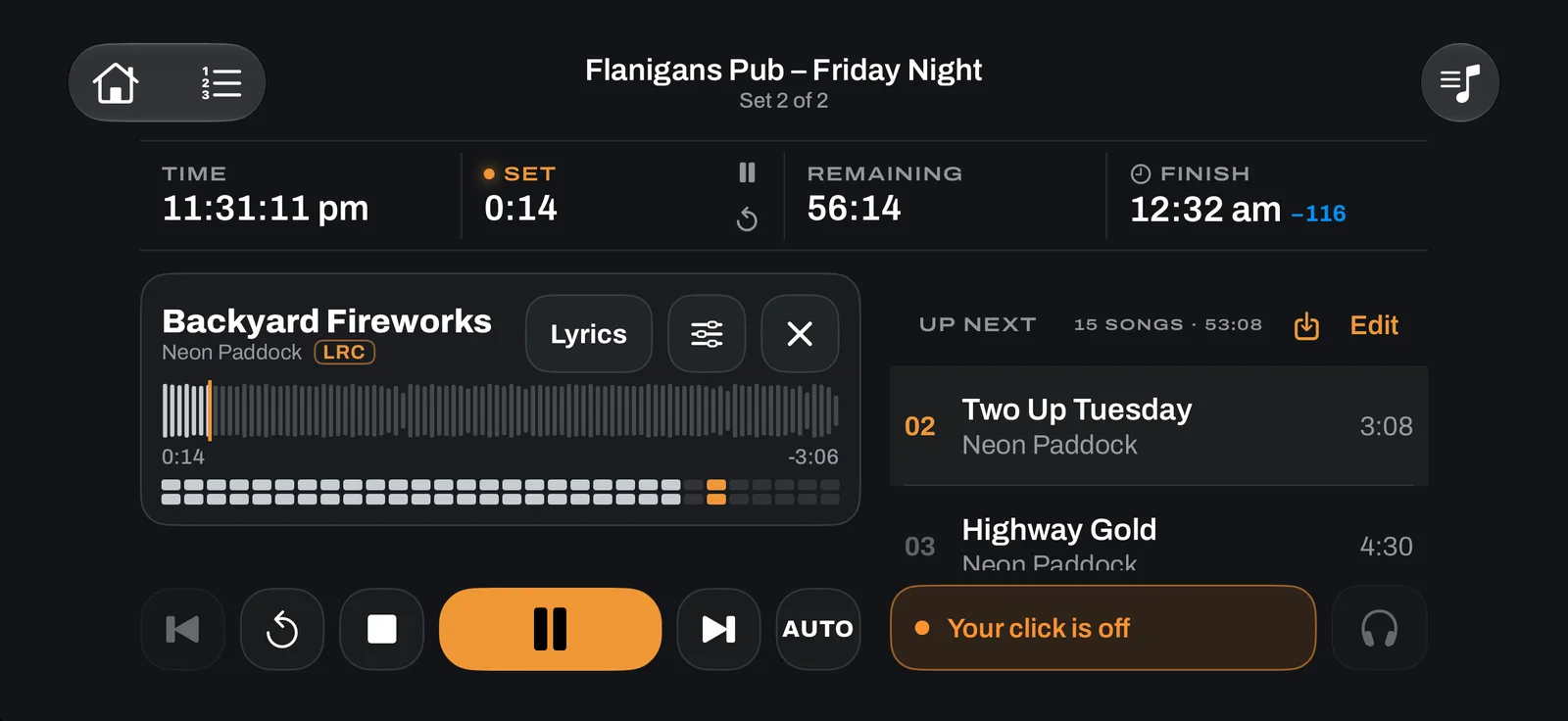
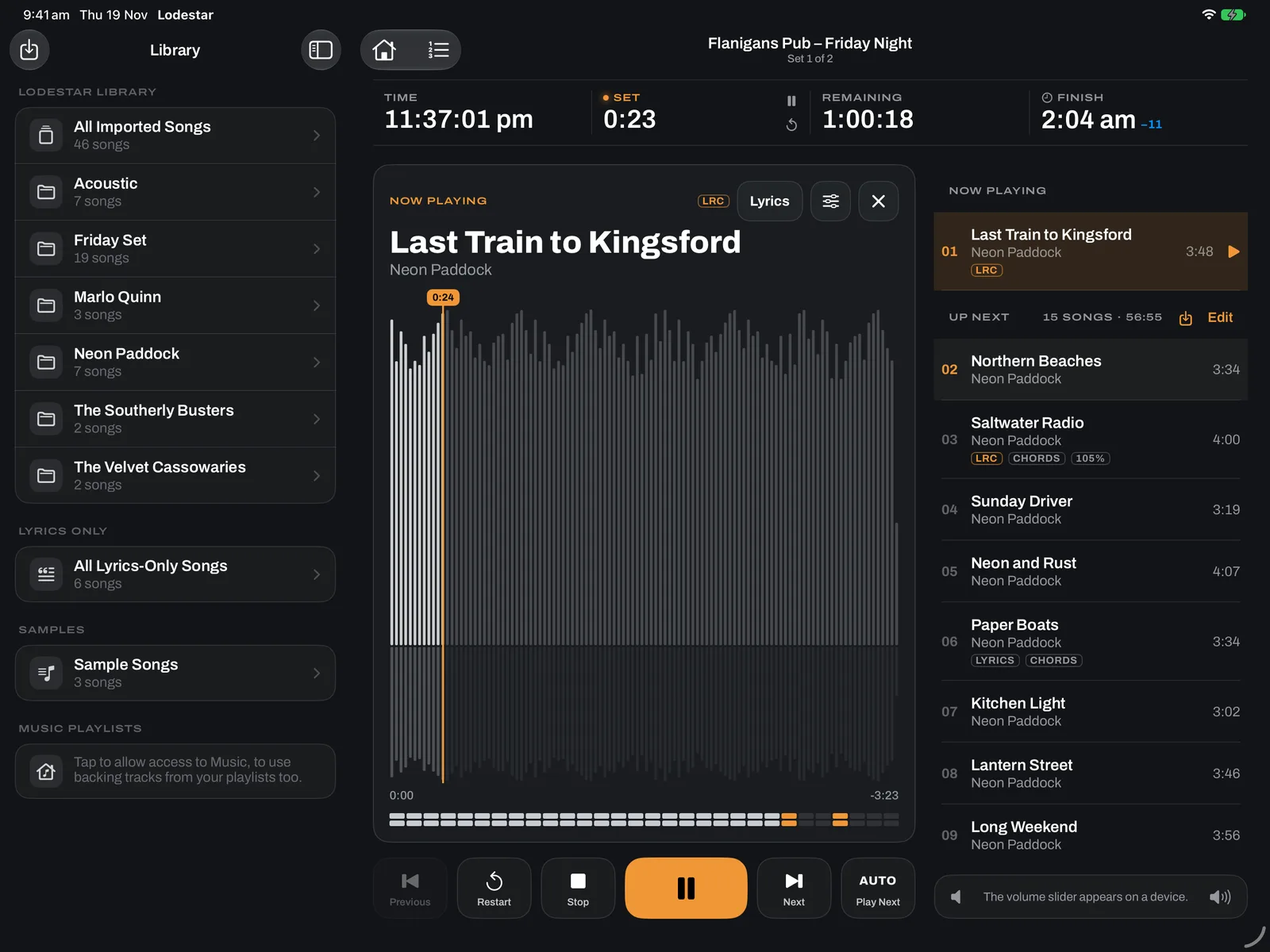
The stage screen is what you perform from. Everything you need during a song is on it, with big targets and readouts you can take in at a glance from a few steps away.
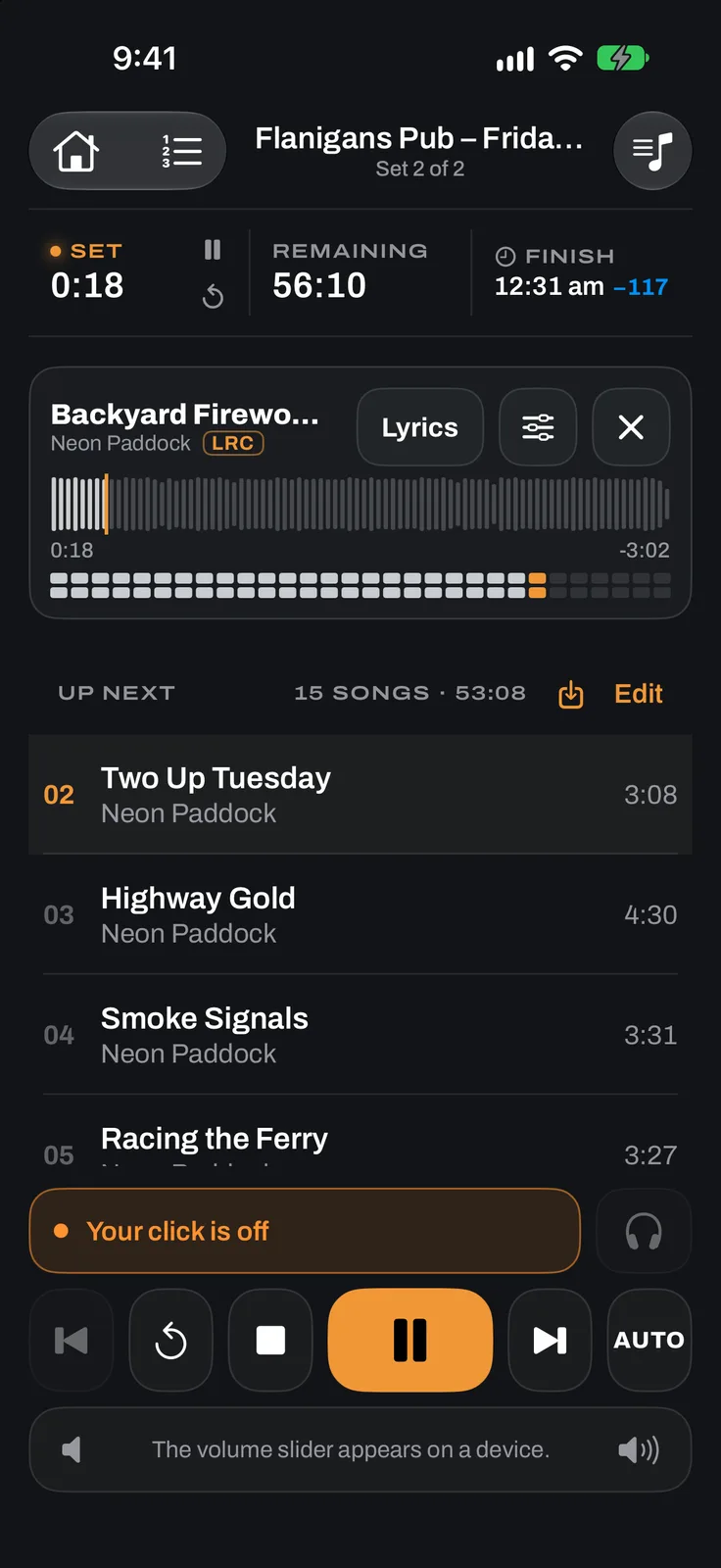
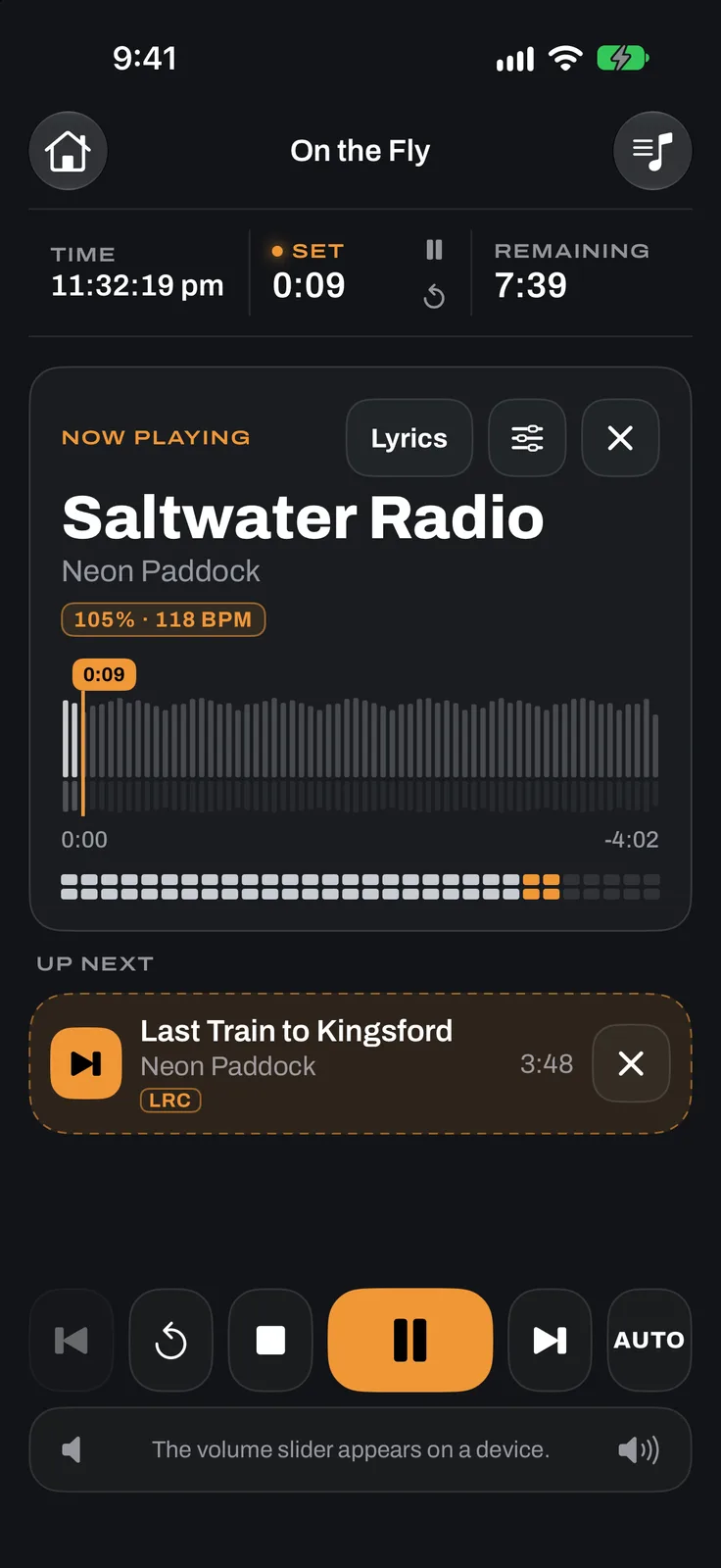
From top to bottom
Top bar
| Button | What it does |
|---|---|
| Home | Leaves the stage. See Leaving the stage. |
| Title | While you play a show, its name with Set 2 of 3 underneath, so you know where you are in the night. |
| Sets | Shown while you play a show. Switches to another of its sets. See Performing a set. |
| Add Songs | On iPhone, opens the library to add songs. On iPad the library is in the sidebar. A show's set opens with the sidebar hidden, so Add Songs shows at the top right to open it again. |
Timer strip
Why use it: You always know how long you've been on, how much is left, and whether you'll make the curfew, without doing sums between songs.
| Readout | What it shows |
|---|---|
| Time | The time of day. |
| Set Time | How long the set has been running. It starts on your first Play and shows a glowing dot while it runs. The small buttons beside it pause or start the timer, and reset it to zero, for when you start a set with talking or a false start. |
| Remaining | The rest of the current song plus every song still to come. While you play a set, it's Set Remaining. |
| Finish | Shown when the show has a start time: when the show is now expected to finish, and how that sits against the curfew. Tap it to open Make It Fit and choose songs to skip. See Curfew and gig report. |
Now Playing card
The current song's title and artist, with its status: Now Playing in orange, Paused, or Ready when it's waiting at the start. On the card:
| Part | What it does |
|---|---|
| Lyrics | Opens the song's lyrics or chord chart full screen. An LRC tag beside it means the lyrics are synced. |
| Tags | The song's tags, such as its key and tempo change. |
| Sound | The slider button. Opens the song's key, tempo, gain, fades and end point. You hear changes straight away. |
| ✕ (Remove Current Song) | Takes the song off. The next song, if there is one, takes its place. |
| Waveform | The song's shape, and the position control. Drag along it, or tap anywhere on it, to move through the song. The times underneath show where you are and how much is left. |
| Level meter | A stereo LED meter, left channel on top. Grey is comfortable, orange is loud, red is near the top. It shows the level reaching the speakers, so turning the volume down lowers it too. |
With nothing loaded, the card says Nothing Playing: tap it to open the library. While a song is coming down from iCloud, it says Downloading song from iCloud…, with Cancel to take it off and move the next song up instead of waiting.
Now and Next chords
When the song has a chord chart, a strip on iPhone, or a rail down the side on iPad, shows the chord being played Now and the one coming Next, so a player can follow the changes without opening the full chart.
Up Next, or the setlist
With On the Fly, this is the single song waiting to play next, with ✕ to clear it. In a Quick Set, it's every song still to come, numbered, with the song count and total length, and Save as Set to keep the running order. When a show has a curfew, a line in the setlist marks where the curfew falls. Breaks in a set show as their own rows. See Running a show.
Routing strip
When a song has a click or guide, a strip above the transport shows where each part plays, such as Track 1–2 · Click + guide 3.
- Mute Cue silences the click and guide while the track carries on, for a song where the drummer takes over. Unmute Cue brings them back.
- If no interface is connected, the strip says so, and the track plays in stereo with the cue silent.
- If the interface is unplugged mid-song, playback pauses. Plug it back in and press Play to carry on with the same routing.
Transport keys
- Previous Song
- Back to Start
- Stop
- Play / Pause
- Next Song
- Auto-Play Next
| Key | What it does | Why use it |
|---|---|---|
| Previous Song ⏮ | Goes back to the song before. | You moved on by mistake. |
| Back to Start ↺ | Returns to the beginning of the song. | A false start, or to count the band in again. |
| Stop | Stops the song and moves the next song into Now Playing, ready but not playing. | End a song early and talk to the crowd before the next one. |
| Play / Pause | The wide key in the middle. | Start each song when you're ready. |
| Next Song ⏭ | Moves straight to the next song. With Auto-Play Next on and a song playing, the next one starts straight away. | Skip ahead, or segue. |
| Auto-Play Next (AUTO) | When it's lit, each song starts as soon as the one before ends. | Medleys and non-stop sets. |
On iPad each key has a short caption under it, such as Restart under Back to Start. A key that wouldn't do anything right now is greyed out. For example, Next Song is greyed out with nothing queued.
Volume
The device volume slider sits under the transport, so you don't need to find the side buttons on stage.
Layouts
| Device | Layout |
|---|---|
| iPhone, portrait | Everything stacked. Add Songs opens the library. |
| iPhone, landscape | The song and transport on the left, the queue and volume on the right. |
| iPad | The library in a sidebar on the left; tap the sidebar button to hide it for more room, and Add Songs to bring it back. In portrait, the library slides over the stage. |
| Mac | See Mac: performing. |
Leaving the stage
Tap Home. If songs are loaded, the app asks first, because going Home clears the current song and the queue. The songs you played stay in Recent Quick Sets. Depending on what's playing, it also offers:
| Choice | When |
|---|---|
| Save as Set and Leave… | In a Quick Set, to keep tonight's running order. See Saving sets. |
| End Show and See Report | While playing a show, for the gig report. |
| Leave Performance | Clears the stage and goes Home. |
The screen never dims or locks while Ostinato is open, so it won't go dark in the middle of a song. Music keeps playing if you lock the screen or switch apps.