Shows and sets
A show is a gig, such as Flanigans Pub – Friday Night, with one or more sets of songs. Plan it ahead on your iPhone, iPad or Mac, and perform it set by set on the night.
Why use it: On the night you tap one button and the right songs are in the right order, with breaks and reminders in place. Planned shows also give you a finish time against the curfew, and a gig report afterwards.
Shows and sets are saved in your library, so a show you make on one device appears on all the others, with its sets in order. Edits sync both ways. The Mac has the same features; see Mac: shows and sets.
The show list
On the Home screen, tap Shows.
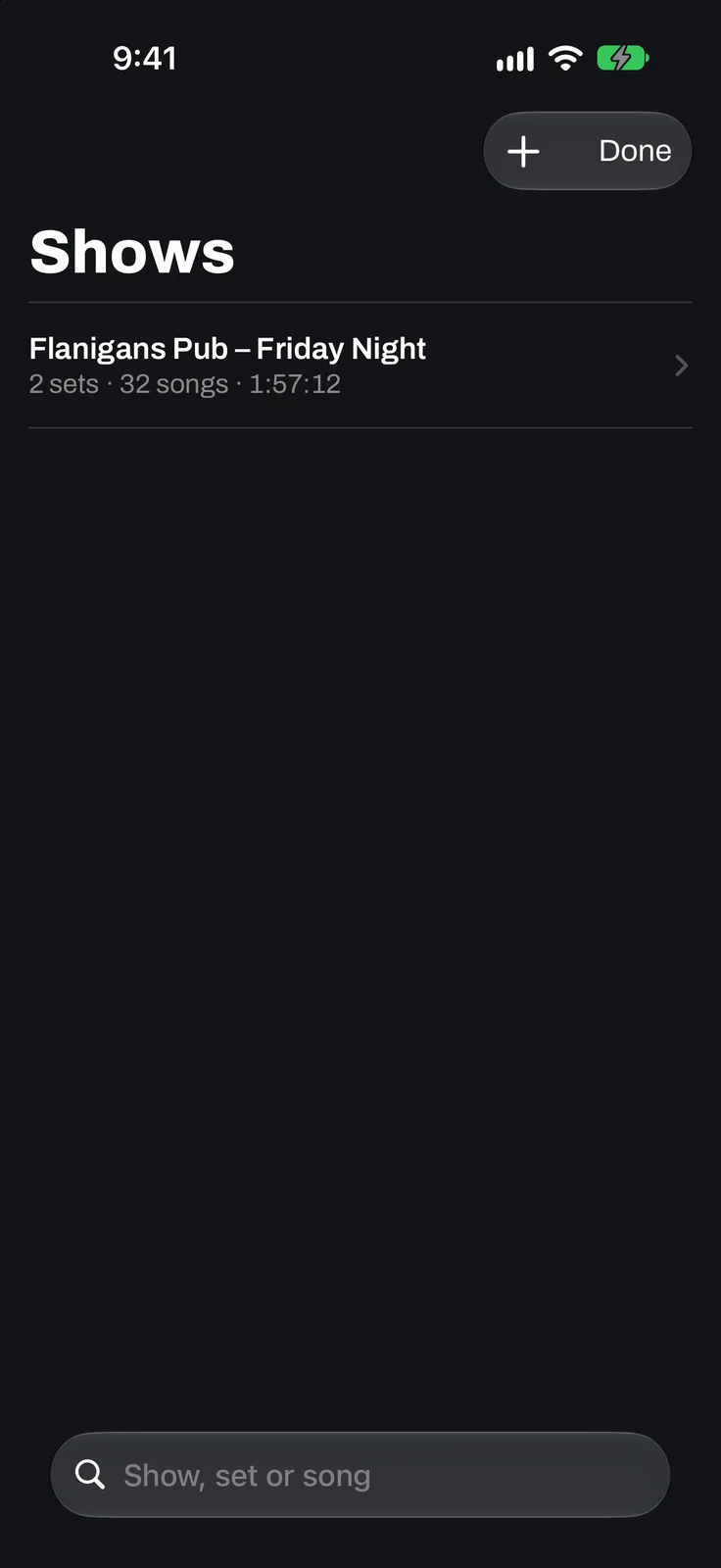
| Control | What it does |
|---|---|
| Search | Finds a show by its name, or by a set or song in it, even among hundreds of shows. |
| New Show | Asks for a name, such as the venue and the night, then opens the new show. |
| Touch and hold › New Show from This | Copies the show with all its sets and songs. Use it for a venue you play every week, then change what's different. |
| Swipe right › Pin as Tonight, or touch and hold | Pins the show as tonight's. It goes to the top of the list, marked Tonight, on all your devices, and Siri's "Start tonight's show" opens it. Only one show is pinned at a time, and the pin lasts the night (18 hours). |
| Swipe left › Delete, or Delete Show… | Deletes the show and its sets on all your devices. The songs stay in your library. |
| Done | Goes back to the Home screen. |
Each row shows how many sets and songs the show has, and its length.
A show
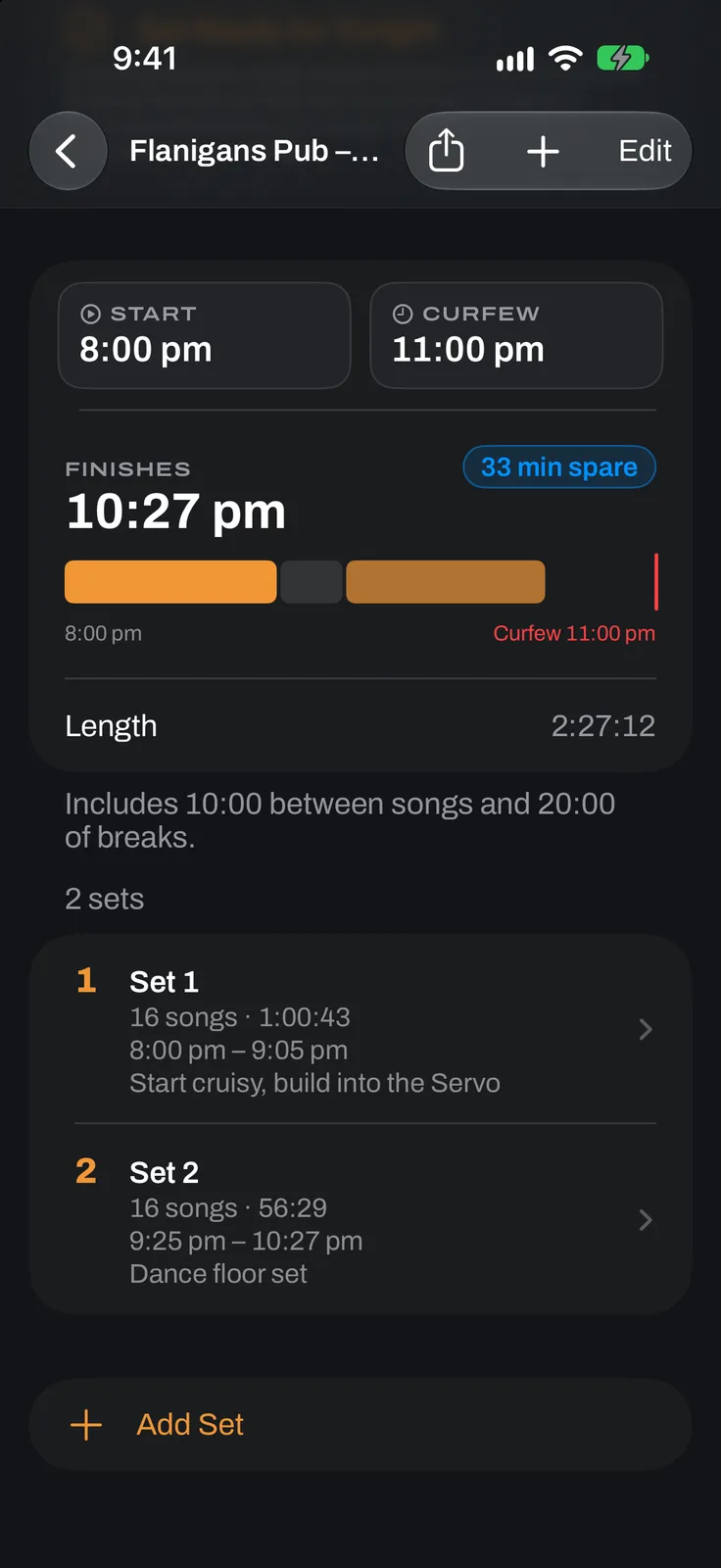
A show lists its sets in order, each with its number of songs and length, and its target if it has one. With a start time, the timeline above shows when each set and break happens.
| Control | What it does |
|---|---|
| Add (+) › Add Set | Adds a new set at the end and opens it. |
| Add (+) › Rename Show… | Changes the show's name. |
| Add (+) › Show Timing… | The start time, curfew and breaks. See Curfew and gig report. |
| Edit | Drag sets into a new order. |
| Touch and hold a set › Duplicate Set | Copies the set, to make a variation of it. |
| Touch and hold a set › Delete Set… | Removes the set. The songs stay in your library. |
| Make It Fit | Shown when the show runs past its curfew. See Make It Fit. |
Ready for Tonight
On the day of a gig, open the show and tap Get Ready for Tonight. Ostinato waits for every song, click and guide to come down from iCloud, copies them to this iPhone or iPad, and freezes the sets as they are. It also pins the show as Tonight. Keep the app open on Wi-Fi or mobile data until it says Ready for Tonight.
From then on, the show plays from that copy. A song deleted or moved on your Mac, a set changed on another device, or a file iCloud takes off this device can't change tonight's show. Each of its sets says it's ready, or warns you if you've changed it since. The show's screen says what has changed:
- The sets have changed since: tonight plays them as they were. Tap Update Tonight's Copy to use the changes.
- Gone from the library since: those songs still play from tonight's copy.
- Not on this device: songs that weren't in the library when you got ready, so they're left out.
Tap Clear Tonight's Copy after the gig to free the space. The copy is also cleared on its own a day and a half after it was made. Songs from the Music app aren't copied, so keep them downloaded.
Building a set
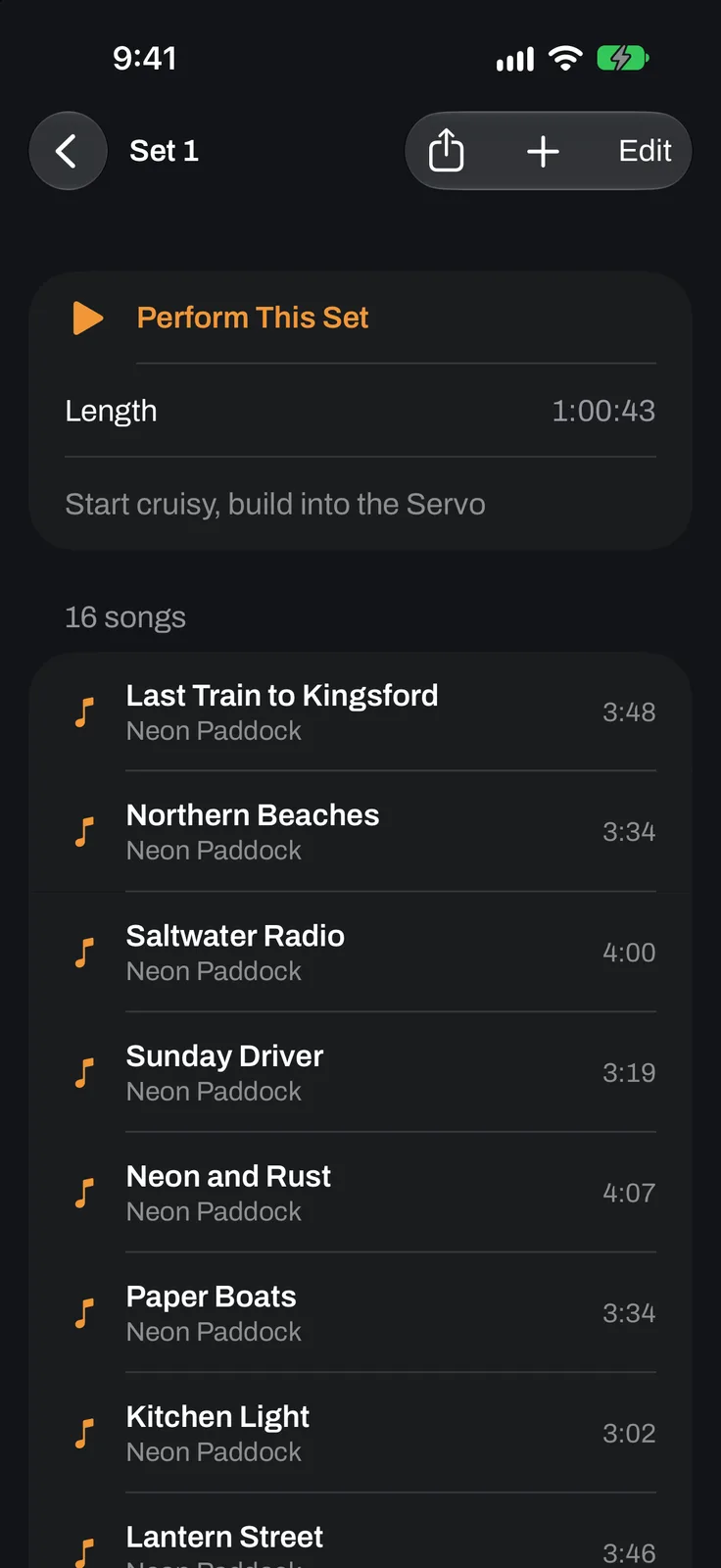
Open a set. At the top are Perform This Set and the set's length, against its target if it has one, such as 2:10 over. Tap Add (+) for:
| Item | What it does | Why use it |
|---|---|---|
| Add Songs… | Picks songs from any list in your library, or with Search All Songs. Tap songs to tick them, then Add. | Build the set. |
| Add Break… | A break of 1 to 120 minutes, with an optional note such as "Back at 10:15". | Plan a mid-set pause, and keep the timing honest. |
| Add Note… | Something to say or remember between songs, such as "Thank the bar staff". | Reminders that show up on stage when you need them. |
| Edit Details… | The set's Name, a Target Length (5 to 600 minutes, in 5-minute steps) and Notes. | Know at a glance whether the set is the length the venue asked for. |
The share button Share Set List… beside + shares the set as a PDF or a numbered text list, with the show's name. The PDF can be in large type for the stage floor, and both can include keys and running times. Print it for the stage floor, or send it to the band or the sound engineer.
Tap Edit to drag songs, breaks and notes into a new order, or swipe one left to remove it. Tap Undo in the toolbar to step back through your changes. Touch and hold a song for its song menu, plus:
| Item | What it does |
|---|---|
| Drop First if Running Late | Make It Fit suggests this song first when the show runs late. The song shows a Drop First tag. |
| Always Keep | Make It Fit never suggests this song. Use it for the hits and the closer. |
A song whose file isn't on this device is marked Not on this device, so it will be left out: the set plays without it. One still coming from iCloud says Downloading from iCloud.
Adding a song from the library
Touch and hold any song in the library and choose Add to Show. It lists your 12 most recent shows; pick one, then the set. New Show with This Song starts a new show.
Performing a set
- Open the set and tap Perform This Set.
- The stage opens with the set's songs in order, and the show's name and Set 1 of 2 at the top.
- For the next set, tap Sets in the top bar, choose the set and tap Start Set. You can also ask Siri to "Start the next set in Ostinato".
Starting another set stops the song playing now, and the set's songs replace what's up next. If any songs in the set aren't on this device, a note says how many were left out.
Saving sets
Why use it: A great night made up as you went can become next week's set, without typing it all in again.
Any Quick Set can become a set. Tap Save as Set in the setlist's header, or choose Save as Set and Leave… when you go Home.
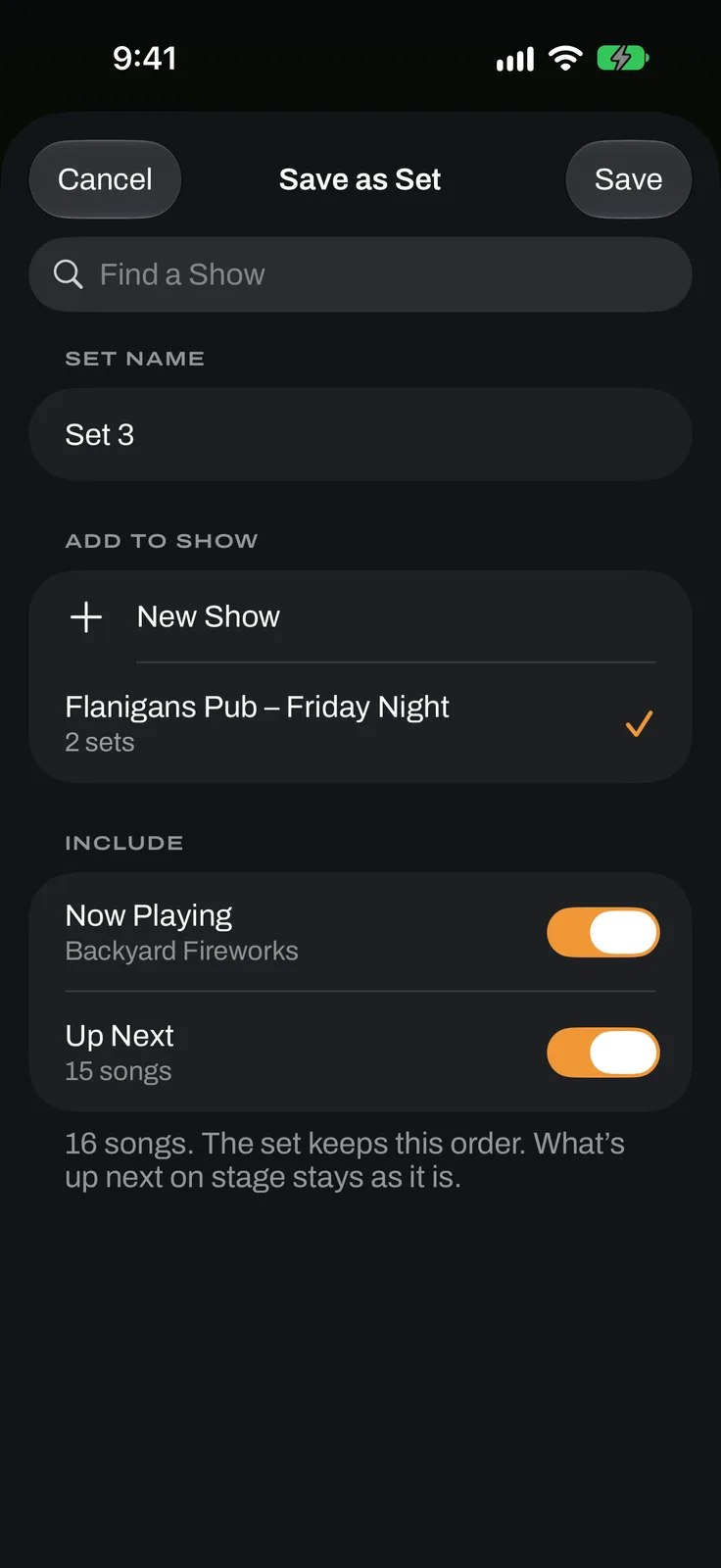
| Setting | What it's for |
|---|---|
| Set Name | Starts as the next set number in the show, such as "Set 3". Type your own. |
| Add to Show | Your recent shows, Find a Show to search the rest, or New Show with a Show Name. |
| Include | Songs Already Played, Now Playing and Up Next. Together they make tonight's running order. |
The set keeps this order. What's on stage stays as it is, so you can carry on playing.
Keeping tonight's changes
If you add, move or remove songs while playing one of your sets, Ostinato asks Keep Tonight's Changes? when the set finishes. It lists each song added, moved or removed, and offers:
| Choice | What happens |
|---|---|
| Update set | Saves tonight's running order over the set, for next time. |
| Save as a New Set… | Keeps the original and saves tonight's order as a new set. |
| Keep set as It Was | Forgets tonight's changes. |
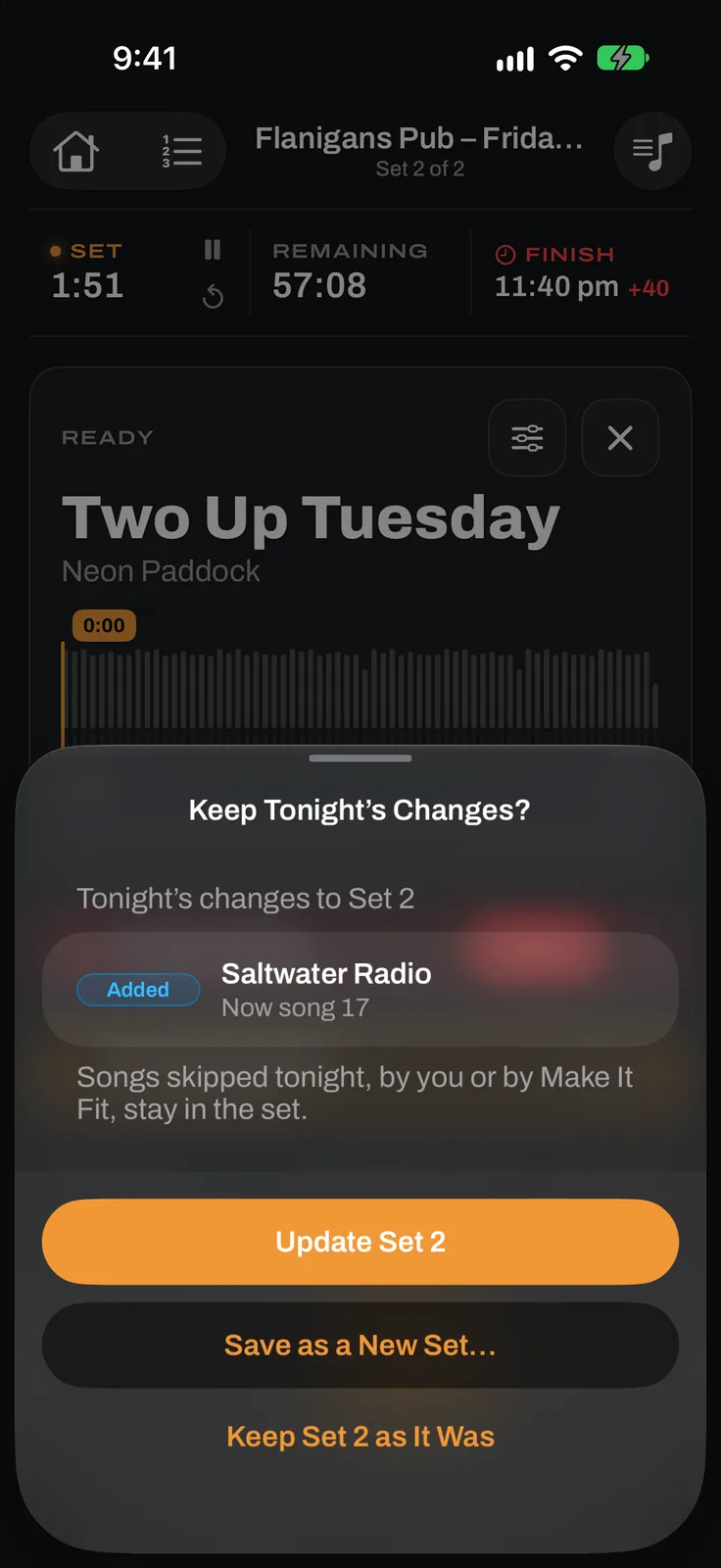
Songs you skipped tonight, by hand or with Make It Fit, stay in the set.
Recent Quick Sets
Why use it: A safety net. Every Quick Set is kept, so you can still save the running order the morning after.
Every Quick Set is kept under Recent Quick Sets on the Home screen, on all your iPhones and iPads, until you remove it. Open one to see the songs Played and Still Up Next, then:
| Button | What it does |
|---|---|
| Play Again | Loads the same songs onto the stage, in the same order. |
| Save as Set… | Saves it into a show, as above. |
| Swipe left › Delete | Removes it from Recent Quick Sets. |
A song whose file isn't on this device is marked Not on this device, so it will be left out, and Play Again lines up the rest without it.