Running a show
Add songs from the library, or load a set you planned, then play through them in the order you want, by hand or with Auto-Play Next.
Choosing a mode
On the Home screen, under Perform:
| Mode | How it works | Choose it when |
|---|---|---|
| On the Fly | One song playing, one song up next. Each song you pick replaces the one up next. | You choose each song on the night, reading the room. |
| Quick Set | An ordered list. Each song you pick goes to the end, and the show plays straight through. | You know the order, or are building it as you go. |
| Play a Show | Loads a set you planned. | You planned the gig ahead. See Shows and sets. |
Adding songs
- Open the library: tap Add Songs on iPhone, or use the sidebar on iPad. You can also tap an empty Now Playing or Up Next card.
- Choose a list, such as a folder or a Music playlist, or search. See Your song library.
- Tap a song to add it. You'll feel a tap of confirmation.
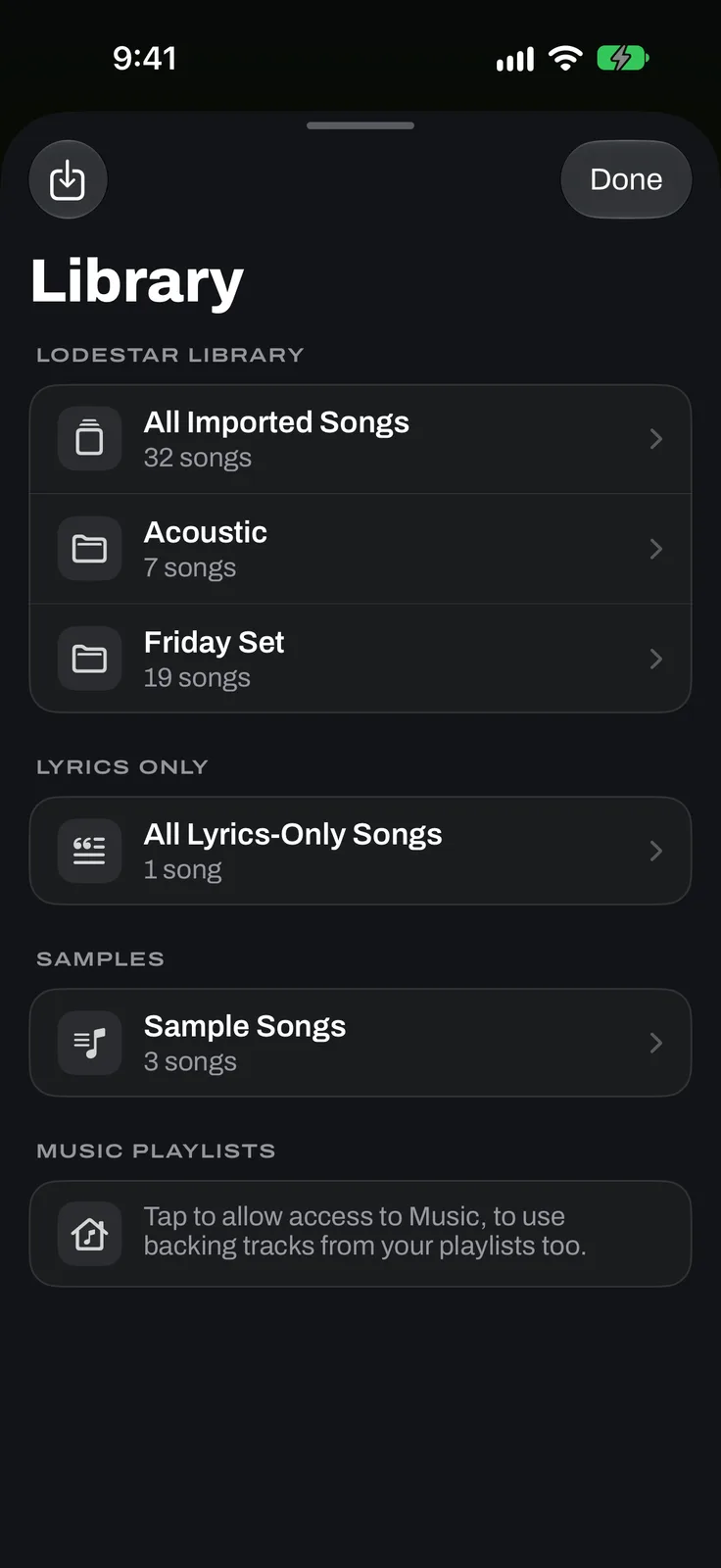
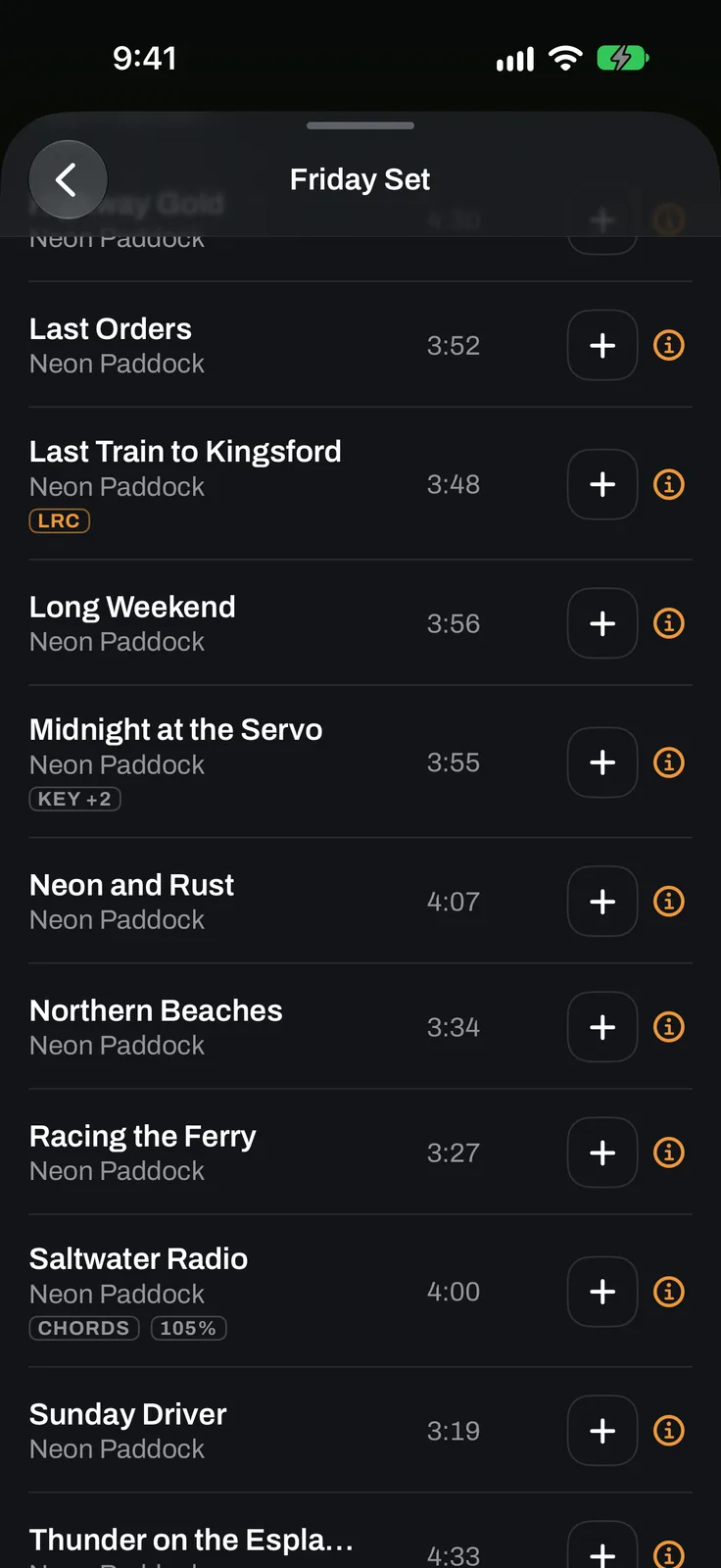
The first song you add goes straight to Now Playing. After that, in a Quick Set it joins the end of the list; with On the Fly it becomes the song up next. Songs already in the show are marked Playing or Added.
Quick Set
Why use it: The whole running order is in front of you, with its total length, and you can change it mid-gig without stopping the music.
The setlist shows every song still to come, numbered, with the next one on a highlighted card.
| To… | Do this |
|---|---|
| Play a different song now | Tap it in the setlist. It becomes the current song. |
| Reorder | Tap Edit, then drag songs by their handles. With VoiceOver, use the Move Up and Move Down actions. |
| Remove a song | Swipe it to the left and tap Delete, or tap Edit and use the red buttons. |
| Undo a removal or reorder | Tap Undo at the bottom of the setlist, which shows for a few seconds after you remove, clear or move songs. |
| Keep the running order | Tap Save as Set in the setlist's header. See Saving sets. |
Every Quick Set is also kept in Recent Quick Sets, so you can save it or play it again later.
On the Fly
Why use it: Nothing to plan. You pick the next song while this one plays, and nothing can start that you didn't choose.
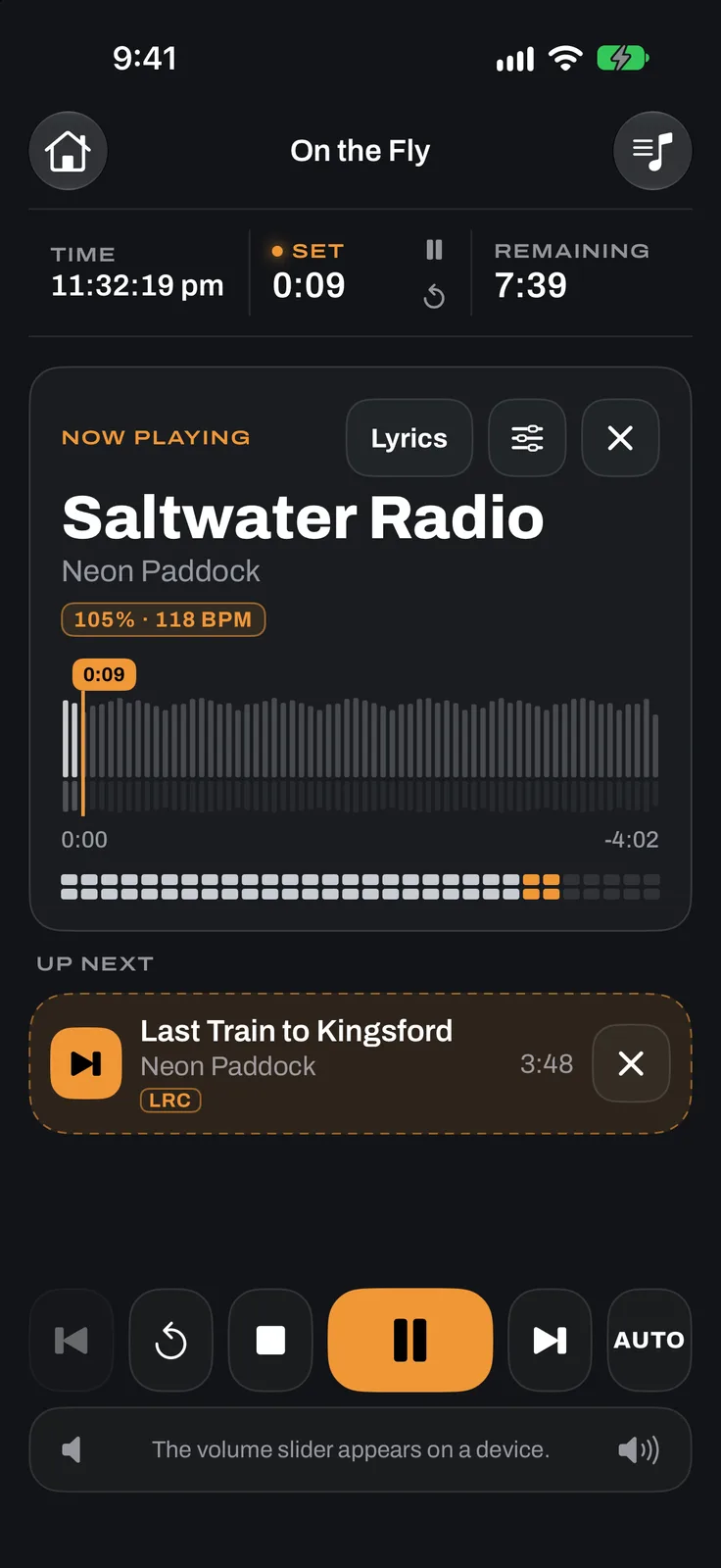
Pick the next song whenever you're ready. Picking another replaces it. Tap ✕ on the Up Next card to clear it.
Moving through the show
Every key is named in The stage keys.
- When a song ends, the next song moves into Now Playing, ready to go. Tap Play to start it.
- Turn on Auto-Play Next to have each song start as soon as the last one ends.
- Tap Next Song to move on early. With Auto-Play Next on and a song playing, the next song starts straight away.
- Tap Stop to end a song early and cue up the next one without playing it.
- Tap Back to Start to go back to the start of the current song.
The set timer
Set Time starts with your first Play and keeps running between songs, so you always know how long you've been on. Use the small buttons beside it to pause, start or reset it. Remaining adds up the rest of the current song and every song to come, to help you judge whether to drop or add a song. With a curfew, Finish shows when you'll end. See Curfew and gig report.
Tap Twice to Confirm
Why use it: On a dark, crowded stage, a sleeve or a guitar neck can brush the screen. With this on, a single stray touch can never stop or skip a song.
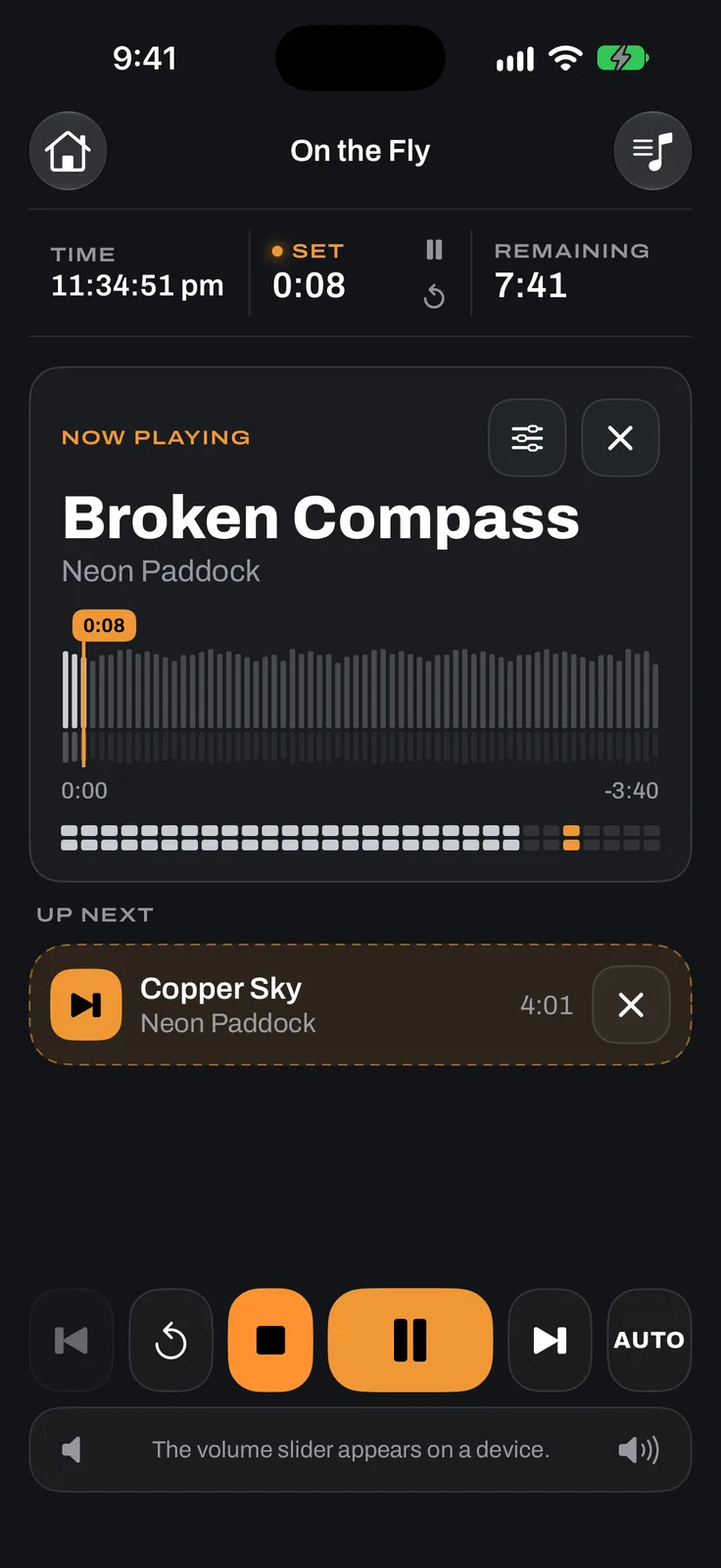
Turn it on in Home › Stage Options, then choose under Needs a Second Tap which keys it guards, such as Stop and Next but not Play. See Stage Options. The first tap arms the key, which turns orange and shows Armed. Tap again to go ahead. An armed key stays armed until you use it or arm another one, so you can arm Play and wait for your cue. To cancel, touch and hold the armed key and choose Cancel. Until you've confirmed a key once, a caption above the keys says Tap again to confirm. The Watch's buttons need a second tap too.
Other ways to control the show
| Way | Good for |
|---|---|
| Pedal or keyboard | Hands on your instrument. |
| Apple Watch | Away from the device, or with it out of reach. |
| Another iPhone or iPad | A device on your mic stand running the iPad by the desk. |
| Siri, Shortcuts, Control Center | Hands-free, or the Action button. |
| Lock Screen | With Play Alongside Other Apps off, the current song appears on the Lock Screen and in Control Center, to play, pause, stop, skip and move through it. |