iPhone and iPad settings
On iPhone and iPad, settings are at the bottom of the Home screen. Each row shows a summary of how it's set, and opens its own sheet. The Mac has its own Settings window; see Mac settings.
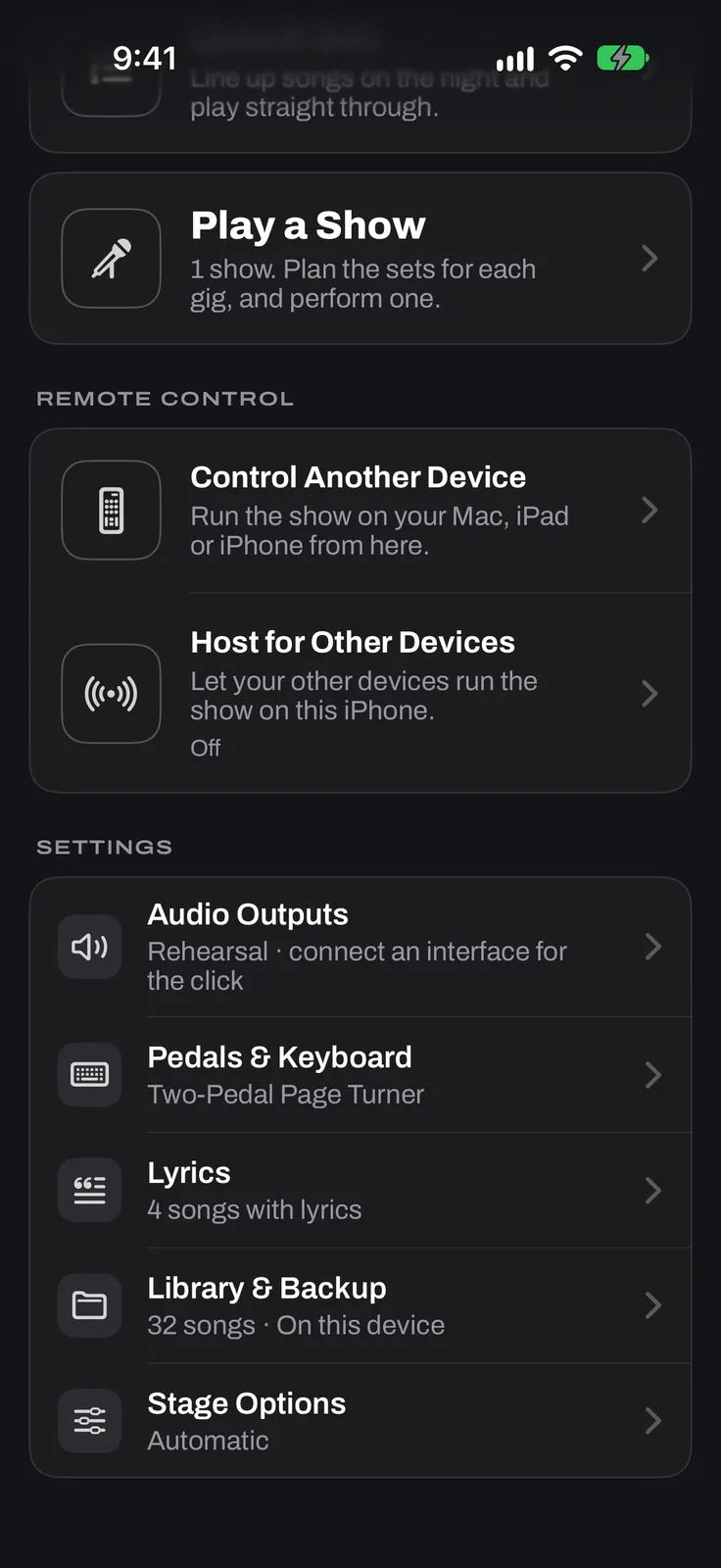
| Row | Summary shows | See |
|---|---|---|
| Audio Outputs | The interface and routing, such as Scarlett 4i4 · Track 1–2 · Click 3 | Audio Outputs |
| Pedals & Keyboard | The layout | Pedals & Keyboard |
| Lyrics | How many songs have lyrics | Lyrics |
| Library & Backup | How many songs, and where, such as 32 songs · iCloud Drive | Library & Backup |
| Stage Options | Such as Dark · Tap twice to confirm | Stage Options |
Remote Control has its own card above Settings. See Remote control.
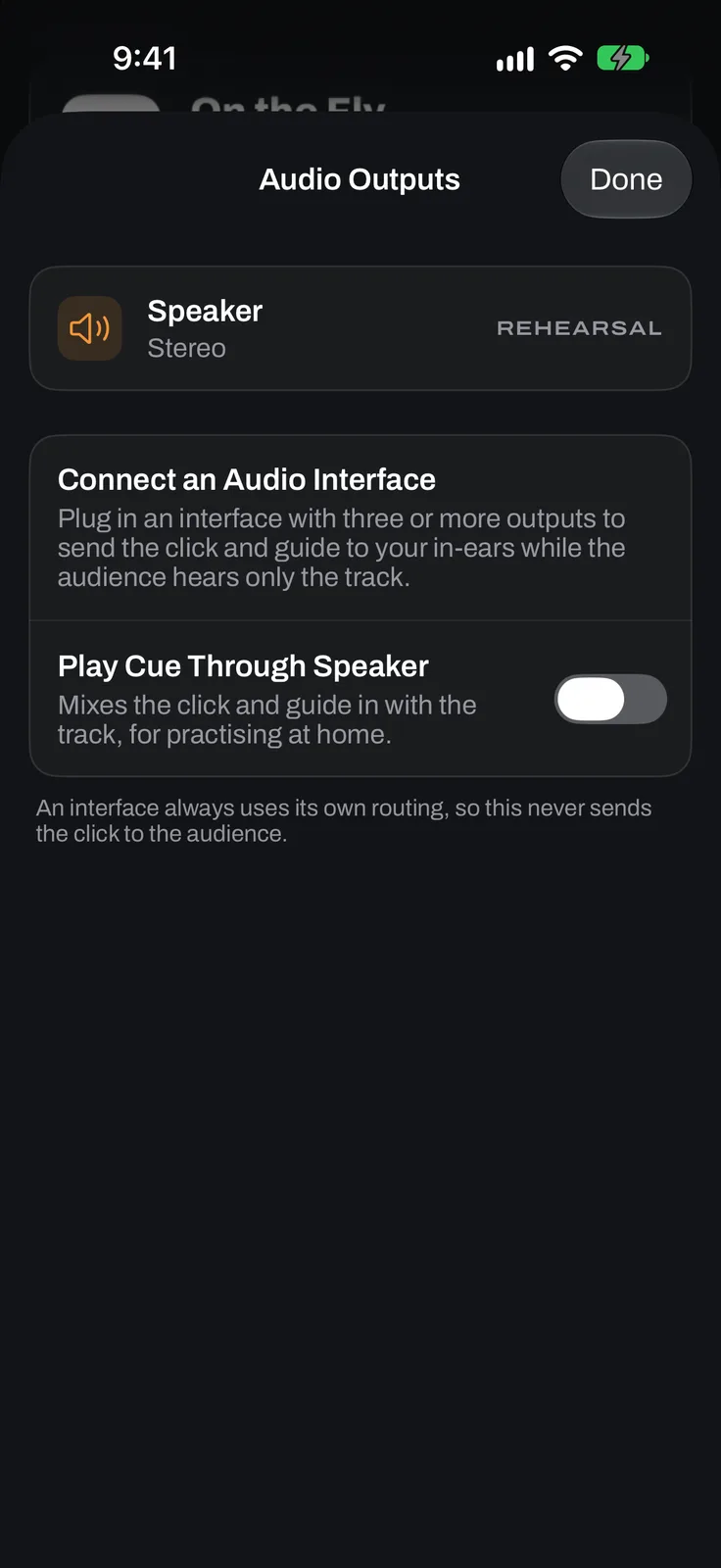
Audio Outputs
Where the backing track, click and guide play: on an interface's outputs, split across two outputs, or mixed through the speaker for rehearsal. Every control is described in Click, guide and outputs.
Pedals & Keyboard
What each pedal or key does on stage, holds for a second action, and the safety options. See Pedals and keyboard.
Lyrics
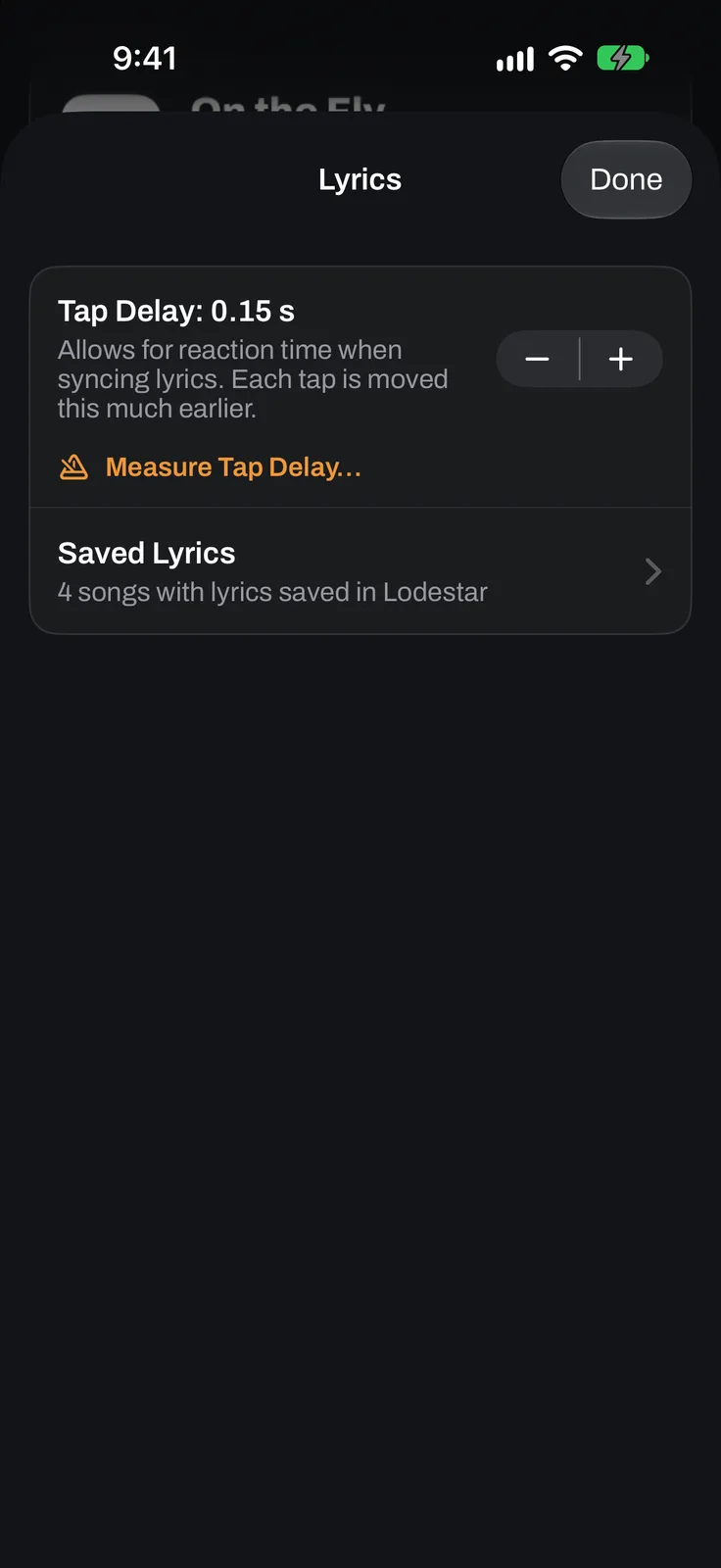
Tap Delay
Why use it: Everyone taps a little after they hear a line start. Allowing for your own reaction time makes every line you sync land on the beat.
The sync editor moves each tap earlier by this amount. The default, 0.15 seconds, suits most people. If lines you sync come in late, raise it; if they come in early, lower it.
| Control | What it does |
|---|---|
| Tap Delay | The current delay, in seconds. Use the stepper to change it, 0.05 seconds at a time. |
| Measure Tap Delay… | Measures your own delay. See below. |
To measure it:
- Tap Measure Tap Delay…, then Start the Clicks.
- Four soft clicks count you in. Then tap Tap on each of the next eight clicks as you hear it, the way you'd tap a lyric line.
- Ostinato shows how late your taps land, against what it's Now set to. Tap the button with the new value, such as Use 0.18 s, or Try Again. Cancel keeps the old value.
If you miss too many clicks, it says Not Enough Taps; try again.
Saved Lyrics
Why use it: One place to see, back up or remove every song's lyrics you've added, from imports, Safari or the sync editor.
Tap Saved Lyrics for every song with lyrics saved in Ostinato. Songs with synced lyrics have an LRC tag.
| Control | What it does |
|---|---|
| Share | Sends a song's lyrics as an .lrc file, for a backup or another app. |
| Swipe left › Remove | Deletes the song's saved lyrics on all your devices. A Music song goes back to its lyrics from Music. |
| Done | Closes the list. |
If your iCloud storage is full, a note at the top says new lyrics are being saved on this device only until there's room.
Library & Backup
Imported Songs
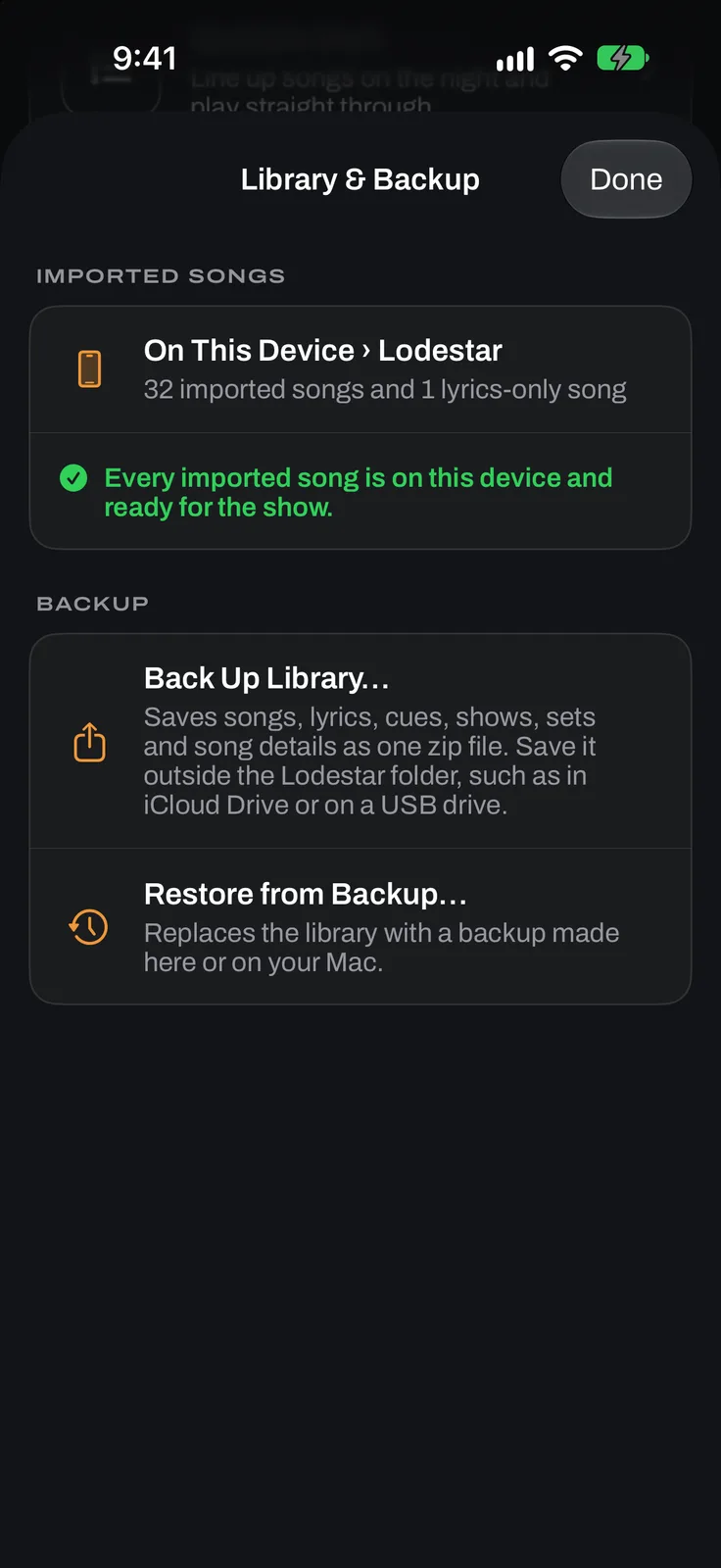
Why use it: The pre-gig check. It tells you, before you leave home, whether every song is actually on this device.
| It says | Meaning |
|---|---|
| iCloud Drive › Ostinato | Where the library is, with the number of imported and lyrics-only songs. Shows On This Device › Ostinato when the library isn't kept in iCloud Drive. |
| Every imported song is on this device and ready for the show | You're set. |
| … still downloading from iCloud | Keep Ostinato open on Wi-Fi or mobile data until they arrive. They can't play until then. Tap Check Again to look again. |
| iCloud Drive Is Off | Your library is in iCloud Drive, but iCloud Drive is turned off on this device. Turn it on in the Settings app to use the songs you've imported. |
Backup
Why use it: One file that holds your whole library. Keep a copy before a big change, move to a new device, or recover from a mistake.
| Button | What it does |
|---|---|
| Back Up Library… | Saves songs, lyrics, cues, chord charts, shows, sets and song settings as one zip file, named like Ostinato Backup 2026-11-12.zip. Save it outside the Ostinato folder, such as elsewhere in iCloud Drive or on a USB drive. |
| Restore from Backup… | Pick a backup, then confirm Replace Library. It replaces the library with the backup, on all your devices that share it. |
Songs from the Music app and each device's own settings aren't included. Backups work both ways: you can restore a Mac backup on an iPhone, and an iPhone backup on the Mac.
Stage Options
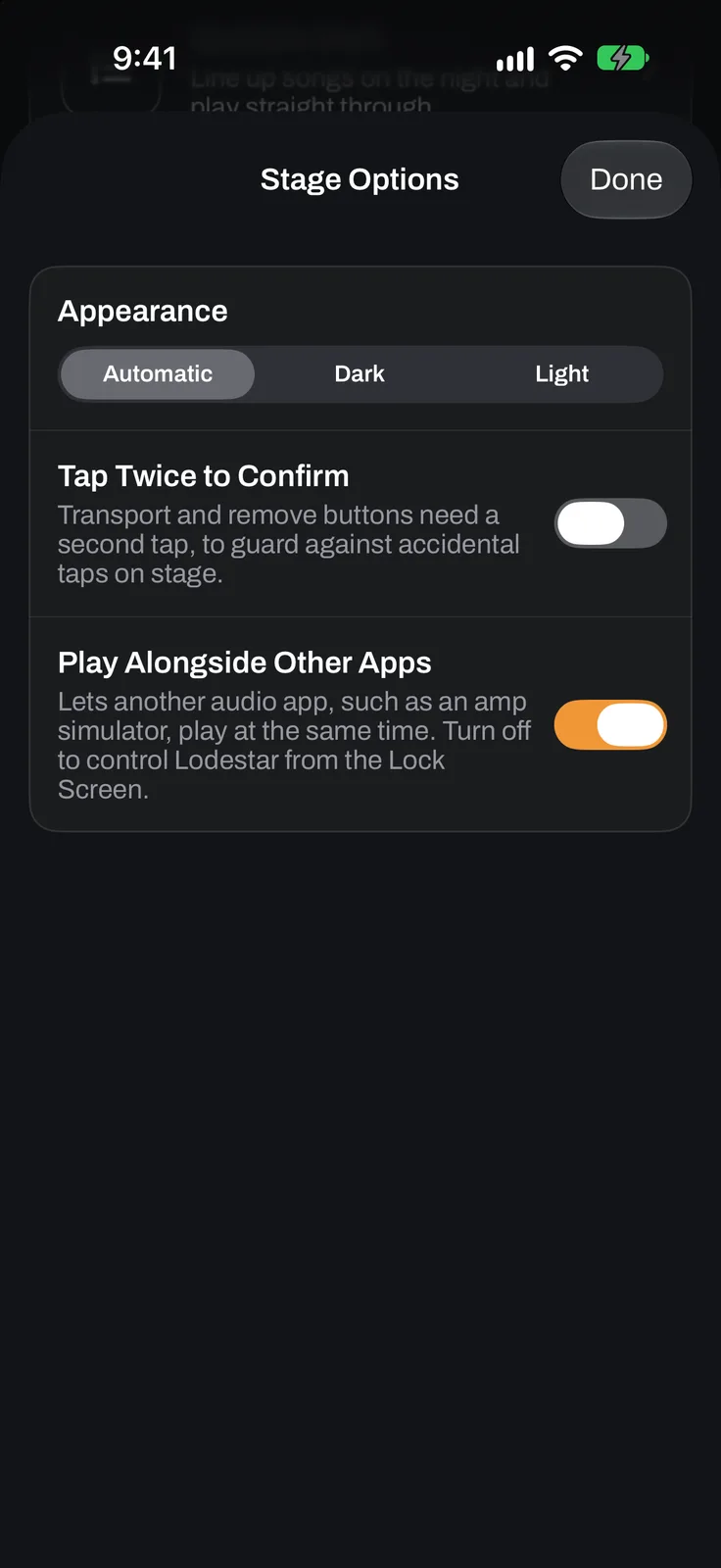
| Option | What it does | Why use it |
|---|---|---|
| Appearance | Automatic follows the device's light or dark setting. Dark and Light always use one. | Dark is easiest on the eyes, and least distracting to the audience, on a dim stage. Light reads better in daylight at an outdoor gig. |
| Tap Twice to Confirm | Transport and remove buttons need a second tap, on this device and on the Watch. Under Needs a Second Tap, choose which ones, such as Stop and Next but not Play. Remotes and the Watch guard Stop and Next while either is on. | Guards against accidental taps on stage. See Tap Twice to Confirm. |
| Play Alongside Other Apps | On: another audio app, such as an amp simulator, can play at the same time. Off: Ostinato has the audio to itself. | Leave it on if you play through an amp simulator on the same device. Turn it off for Lock Screen controls, and to send the click to its own interface output. |
Settings on this page stay on this device, except Saved Lyrics and the library, which are shared. So your iPad can use dark and Tap Twice to Confirm while your iPhone doesn't.
In the Settings app
Ostinato asks before it uses your Music library. To change that later, open the Settings app, find Ostinato, and turn Media & Apple Music on or off.