Apple Watch remote
The Ostinato Watch app is a remote for the show on your iPhone, or on your Mac through your iPhone. The phone or Mac plays the music; your Watch lets you control it, and see the chords, without walking over.
Setting up
- Install Ostinato on your iPhone. The Watch app installs with it on a paired Apple Watch with watchOS 10 or later. If it doesn't, install it from the Watch app on your iPhone.
- Start a performance on your iPhone.
- Open Ostinato on your Watch.
The iPhone keeps playing with its screen locked, so the Watch can still reach it. When the iPhone is a remote for a Mac or iPad, the Watch controls that device's show instead.
Why use it: Run the show, and see the chord coming up, from anywhere on stage, without looking for a screen.
The Watch screens
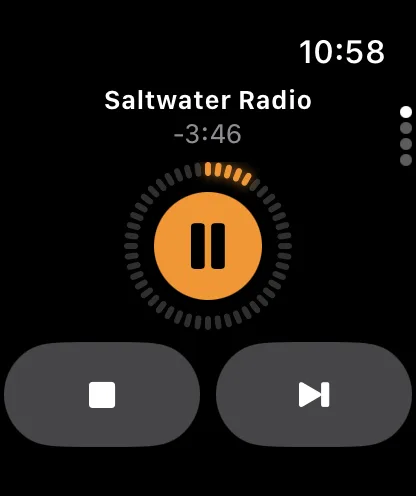
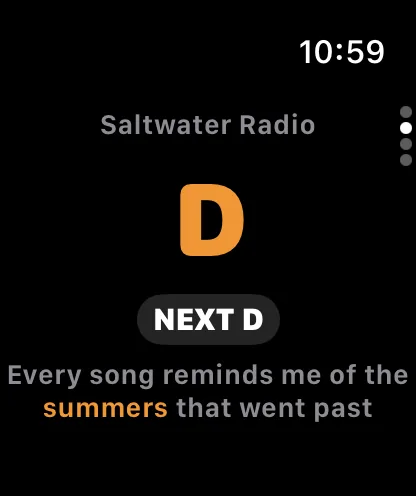
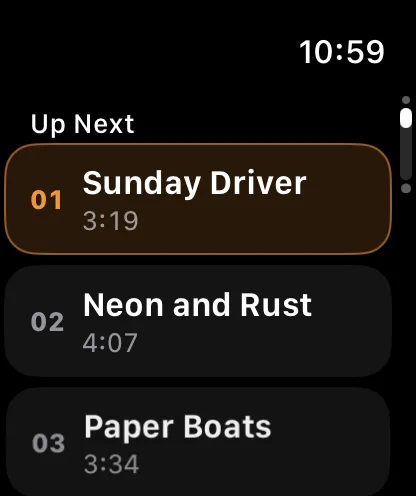
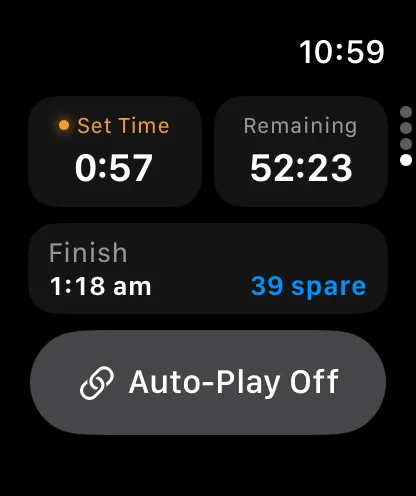
Swipe up and down, or turn the Digital Crown, to move between the screens.
| Screen | What's on it |
|---|---|
| Now Playing | The song and the time left, with a ring around Play/Pause that fills as the song plays. Stop and Next Song sit underneath. |
| Up Next | The songs still to come, the next one first. |
| Chords | For songs with a chord chart: the current chord big, the next one in a NEXT pill, and the lyric line with the current word lit. With a capo set, it shows the shapes to play. For a PDF chart, it shows the page and when the next page turns. Songs without a chart have no Chords screen. |
| Status | Set Time and Remaining, and a button to turn Auto-Play Next on or off. When a show has a curfew, it shows the expected finish, and a late warning if you're running over. |
To keep Ostinato on your wrist through a whole song, set Return to Clock to one hour for Ostinato in the Watch app on your iPhone, and keep Always On turned on.
With no show on the iPhone, the Watch says Not Performing. If the iPhone app isn't open, it says iPhone Not Connected: open Ostinato on the iPhone.
Double tap
On Apple Watch Series 9, Apple Watch Ultra 2 and later, double tap your index finger and thumb together to play or pause, without touching the screen.
Safety on stage
- If Tap Twice to Confirm is on in the iPhone app, the Watch's buttons need a second tap too. You'll feel a tap on your wrist when a button is armed, and it disarms itself after a few seconds.
- The Watch can only do what the stage screen can do, and greys out buttons that wouldn't do anything.
- If the Watch can't reach your iPhone, the controls grey out and it says iPhone not reachable. Commands are never saved up to run later, so nothing fires late.
- If a command doesn't arrive, the Watch says Didn't reach iPhone. Check the phone and try again.