Getting started
Ostinato plays audio files you import, songs from the Music app, or both. A few minutes of preparation before the first gig is all it needs.
In a hurry? Your first five minutes takes you from a fresh install to a song playing with its words.
What you need
| Item | Why |
|---|---|
| iPhone or iPad, iOS 17 or later | To play the show, or to run it by remote. |
| Backing tracks | Audio files (MP3, M4A, WAV or FLAC), or songs downloaded in the Music app. |
| Mac, macOS 14 or later | Optional. Prepare songs on a big screen, or play the show from the Mac. See Mac: preparing songs. |
| Apple Watch, watchOS 10 or later | Optional. A remote on your wrist. See Apple Watch. |
| Audio interface with 3+ outputs | Optional. Sends a click to your in-ears and only the track to front of house. See Click, guide and outputs. |
| Bluetooth page-turner pedal | Optional. Play and skip songs with your foot. See Pedals and keyboard. |
The Welcome screen
The first time you open Ostinato, it asks Where are your backing tracks? Pick the one you'll use most. You can use both in one show, and add the other any time from the library.
| Choice | Choose it when |
|---|---|
| Files and iCloud Drive | Your tracks are audio files, from a DAW, a backing-track site or your Mac. You import MP3, M4A, WAV or FLAC files, and they're copied into iCloud Drive › Ostinato › Songs, so every device has them. |
| Music Library | Your tracks are already in playlists in the Music app. Ostinato asks for access to Music. Only songs downloaded to the device can play. |
Lyrics and chord charts work with either kind of song.
If you use the Music app
- Make a playlist. Ostinato lists your Music songs by playlist, so group your backing tracks into one or more playlists.
- Download the songs. Only songs downloaded to the device without copy protection can play, so songs streamed from Apple Music can't. Songs you bought or added yourself can.
- Allow access. Tap Allow Access when asked. If you said no before, open the Settings app and turn on Media & Apple Music for Ostinato.
Make sure every song is downloaded before you leave for the gig, so nothing depends on the venue's Wi-Fi. Home › Library & Backup tells you if anything is still in iCloud.
The Home screen
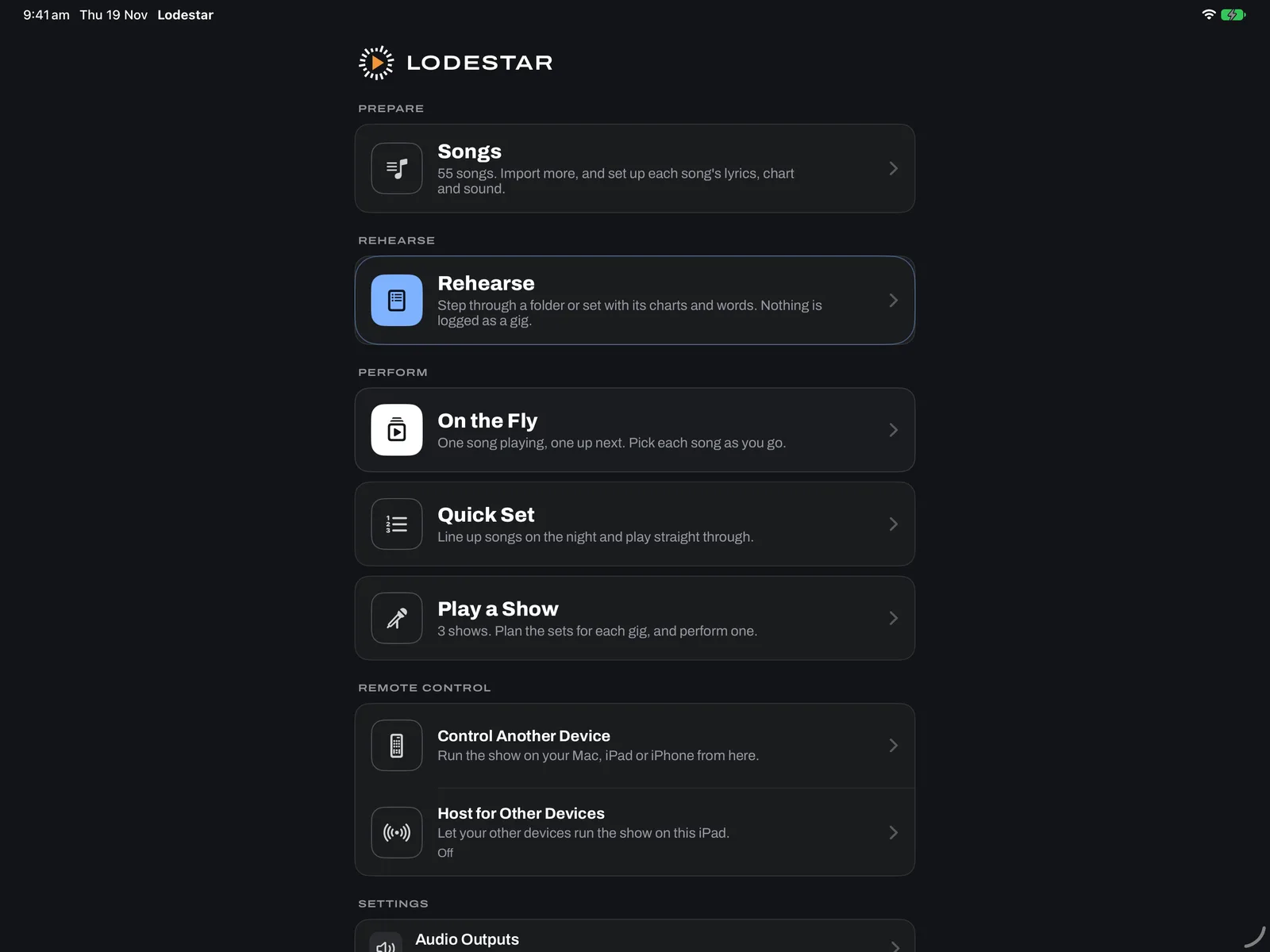
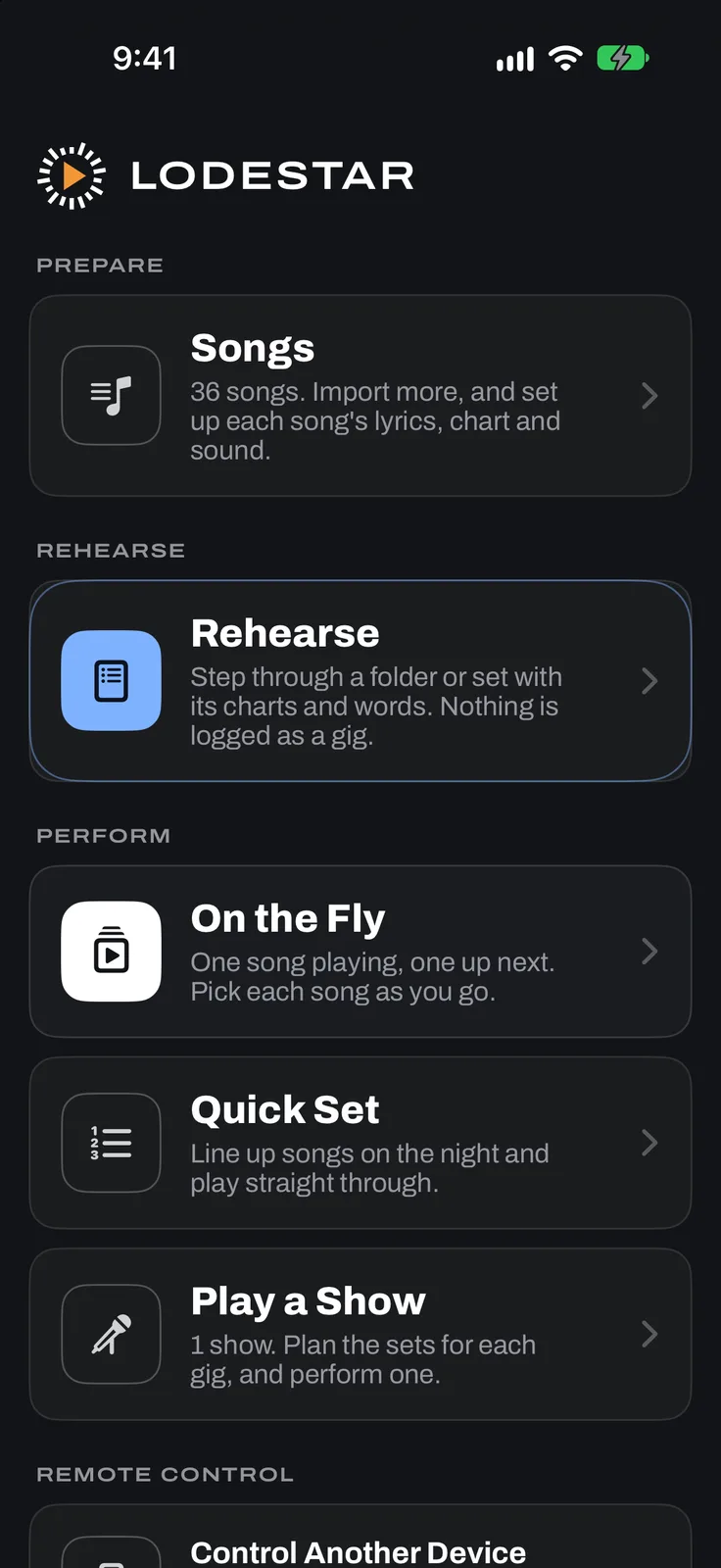
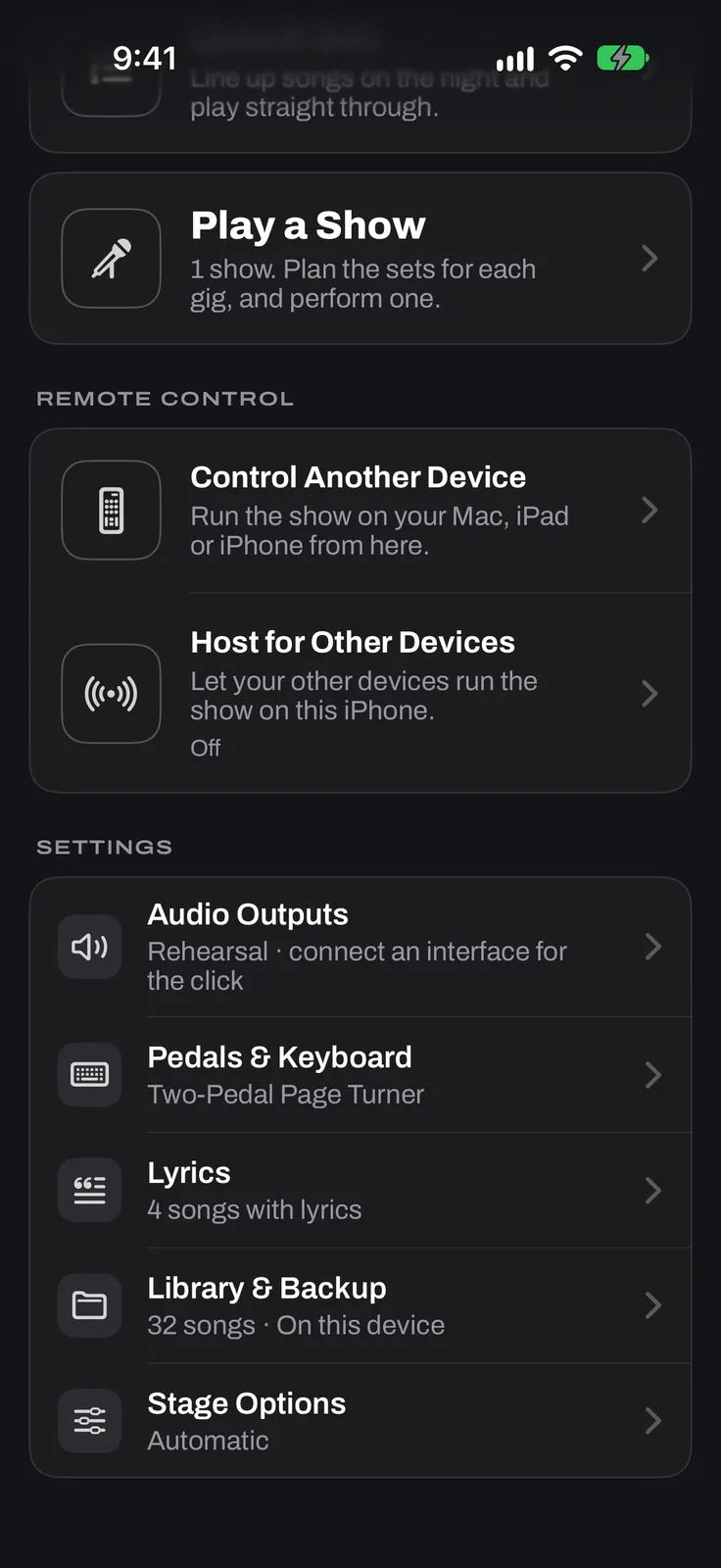
Every show starts on the Home screen. From top to bottom it has Prepare, Rehearse, the performance modes, your recent quick sets, remote control, and settings.
Prepare
Songs opens your song library full screen: lists on the left, songs in the middle, and the chosen song's details on the right. Tap Import to bring in backing tracks, lyrics and chord charts, and pick a song to set up its lyrics, chart, sound, and click and guide. If you chose Files and iCloud Drive on the Welcome screen, Songs opens with the file picker the first time, so you can bring your tracks in straight away. See Your song library.
Rehearse
The blue Rehearse card steps through a folder or set one song at a time, with its chart or words filling the screen. Nothing is logged as a gig. See Rehearsing.
Perform
| Card | What it does | Why use it |
|---|---|---|
| On the Fly | Opens the stage with one song playing and one song up next. Pick the next song as you go. | For gigs where you read the room and choose each song on the spot. |
| Quick Set | Opens the stage with an ordered list. Each song you pick joins the end of it, and the show plays straight through. | For a running order you know, made up on the night. |
| Play a Show | Opens your planned gigs. Pick a show, then perform one of its sets. | For gigs you've planned ahead, with sets, breaks and a curfew. See Shows and sets. |
Recent Quick Sets
Appears once you've played in a Quick Set. It shows when you last played and how many songs. Open it to play a quick set again or save it as a set. See Recent Quick Sets.
Remote Control
| Row | What it does |
|---|---|
| Control Another Device | Runs the show on your Mac, iPad or another iPhone from this one. Shows Controlling and the device's name while connected. |
| Host for Other Devices | Lets your other devices run the show on this one. Shows On, how many are connected, or Off. |
See Remote control.
Settings
Each row shows a summary, such as Scarlett 4i4 · Track 1–2 · Click 3, and opens its own sheet:
| Row | What's in it |
|---|---|
| Audio Outputs | Where the backing track, click and guide play. |
| Pedals & Keyboard | What each pedal or key does on stage. |
| Lyrics | How many songs have lyrics. Inside: every song's saved lyrics, and Tap Delay for syncing. |
| Library & Backup | Whether every imported song is on this device, and backing up the library. |
| Stage Options | Appearance, Tap Twice to Confirm and Play Alongside Other Apps. |
Every option is explained in iPhone and iPad settings.
On iPad