Mac: preparing songs
Ostinato for Mac shares the same library as your iPhone and iPad. Use it to prepare songs, lyrics, charts, clicks and sets with a big screen and a keyboard, and to play the show itself.
Why use it: Typing lyrics, fixing chords and lining up cue files is much quicker with a keyboard, a mouse and the Finder. Everything you do here is on your iPhone and iPad the next time they open.
Setting up
The Mac app needs macOS 14 or later. The first time you open it, Welcome to Ostinato for Mac asks Where should your library live?
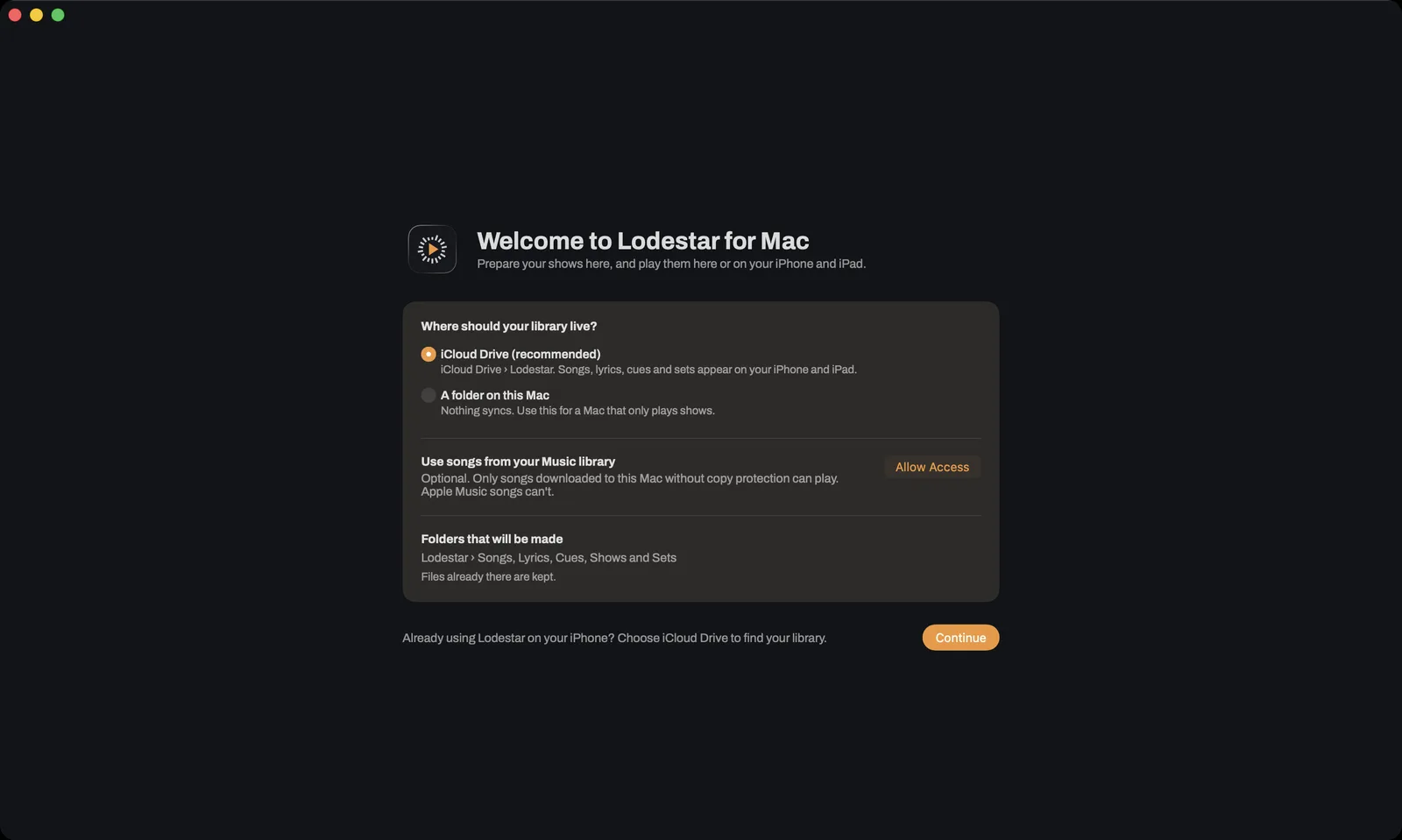
| Choice | Choose it when |
|---|---|
| iCloud Drive (recommended) | You use Ostinato on an iPhone or iPad too. The library goes in iCloud Drive › Ostinato, and songs, lyrics, cues and sets appear on all your devices. Already using it on your iPhone? Choose this to find your library. |
| A folder on this Mac | The Mac only plays shows, or you don't use iCloud. Nothing syncs. Click Choose Folder… to pick where. |
It makes the Songs, Lyrics, Cues, Shows and Sets folders there, and keeps any files already in them. Click Continue. Next it offers Use songs from your Music library, which is optional: click Allow Access to use songs downloaded to the Mac without copy protection. Apple Music songs can't play.
Prepare, Rehearse and Perform
The Mode control at the top of the window switches between three views. Prepare (⌘1) is for getting ready: your songs, shows and sets. Rehearse (⌘2) steps through a folder, a set or a song list with each song's chart or words, and logs nothing as a gig. Perform (⌘3) is the stage; see Mac: performing. Switching never clears what's on stage.
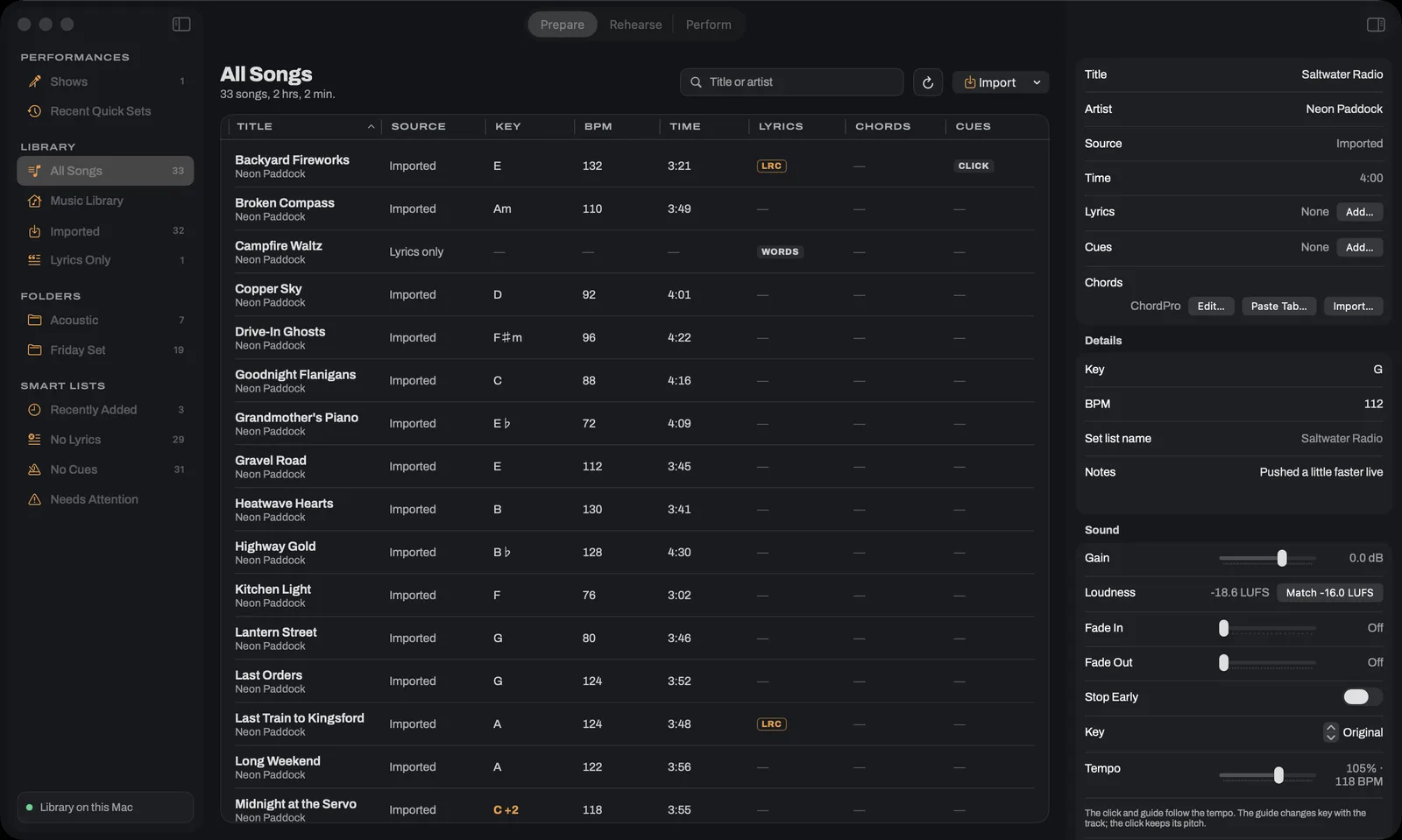
The sidebar
| Section | What's in it |
|---|---|
| Performances | Shows, a searchable table of all your shows, and Recent Quick Sets. See Mac: shows and sets. |
| Library | All Songs, Music Library, Imported and Lyrics Only. |
| Folders | Each folder inside Ostinato › Songs. |
| Smart Lists | Recently Added, No Lyrics, No Cues and Needs Attention: songs with a problem, such as a missing file or a duplicate. |
The bottom of the sidebar shows the library's state: iCloud synced, Syncing with iCloud…, or Library on this Mac.
Why use it: The smart lists are a to-do list before a gig: work through No Lyrics and Needs Attention until they're empty.
The song table
Each row shows the title over the artist with the song's tags, and columns for Source, Key, BPM, Time, Lyrics, Chords and Cues. Click a column heading to sort. A cloud icon marks a song that's only in iCloud; it downloads to this Mac before it plays. The bottom bar counts the songs showing and their total time.
| Control | What it does |
|---|---|
| Search (⌘F) | Finds songs by title or artist. Esc clears it. |
| Refresh (⌘R) | Reads the library folders again, after you've changed files in the Finder. |
| Import | The Import menu. See below. |
| Details (⌥⌘I) | Shows or hides the song inspector. |
| Right-click a song | Add Lyrics… or Edit Lyrics…, Cues…, Show in Finder, Download from iCloud, and Add to Show with your shows or New Show with This Song. |
| Drag songs | Onto a set in the sidebar's Shows, to add them to it. |
Importing
Click Import in the toolbar, or drag files and folders from the Finder onto the song list. A dropped folder keeps its name as a folder in Songs.
| Item | What it does |
|---|---|
| Import Songs… (⇧⌘I) | Copies audio and lyrics files into the library. Lyrics files are matched to songs and shown for review first. |
| Import Chord Charts… | Copies ChordPro, chord text or PDF charts into the library, after a review. |
| Match Cues… | Pairs files in the Cues folder with songs by their names. See Cues. |
The review sheets list each file, its Kind, and the song it Goes with. Choose a different song from the menu, Don't import to leave a file out, or, for lyrics, Lyrics only (no audio). A chart in another key from its song offers to move it into the song's key. Then click Import.
The song inspector
Select a song to edit it on the right.
| Field | What it's for |
|---|---|
| Title, Artist | Editable for imported songs. A Music song's details are changed in the Music app. |
| Source, Time | Where the song comes from, and its length. |
| Lyrics | Whether it has lyrics, with Add… or Edit…. |
| Cues | Its click and guide, with Add… or Edit…. |
| Chords | Its chart, with New… or Edit… to write it, and Import… to add a file. |
| Key | The key the song is written in, such as G. Needed for key changes to show as C → D, and for charts to move into the song's key. |
| BPM | The song's tempo. Tempo changes then show the new BPM. |
| Notes | Anything to remember about the song. |
| Sound | See Sound and loudness. |
Click Save Changes (⌘S) to keep edits, or Revert. If the song needs attention, the inspector says why, such as The audio file is in iCloud but not downloaded to this Mac, with Download from iCloud or Show in Finder.
Sound and loudness
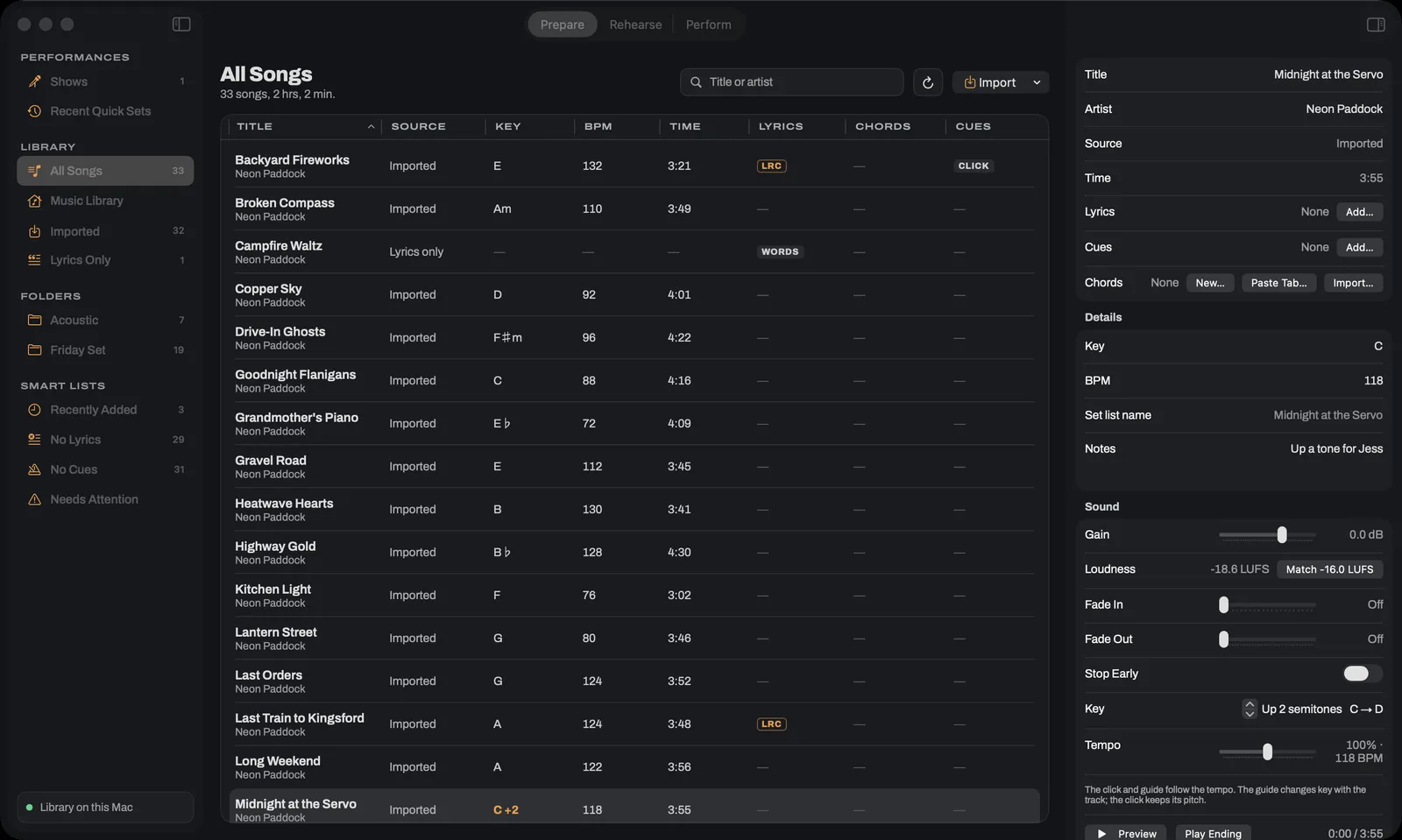
The same settings as the Sound sheet on iPhone: Gain, Fade In, Fade Out, Key, Tempo, Stop Early and End Point, with Set End Point to Playhead, Preview and Play Ending. They change how the song plays; the audio file isn't changed.
Loudness measures the song, in LUFS. Match sets its gain to reach your loudness target. To match a whole set at once, use Match Loudness in the set's details. See Matching a set's loudness.
Why use it: Tracks from different sources are never the same loudness. Matching them means you never reach for the fader between songs.
Lyrics
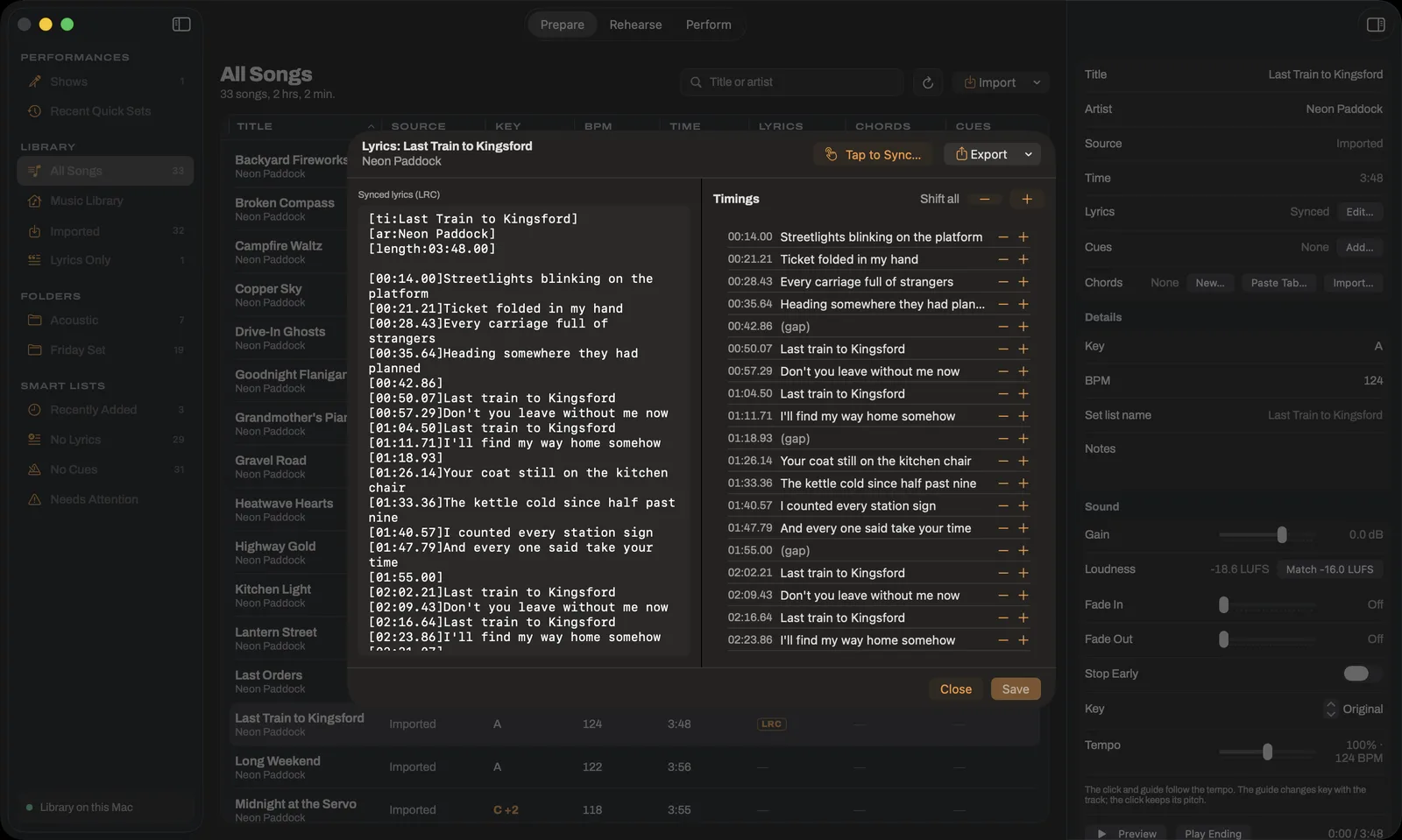
Click Add… or Edit… beside Lyrics. Type or paste the words, one line per lyric line, or LRC text with times.
| Control | What it does |
|---|---|
| Tap to Sync | Times the lines by tapping along. Needs the song's audio on this Mac, and the words typed first. |
| Export › LRC / Plain Text | Saves the lyrics as a file. |
| Timings › Shift all Earlier / Later | Moves every line 0.1 seconds, for lyrics that are all a little early or late. |
| Save (⌘S) | Saves and closes. Return types a new line, so it doesn't save. |
| Close | Closes, asking first if you've made changes. |
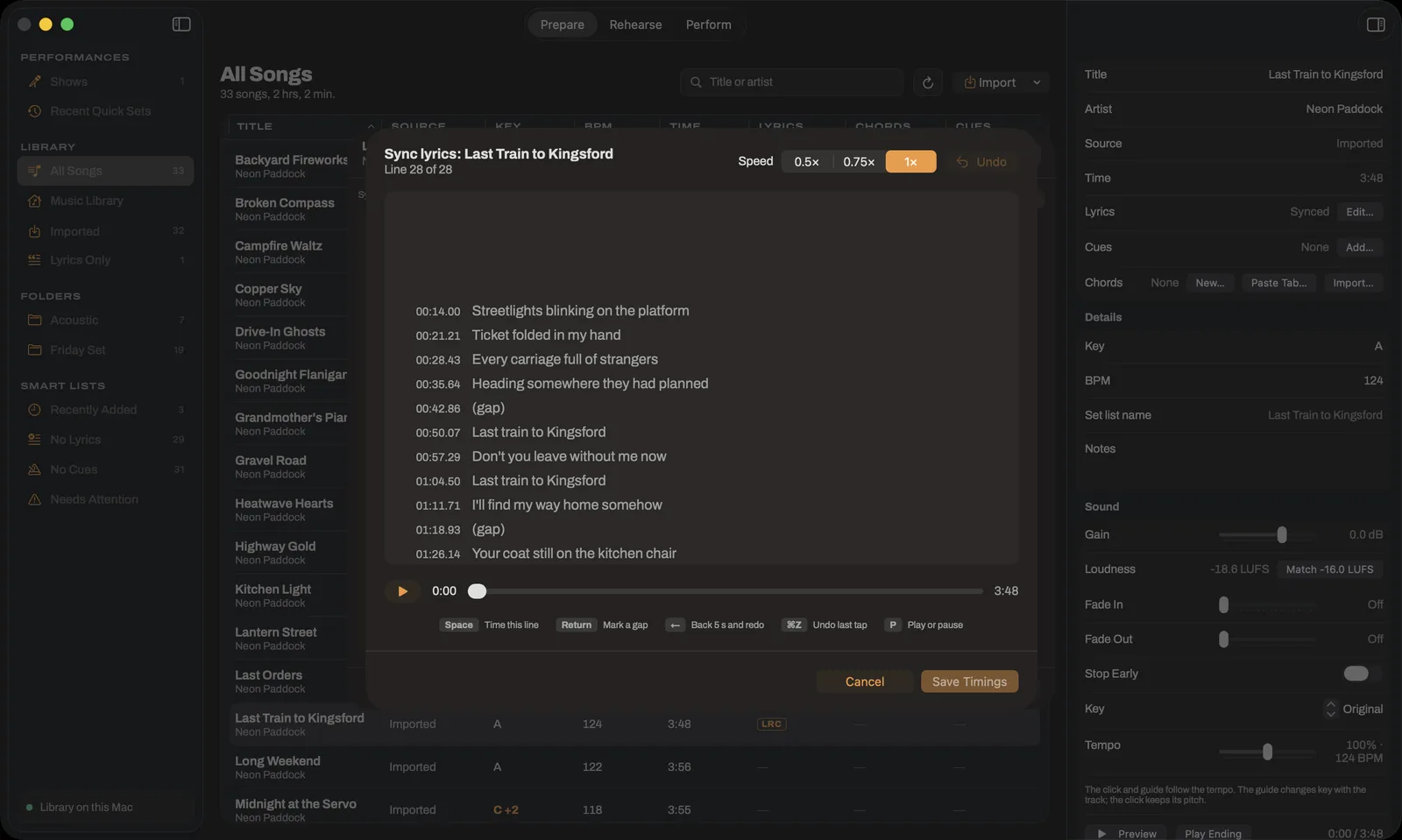
In Tap to Sync, play the song and press Space to time each line, and Return to mark a gap. The speed control slows the song down without changing its pitch, Undo (⌘Z) takes back the last tap, and clicking a line taps again from that line. Click Done to put the times into the editor, or Cancel. It works like the iPhone sync editor.
Cues
Click Add… beside Cues, or right-click a song and choose Cues….
| Control | What it does |
|---|---|
| Click, Guide | One lane each, with the track. Drag a .wav, .aif or .m4a onto a lane, or click Choose…. Files are copied into the Cues folder. |
| Replace…, Remove | Change or unpair a lane's file. |
| Mute, Solo | Listen to one part at a time while checking it lines up. |
| Play, Position | Play all three together and move through the song. |
| Starts at · Earlier / Later | Moves a cue 0.1 seconds against the track. |
| Match from Cues Folder | Pairs files in the Cues folder whose names match this song, such as "Saltwater Radio click.wav". |
If a cue is shorter or longer than the track, a note says by how much, so you can check it was exported from the start of the song.
Match Cues… in the Import menu does the same for every song at once. Drop all your click and guide files into the Cues folder, then check the matches, choose Don't pair for any that are wrong, and click Pair Files.
Why use it: Exporting clicks for a whole set from your DAW, named after each song, then pairing them in one go, is far quicker than song by song.
Chord charts
Click New… or Edit… beside Chords for the Mac chart editor, with live preview, sections, transposing and the chord calculator. See Editing charts on the Mac.