Mac: performing
Choose Perform (⌘3) and the Mac becomes the stage. It plays through your audio interface, shows lyrics and chords on a second display for the band, and takes commands from your pedals, iPhone, iPad and Apple Watch.
Why use it: A Mac by the desk with an interface is the most dependable rig: a big screen, plenty of outputs, mains power, and your phone free to be the remote.
Perform
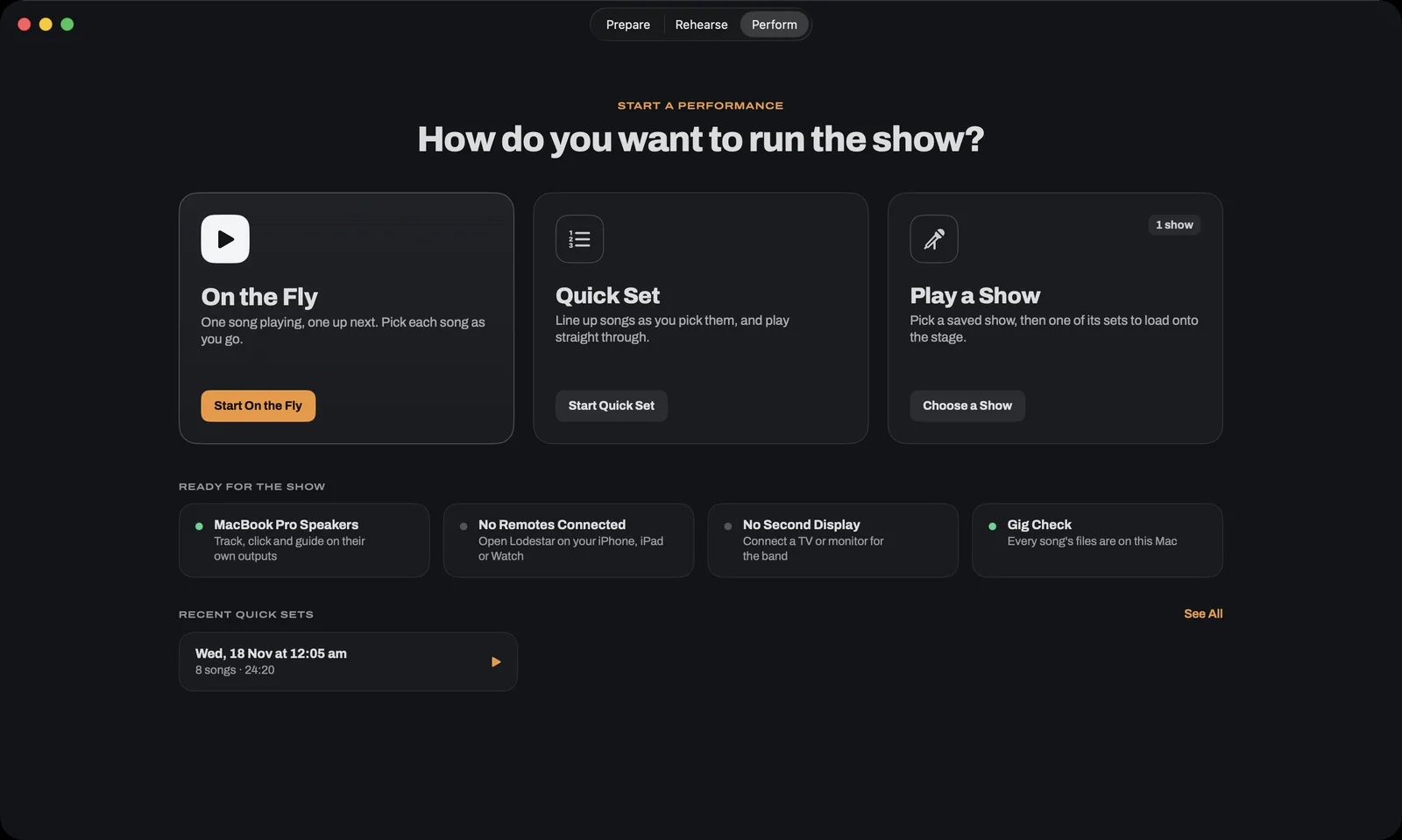
| Card | What happens |
|---|---|
| Start On the Fly | One song playing, one up next. Pick each song as you go. |
| Start Quick Set | Line up songs as you pick them, and play straight through. |
| Shows · Choose a Show | Pick a saved show, then one of its sets to load onto the stage. |
| Back to the Stage | Shown when something's on stage, such as Quick Set is running. Carries on with the songs on stage. |
Ready for the Show
Why use it: One glance before doors open tells you the interface, remotes and second display are all connected, and every song is on this Mac.
| Tile | What it tells you |
|---|---|
| Output | Which interface is playing, and whether the track, click and guide are on their own outputs. No Output means the chosen interface isn't connected. |
| Remotes | Which iPhones, iPads and Watches are connected. No Remotes Connected, or Remote control is off in Settings. |
| Stage Display | Whether a second display is ready for lyrics. No Second Display, or Turned off in Settings. |
| Gig Check | Every song's files are on this Mac, or how many aren't downloaded yet. |
Below, Recent Quick Sets shows your latest quick sets to play again, with See All to open them in Prepare.
The stage
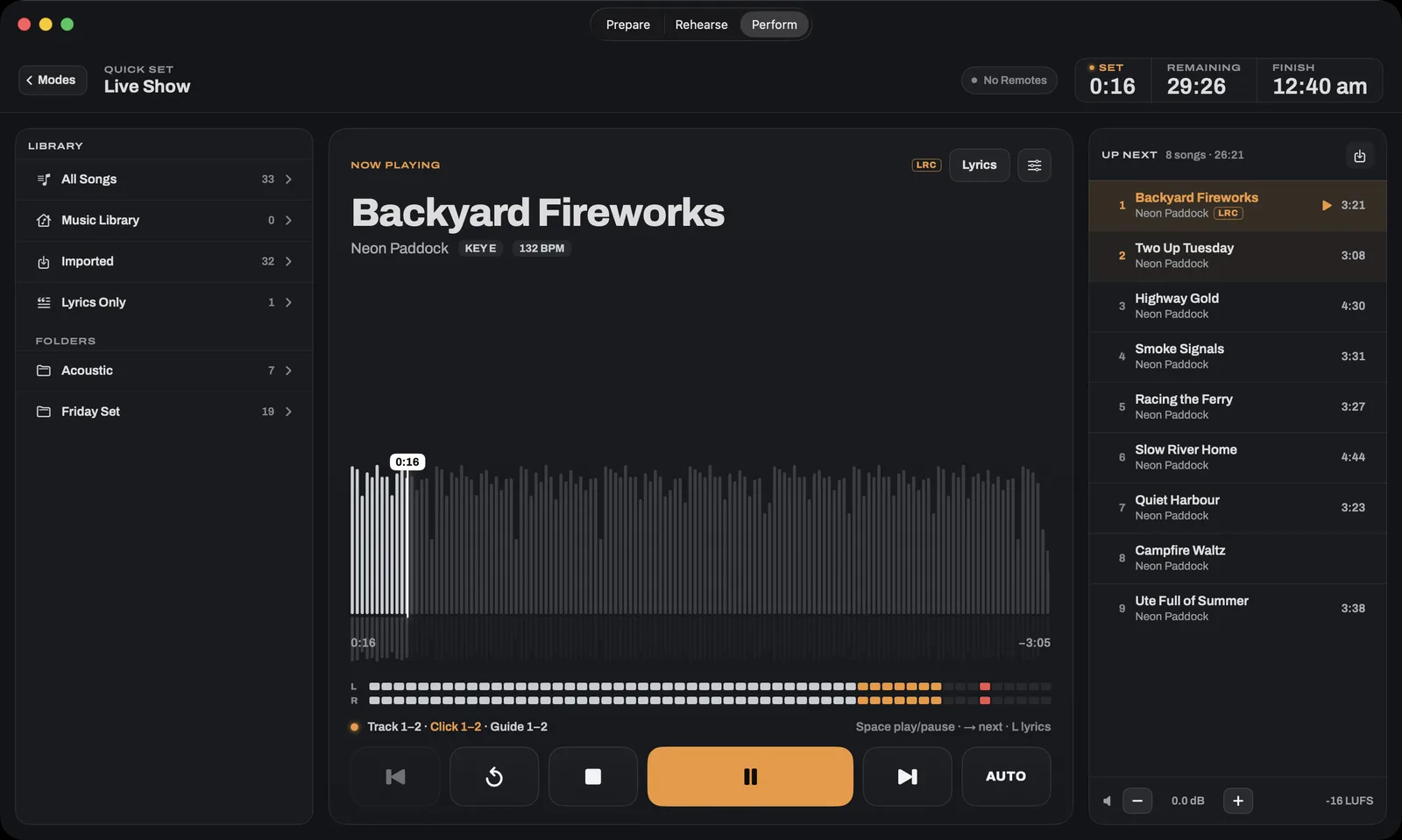
The stage has three columns: the library or your shows on the left, Now Playing in the middle, and Up Next on the right.
Choosing songs
| Mode | Clicking a song on the left |
|---|---|
| On the Fly | The first song goes to Now Playing. Each later click replaces the one song up next. |
| Quick Set | Adds the song to the end of Up Next, in the order you click. |
| Play a Show | The left side lists your shows. Click a show to see its sets, then click a set to load it onto the stage. The set playing is marked On Stage. |
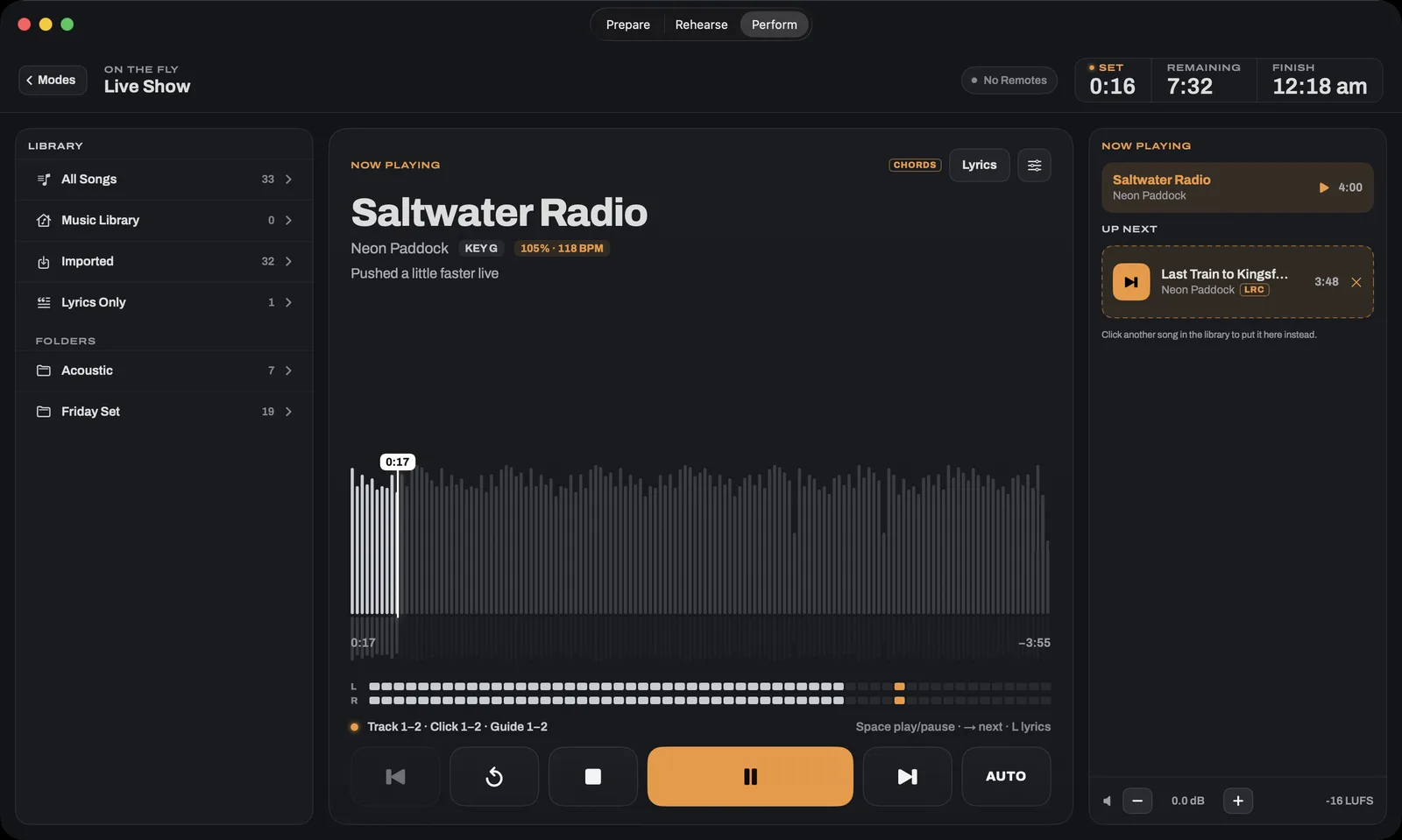
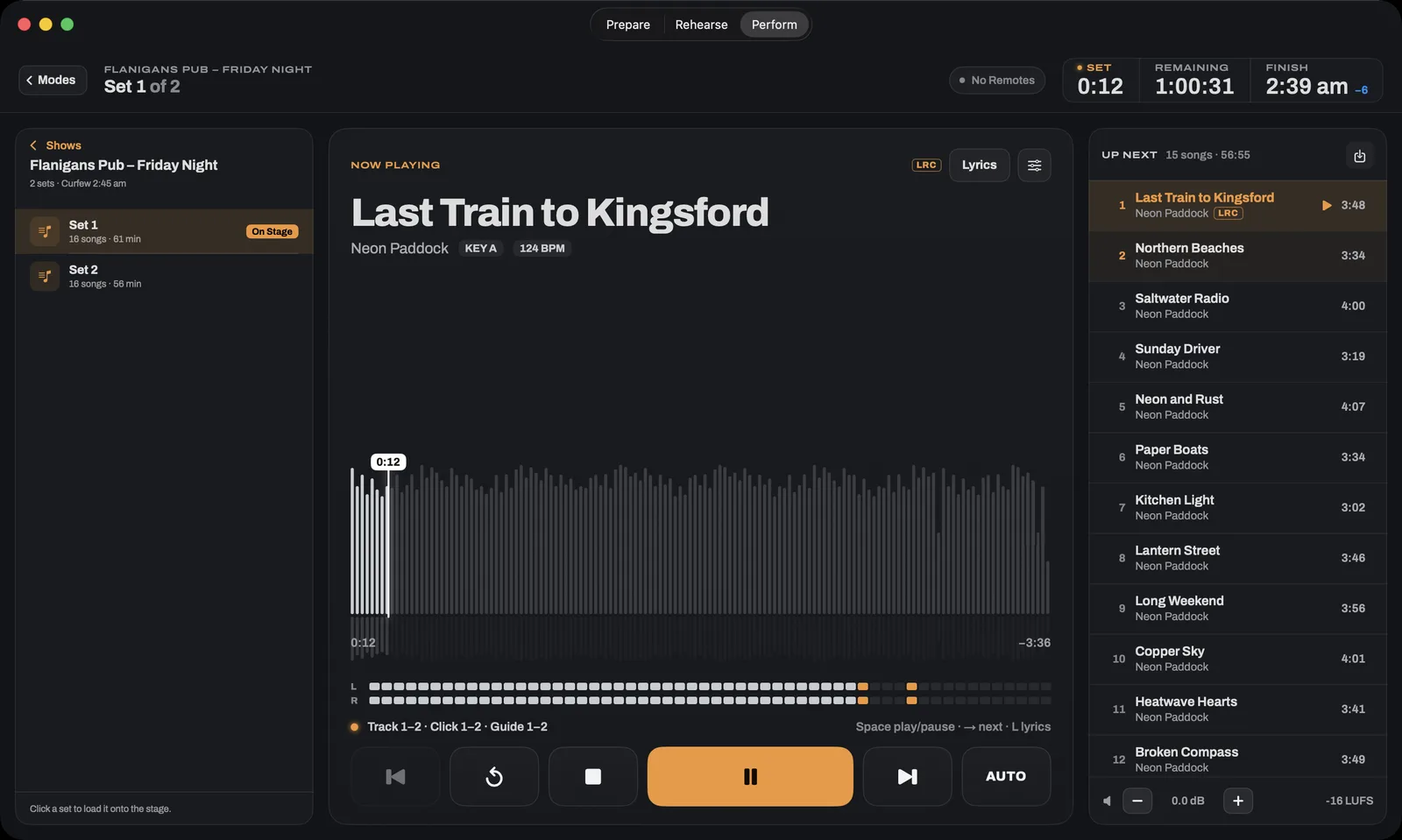
The library side has your lists and folders, and a search field. If songs are already on stage when you load a set, Ostinato asks whether to Load it or Save as Set and Load…, so tonight's order isn't lost.
Top bar
| Item | What it does |
|---|---|
| Modes | Back to the start cards. What's on stage stays. |
| Title | The show and Set 2 of 3, or Live Show. |
| Remotes | Who's connected, or No Remotes. |
| Set | Set time. It starts on the first Play. Click it to pause or reset it. |
| Remaining | Time left in the set, and whether it's On target, over or under the set's target. |
| Finish | When a show has a start time: the projected finish against the curfew. Click it to choose songs to skip. |
Warnings appear under the bar: the Mac is running on battery, the audio output changed, so playback paused (click Dismiss once you've checked the interface), or the show is heading past the curfew (click Review…).
Now Playing
| Control | What it does |
|---|---|
| Lyrics, Chords | Show the lyrics or chord chart full size. Press L to open, Esc to close. |
| Pills | The song's key and tempo, highlighted when changed. |
| Sound | Nudges this song's gain Quieter or Louder. The change is saved with the song. |
| Routing line | Where each part goes, such as Track 1–2 · Click 3. |
| Waveform | Click or drag to move through the song. |
| Previous Song, Back to Start, Stop, Play/Pause, Next Song | As on iPhone. |
| Auto-Play (AUTO) | Starts the next song as soon as this one ends. |
The line under the keys reminds you which pedal or key does what. With Tap Twice to Confirm on, it shows the armed key. While a song downloads from iCloud, Cancel takes it off and moves the next one up.
Up Next
| Control | What it does |
|---|---|
| Double-click, or Play Now | Plays that song now. |
| Remove | Takes it out of Up Next. |
| Drag | Changes the order. |
| Save as Set… (⇧⌘S) | Saves the running order as a set. See Saving sets. |
| Loudness pill | The loudness target songs are matched to. Change it in Settings. |
Between sets
When a set ends, the stage says Set finished, with Start and the next set's name (Right Arrow or Page Down). After the last set, End Show and See Report. When the show's over, See Gig Report opens the report again, and Start the Next Gig clears tonight's report.
Lyrics and chords
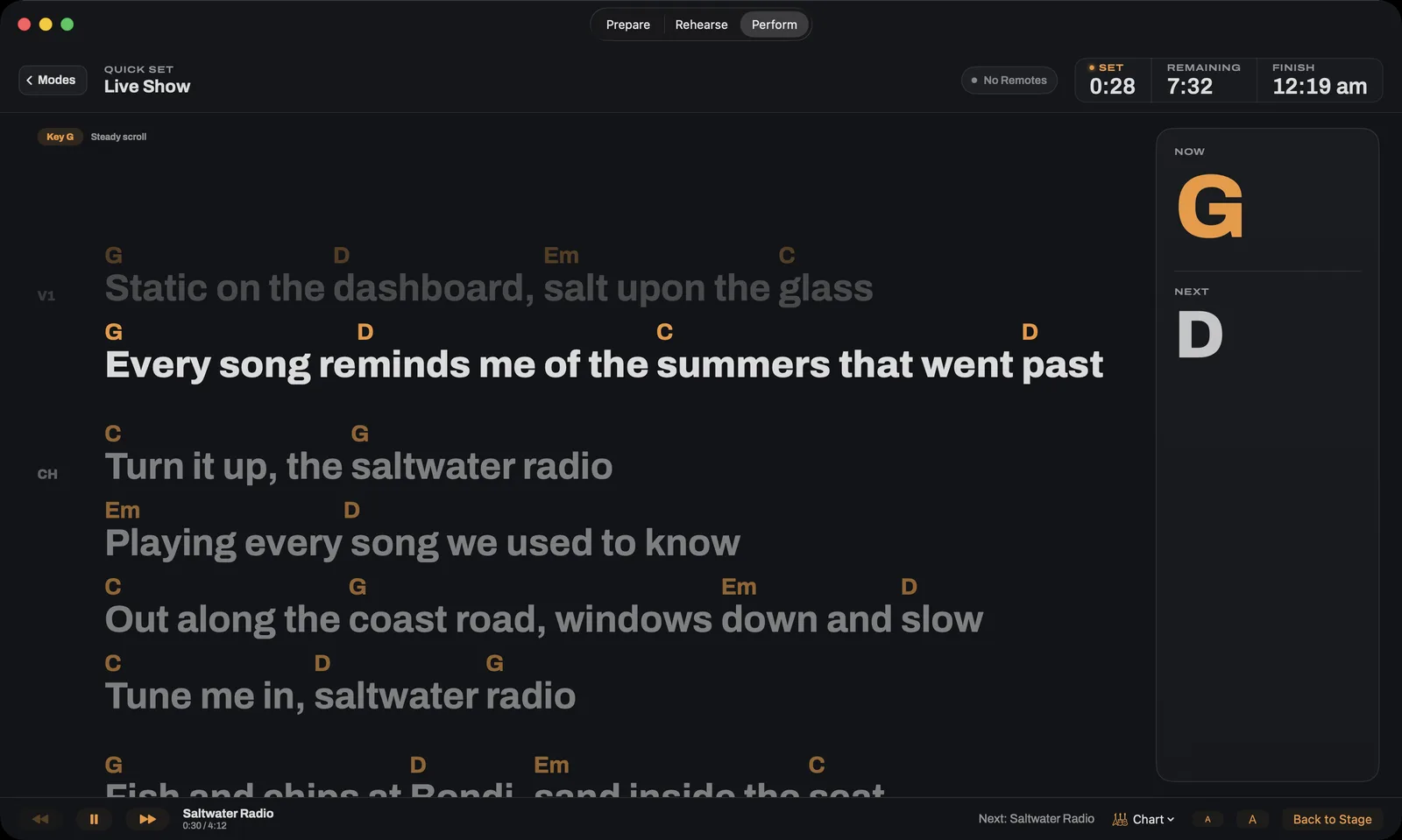
Click Chords or Lyrics for the full-size view. A rail shows the chord Now and Next. Smaller Text and Larger Text change the size; Back to Stage (L or Esc) returns. The Chart button chooses Words, Chords or PDF on this Mac, with Capo and Spelling, as on iPhone.
Second display
Why use it: The singer and band read the words from a TV or monitor at the front of the stage, while you keep the Mac's screen for running the show.
Turn on Settings › Playback › Show Lyrics on a Second Display, then connect a display or AirPlay to a TV.
- Between songs, it shows the Ostinato icon and From your Mac's name, so you know it's connected.
- During a song, it shows the lyrics nearly full width, or the chord chart when the song's chart is set to Chords, with the song's name, key, a progress bar and the next song.
The audio stays on the output you chose in Audio Outputs, not the TV.
Gig report
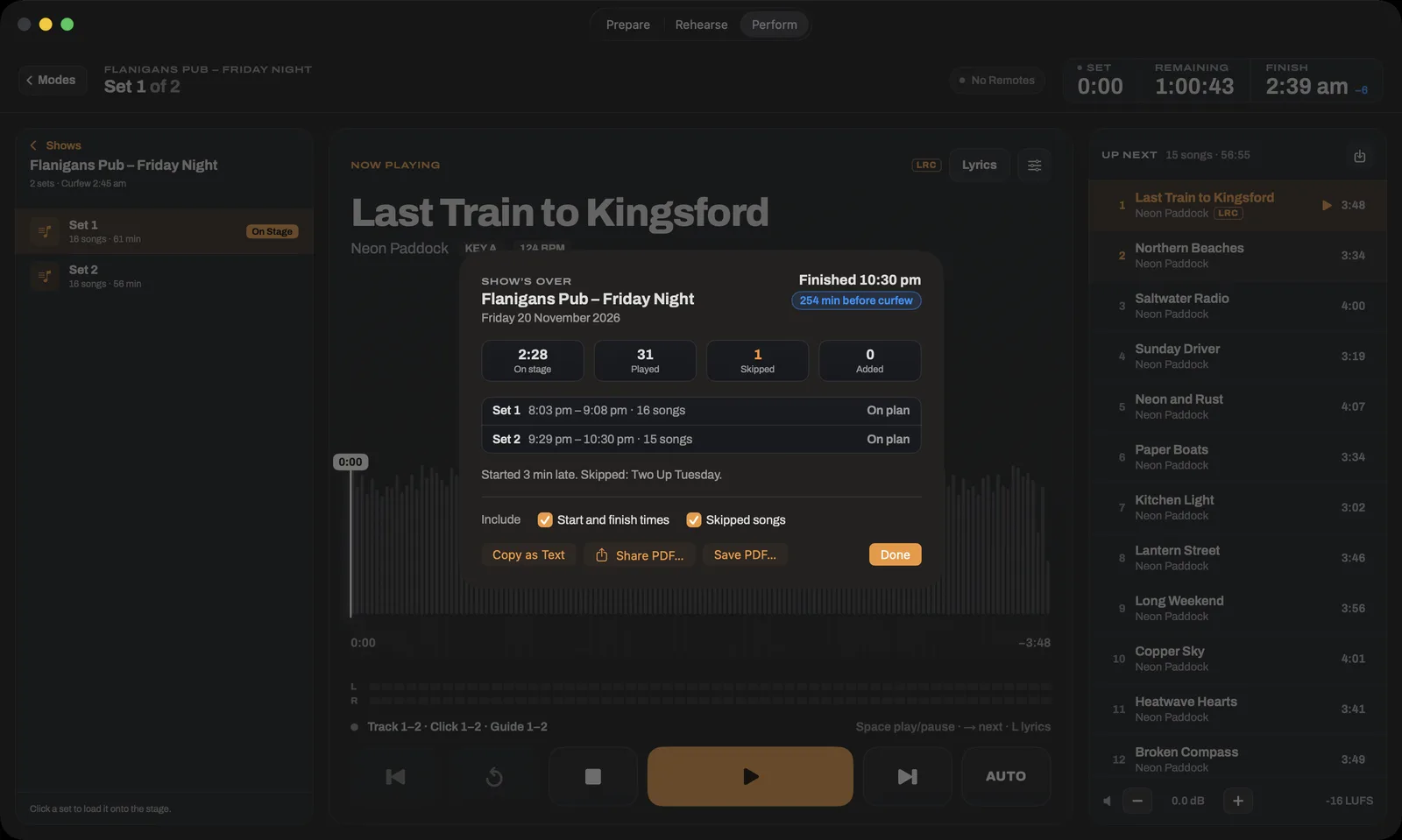
The same report as on iPhone. Under Include, choose Start and finish times and Skipped songs, then Copy as Text, Share PDF… or Save PDF…. A new report starts when you play a different show, or the same show again after six hours.
Controlling the Mac from elsewhere
- Pedals and keys: see Pedals and keyboard.
- iPhone and iPad: see Remote control.
- Apple Watch: through a remote iPhone. See Apple Watch.
With Optimise Mac Storage on, macOS can remove downloaded files to save space. Ostinato downloads upcoming songs one at a time in running order, and shows Downloading song from iCloud… if one isn't ready. Use the gig check to download a whole set before the show.