Pedals and keyboard
Keep your hands on your instrument. A Bluetooth page-turner pedal, or any keyboard, can play, skip and stop songs, and open the lyrics, on iPhone, iPad and Mac.
Why use it: You can start the next song or skip one without putting your guitar down or walking to the screen.
Setting up
- Pair the pedal with your iPhone, iPad or Mac in Bluetooth settings, like a keyboard.
- On iPhone or iPad, tap Home › Pedals & Keyboard. On the Mac, open Ostinato › Settings › Pedals & Keys.
- Choose the Layout that matches your pedal.
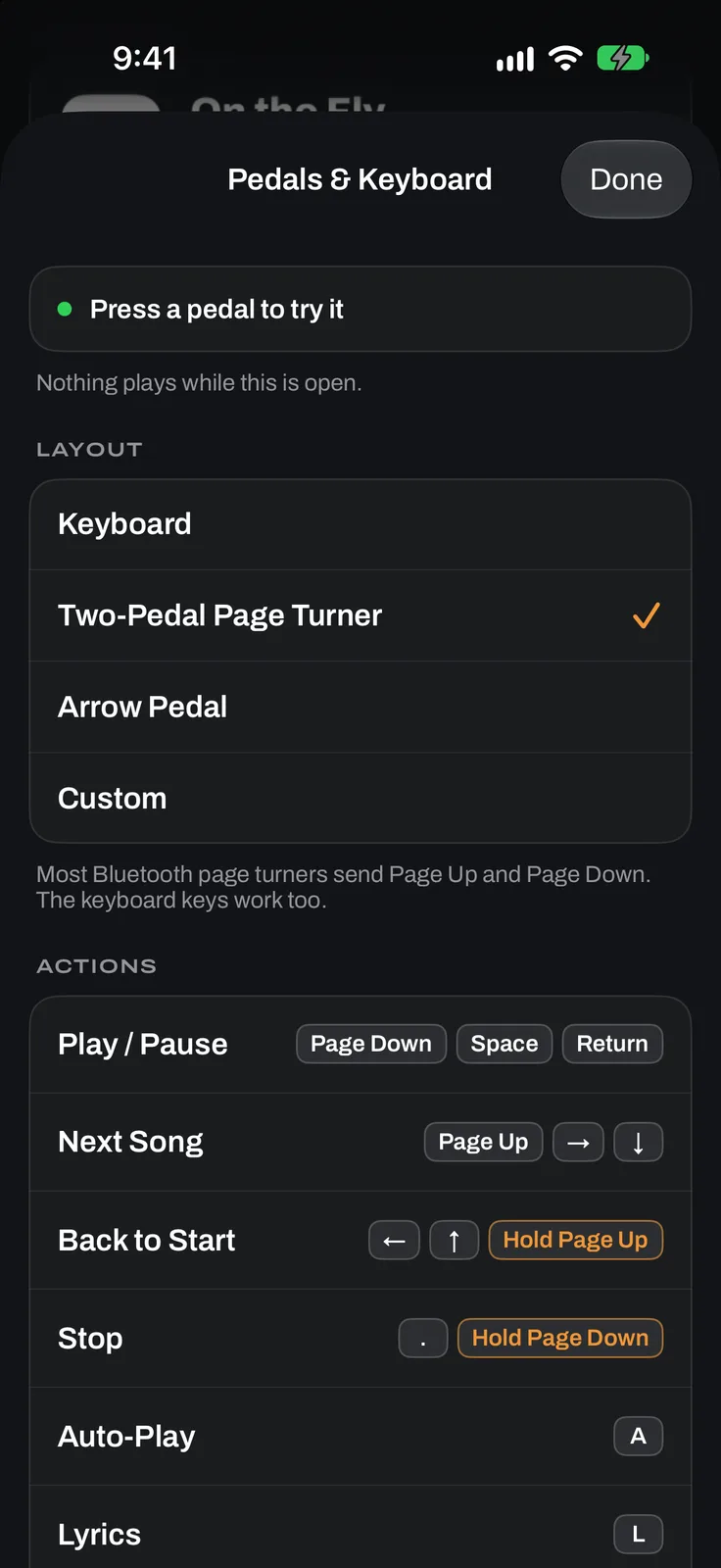
- Press each pedal. The strip at the top, Press a pedal to try it, shows the key it sends and what it does. Nothing plays while the settings are open, so you can test safely.
Layouts
| Layout | What the keys do |
|---|---|
| Keyboard | Space or Return plays and pauses. Right Arrow, Down Arrow or Page Down goes to the next song. Left Arrow, Up Arrow or Page Up goes back to the start. Full stop (.) stops. |
| Two-Pedal Page Turner | Tap the Page Down pedal to play or pause; hold it to stop. Tap the Page Up pedal for the next song; hold it to go back to the start. |
| Arrow Pedal | For pedals that send arrow keys. Tap Right to play or pause; hold it to stop. Tap Left for the next song; hold it to go back to the start. |
| Custom | Your own choice of keys. |
In every layout, A turns Auto-Play on or off, L shows the lyrics full screen, and Esc closes them.
Actions
Under Actions, each action lists its keys: Play / Pause, Next Song, Back to Start, Stop, Auto-Play, Lyrics and Close Lyrics. Under Presses are Hold for a Second Action and the safety options, described below.
Changing a key
- Tap an action (on the Mac, click Change…).
- Press the pedal or key you want to use.
- Under When It's, choose Pressed or Held.
- If that key already does something else, the sheet says so, and using it here takes it off the other action.
- Tap Save. On the Mac, the button names the key, such as Use Page Down.
An action can have more than one key. Remove one with its ✕ in the sheet. Command shortcuts and Tab can't be used on the Mac. Restore Defaults puts the layout back as it came.
Hold for a second action
Why use it: Two pedals can do four things: tap for Play and Next, hold for Stop and Back to Start.
With Hold for a Second Action on, a pedal can do one thing when pressed and another when held. Hold For sets how long a hold takes, from 0.4 to 2 seconds (0.8 to start with). Held keys are shown in orange. On stage, a ring fills while you hold, with Keep holding for Stop, and you can let go early to get the pressed action instead.
Safety options
| Option | What it does | Why use it |
|---|---|---|
| Press Next Song Twice While Playing | While a song plays, the first press only shows Press again to skip to and the next song's title. Press again within 2 seconds to skip. | A stray stomp won't cut a song short. |
| Ignore Repeats Within | Ignores a second press that comes too quickly, from 0 to 1 second (0.3 to start with). On the Mac it's called Ignore a Repeat Press Within. | Stops a bouncy pedal skipping two songs at once. |
On stage, the button you trigger flashes, so you can see the pedal worked. These settings stay on the device they're set on, so your iPad and Mac can use different pedals.
The pedal can also tap lyric lines in the sync editor.