Remote control
Any iPhone, iPad or Mac running Ostinato can play the show while your other devices run it from across the stage. One device, the host, plays the audio. The others are remotes: they look and work like the stage, and every tap reaches the host straight away.
Why use it: Keep the device that plays the audio by the desk, wired into the interface, while you run the show from an iPhone on your mic stand or an iPad on your music stand. Several remotes can run one host at once, and they all stay in step.
Hosting a show
On iPhone or iPad
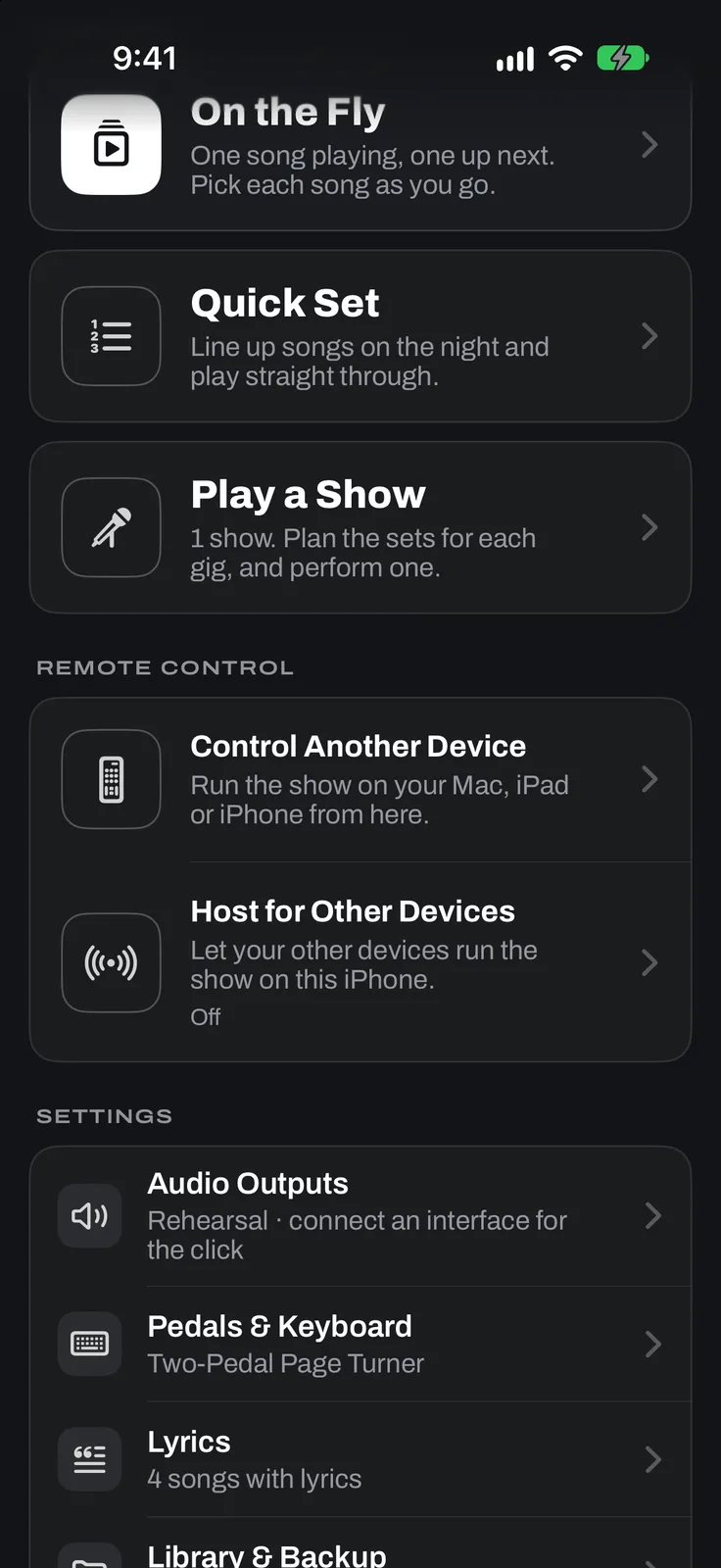
On the Home screen, under Remote Control, tap Host for Other Devices.
| Setting | What it does |
|---|---|
| Let Other Devices Control This iPad | Turns hosting on. Paired devices reconnect by themselves while it's on. |
| Name | The name your other devices see, such as "Keys iPad". Starts as the device's own name. |
| Pairing Code | A 6-digit code to type on the other device. It changes every few minutes, and a countdown under it, such as New code in 2:41, says when. Only needed the first time a device connects. |
| Paired Devices | Every device that has paired, whether it's Connected, and when it last connected. Forget stops it controlling this one; it can pair again later. |
Keep Ostinato open on the host. Other devices can't reach it while it's in the background, unless it's playing. While remotes are connected, the host's stage says so under the timers, as a reminder during breaks.
On the Mac
Open Ostinato › Settings › Remote and turn on Allow Remote Control. The tab shows the same Pairing Code and Paired Devices, and a Status such as Ready as "Studio Mac". See Mac settings.
Controlling another device
- On the host, turn hosting on, as above.
- On the remote, tap Home › Control Another Device.
- Under Nearby Devices, tap the host. Devices show there when they have Ostinato open and hosting turned on.
- The first time, enter the 6-digit code shown on the host and tap Pair.
After that, the device is listed under Devices You've Controlled and connects without a code. They connect over Wi-Fi, or directly over peer-to-peer Wi-Fi when there's no network at the venue.
A device can't host and control at the same time. If this one is hosting, Ostinato asks before turning hosting off, and says which devices will be disconnected.
The remote screen
The top says Remote Control with the host's name, so you always know which stage you're running. Below are the same timers, Now Playing card, waveform, setlist and transport keys as the stage screen, showing the host's state as it changes.
| Control | What it does |
|---|---|
| Close | Stops controlling and goes back to Home. The host keeps playing. |
| Add Songs | Opens the host's library, with the same lists, including its folders and Music playlists. Tap a song to add it; with On the Fly it goes straight up next. |
| Sets… | The host's shows and sets. Perform a set, or plan: add, rename, reorder and delete shows, sets, songs, breaks and notes. Changes are saved on the host. |
| Lyrics | The lyrics or chord chart full screen, with its own text size. PDF charts are sent by the host when you open them. |
| More › Go On Stage | Puts the host on stage with what's there. |
| More › Switch the Mac to Prepare / Perform | For a Mac host, switches its window between Prepare and Perform. |
| More › Choose Another Device… | Switch to a different host. |
When the host isn't on stage, the remote says Not on Stage, with Choose a Set and Go On Stage. When a set finishes, it offers Start and the next set's name.
Warnings
- Reconnecting… means the link dropped. Commands aren't saved up, so nothing fires late.
- The remote tells you if a Mac host is running on battery, or if its audio output changed and playback paused.
- With Tap Twice to Confirm on, the remote's keys need a second tap too.
More ways to control the host
- Apple Watch: a Watch paired with the remote iPhone controls the host too. See Apple Watch.
- Siri and Control Center: while an iPhone is a remote, the transport Shortcuts actions control the host.
If the remote can't connect
| Message | What to do |
|---|---|
| The host isn't listed | Open Ostinato on it and turn hosting on. Keep both devices nearby. |
| That code didn't match | Check the code on the host and try again. It changes every few minutes. |
| … isn't showing a code | Hosting is off on that device. Turn it on. |
| … didn't answer | Check both are nearby with Ostinato open, then try again. |
| … doesn't recognise this device any more | The pairing was forgotten on the host. Pair again. |
| Update Ostinato on … | Both devices need the same version of the app. |