Key, tempo and sound
Each song can have its own key, tempo, volume, fades and end point. They're saved with the song, so your other devices and the Mac play it the same way. Your original audio file is never changed.
Opening the Sound sheet
Touch and hold a song in the library or a set and choose Sound…, or tap the Sound button (the sliders) on the Now Playing card. If the song is playing in the performance, you hear changes straight away. Otherwise, use Preview to listen. Pause the performance first to preview a different song.
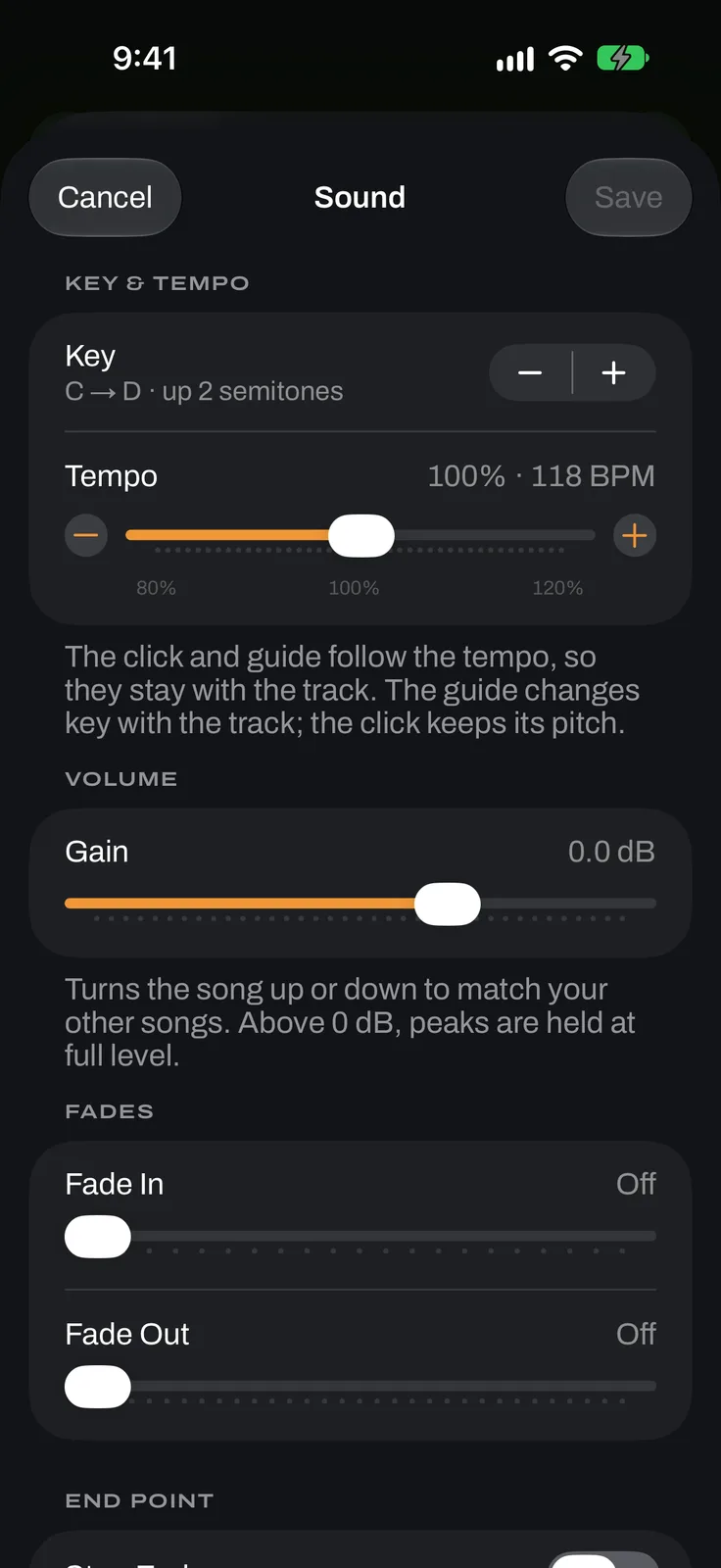
Key & Tempo
Why use it: Your singer has a cold, the track was recorded in a key that doesn't suit your voice, or the song drags at its original speed. Fix it once, and it's fixed on every device.
| Control | What it does |
|---|---|
| Key | Moves the song up or down by up to six semitones, without changing its speed. It shows the written key and the new one, such as C → D, when the song's key is known. |
| Tempo | Plays the song from 80% to 120% of its speed, without changing its pitch. Use Slower and Faster to change it. |
Changing the key by more than three semitones, or the tempo by more than 10%, can sound processed, so the sheet warns you. Preview it before the show.
Everything else follows along:
- Lyrics, chord charts and fades stay in time at any tempo.
- Set lengths, Remaining and the curfew finish use the real playing length.
- A song's click and guide follow the tempo. The guide changes key with the track; the click keeps its pitch.
- ChordPro charts transpose to the new key.
Gain
Why use it: Backing tracks from different places are rarely the same loudness. Evening them out saves you riding the volume between every song.
Volume turns the song up or down, from −12 dB to +6 dB. Above 0 dB, peaks are held at full level, so a loud song won't distort. On the Mac, Ostinato can measure each song's loudness and set the gain for you. See Matching loudness.
Fades and end point
Why use it: Trim a long outro or a track that runs on after the band stops, and soften a hard start, without editing the file.
| Control | What it does |
|---|---|
| Fade In | Brings the song in from silence, over up to 10 seconds. Off starts it at full level. |
| Fade Out | Fades the song out at the end, over up to 15 seconds. |
| Stop Early | Turn on to set an End Point before the end of the file. |
| End Point | Drag to where the song should stop. The fade-out finishes at the end point. |
| Set End Point to Playhead | Play or preview to the right moment, then tap this. Easier than dragging. |
| Preview / Pause | Plays the song with your changes, and pauses it. |
| Play Ending | Plays the last few seconds, to hear the fade-out and end point. |
The song's length, the Remaining time and set lengths all use the shorter length.
Saving
| Button | What it does |
|---|---|
| Save | Keeps the changes, on all your devices. |
| Cancel | Forgets them. If the song is playing, it goes back to how it was. |
| Reset to Original Sound | Puts every setting back to the original. |
Sound settings aren't offered for lyrics-only songs, which have no audio. The sync editor always plays the whole song at its original key and tempo, so your timings match the file.